LOGADEC

Everyday viewing, comparing and measuring for engineers — in one file

CAPABILITIES

The main features of LOGADEC, shown on real screens. Every feature on this page is available in the free version (a paid license is needed only to save .lgd files and to load more than 1,000 channels; the trial and paid versions are in preparation).

Screenshots use fictitious endurance-test data (10 Hz, 600 s) and the demo data built into LOGADEC.

01

Switch between overlay and stacked views in one click

Switch between overlay and stacked views in one click

Compare on one chart or read channel by channel — same data, same time range.

Overlay view draws every channel on one chart, each with its own Y axis. Stacked view gives each channel its own row on a shared time axis. Switching keeps the data and the visible range, so you can move back and forth between seeing relationships and reading individual shapes.

  • Zoom and pan apply to all channels together
  • Reorder stacked rows by dragging and change the row height
  • Overlay channels with the same name (e.g. run 1 and run 2) in one row
02

Compare two tests side by side

Compare two tests side by side

Run 1 and run 2, before and after a change — open different files in two panes.

Split the screen into two panes and load a different file into each. Each pane has its own channel selection, and the display mode (overlay, stacked or FFT) switches for both panes together, so you can line up test data of the same format in the same view and spot the differences.

  • Channels and axis settings per pane; the display mode is shared
  • Presets per pane, with copying from one pane to the other
03

See how two quantities relate in an XY scatter plot

See how two quantities relate in an XY scatter plot

Speed vs. vibration, temperature vs. pressure — scatter next to the time series, with curve fitting.

The Analysis layout shows the time series and an XY scatter plot side by side. Select a span on the time series and the matching points light up in the scatter, so you can check under which operating conditions an anomaly occurred. Fit a curve to the scatter and show its equation and R².

  • Fits: linear, polynomial, exponential, logarithmic, power, moving average, LOESS, Gaussian, Lorentzian and custom formulas
  • On the time series: Shift-drag to pick matching points, Ctrl-drag to add an extraction range
  • One fit across several datasets (cross-dataset fit)
04

Apply filters per channel

Apply filters per channel

See the change beneath the noise — your original data is never modified.

Set a low-pass, high-pass or band-pass filter on each channel: Butterworth, Chebyshev or Bessel, order 1 to 6, normal or zero-phase. The files you load are never rewritten. The image shows the same vibration and current signals with a 0.1 Hz low-pass filter, overlaid on the originals.

  • Gaps and time jumps are handled by filtering each segment separately (missing points stay empty)
  • The Nyquist frequency is shown from the sampling interval as a guide for the cutoff
  • Overlay filtered and unfiltered signals in one row
05

Convert units by picking from a list

Convert units by picking from a list

°C to °F, kPa to MPa, rpm to Hz — no need to look up and type conversion factors.

LOGADEC guesses the quantity from each channel's unit and lets you pick the target unit from a list. Common test quantities are covered, including pressure, stress, torque, force, mass, length, velocity, acceleration, rotational speed, frequency and temperature. The scale and offset are shown, and you can also enter them by hand.

  • Pin frequently used conversions with ★ so they appear first
  • Rename how a channel is displayed at the same time
  • The files you load are never rewritten
06

Legend labels show channel names and values on the chart

Legend labels show channel names and values on the chart

Label every visible channel at once.

Attach callouts showing the channel name and value directly to the lines on the chart — for all visible channels at once, or one at a time where you click. Even when many lines overlap, you can read the chart without matching colors against a legend.

  • Anchor at the maximum, minimum, end, a clicked point, or anywhere
  • Value display, font size and box and line styles, globally or per label
  • The legend box shows each line's color, style and markers with its name; drag to move or resize it, or place it outside the plot (right or below)
  • Available in overlay view
07

Axis ranges and ticks, fitted automatically

Axis ranges and ticks, fitted automatically

Twelve temperatures, four pressures — numbered channels share one axis.

Y ranges are fitted to the data on round numbers. Channels whose names differ only by a number (Temp_01 to Temp_12, for example) are grouped onto one axis, so adding channels does not crowd the chart with axes. The image shows 16 channels after auto-fit, on two axes.

  • A: range anchored at zero (comparing magnitudes) / B: data min to max (reading shapes) / C: like B, using only the data in the time range shown
  • Set the number of ticks, decimal places and minor ticks
  • Optionally give priority to ranges set by presets
08

Presets bring back your usual view quickly

Presets bring back your usual view quickly

Register axis ranges, channel sets and display names. Ranges and display names apply when a file is loaded; channel sets are recalled from a list.

Register Y ranges and colors per channel, sets of channels to show, and alternative display names under a name of your choice. Presets match by channel name, so they also work with other files that have the same channel names. No more adjusting axes and picking channels every time — organizing and comparing similar data becomes easy.

  • Range presets and display names apply automatically when a file is loaded
  • Series presets recall sets such as 'temperatures only' or 'current and voltage'
  • Export to CSV or Excel to share the same views with your team
09

Calculate across channels with formulas

Calculate across channels with formulas

Write channel names straight into the formula, e.g. `Current` * `Voltage`.

Formulas use channel names as they are. For example, `Current` * `Voltage` gives power, and (`Inlet pressure` - `Outlet pressure`) / `Inlet pressure` gives the pressure-loss ratio. There are no column numbers or cell addresses to remember, and anyone can read what a formula calculates. Give the result a name such as Power and it appears on the chart as a new channel. Besides arithmetic, you can use functions such as sin, sqrt and log, derivative (diff), integral (integ), moving average (movavg), shift, mean and standard deviation. For several files with the same channel names, a result can be created for each file.

  • Because formulas use names, they document themselves — handy for reports and handovers
  • See which channels a formula uses as you type, and check the result in a preview before saving
  • Optionally assign channels to $1–$10 for shorter formulas
  • Save formulas and reuse them with the next file; your original files are never modified
10

Full diagnosis finds anomaly candidates in one click

Full diagnosis finds anomaly candidates in one click

Change points, related events, outliers, frequency anomalies and correlation breaks — all at once.

Pick the analysis target and click Full diagnosis to run change-point, related-event, outlier, frequency-anomaly and correlation-break detection together, with a summary of the results. Findings are lined up as bands and markers under the chart; click a row to zoom to it. The image shows the built-in analysis tutorial, a demo dataset with planted anomalies.

  • Outliers are judged on robust statistics (median and MAD), so the outliers themselves do not distort the yardstick
  • When you already know the abnormal span, compare all channels against it and sort related channels into leading, simultaneous and lagging
  • Each analysis can also be run on its own with its own settings
11

Detection examples

Each analysis run on fictitious data with anomalies planted at known positions.

We ran each LOGADEC analysis on fictitious test data in which the anomalies were planted at known positions, and checked what it found against the answer. The images are LOGADEC screens as they are. The numbers are measured again in the product every time this site is built, and the site is not published if a result misses the answer. Only settings changed from the defaults are noted.

  • Click an image to open it at full size
  • Results depend on the data and settings; with real data, try a few settings and compare
  • Full diagnosis (previous section) runs change-point, related-event, outlier, frequency-anomaly and correlation-break detection together
Outlier detection
Outlier detectionFinds momentary spikes by how far they stray from the local median.All 3 planted spikes (23.4, 61.8, 97.2 s) found at 23.4, 61.8 and 97.2 s, with no other detections.
Change-point detection
Change-point detectionFinds the moments where the level of a signal shifts.Flow steps at 38.0 s and 81.0 s found at 38.0 s and 81.0 s.
Frequency anomaly
Frequency anomalyFinds spans where a frequency component grows stronger.A 37 Hz component added at 64–78 s is flagged as 60.0–82.0 s.
Correlation break
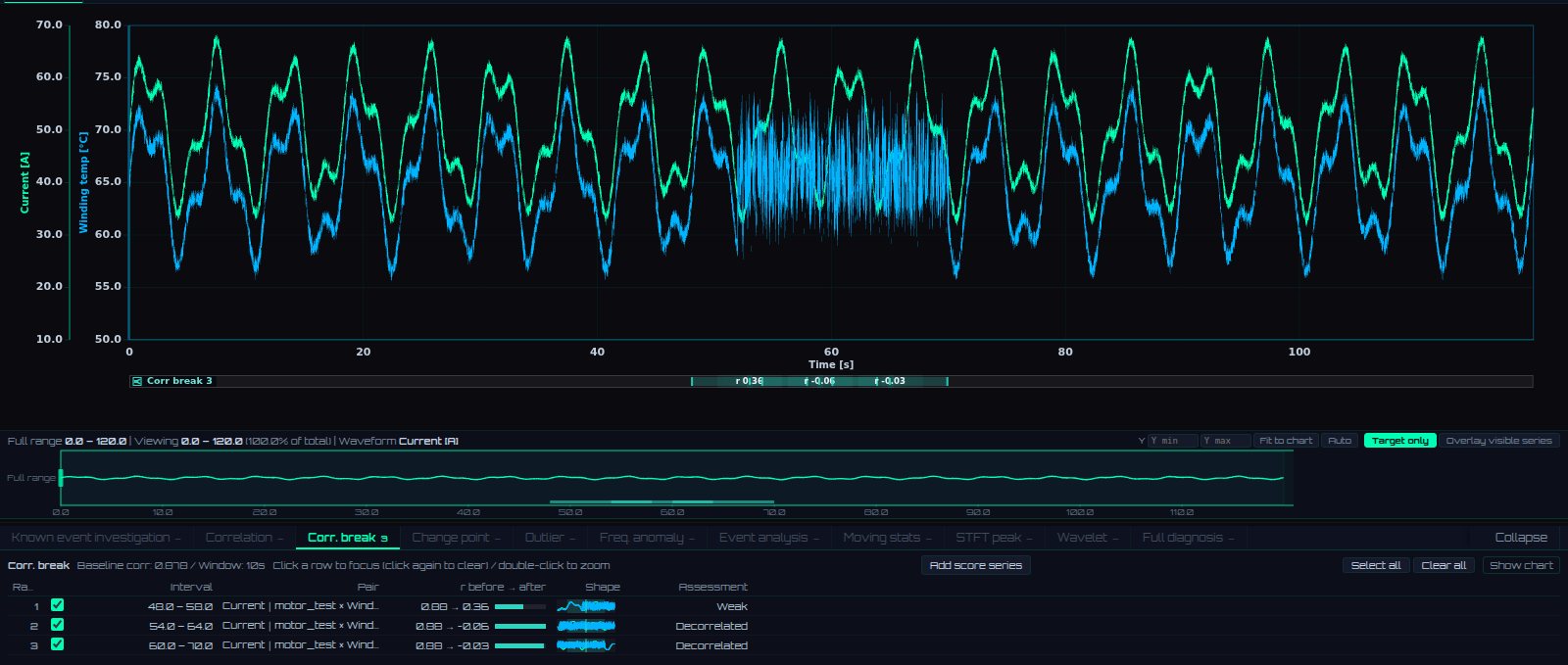
Correlation breakFinds spans where two normally linked channels stop moving together.The 52–70 s span where winding temperature stops following current is flagged as 48.0–70.0 s (usual correlation 0.88).
Event analysis
Event analysisFinds peaks or sudden changes, then lists the channels that respond around them and by how much time.All 4 deceleration peaks found. Brake command leads by −0.82 s and disc temperature lags by +2.03 s; the planted values are −0.8 s and +2.0 s (type: high-value events, threshold 6).
Known event investigation
Known event investigationWhen you know the abnormal span, sorts the other channels into leading, simultaneous and lagging.With 70–76 s (the oil-pressure drop) as the span, pump current leads by −1.46 s, valve opening is simultaneous and oil temperature lags by +3.00 s; the planted values are −1.5 s, 0 s and +3.0 s.
Correlation
CorrelationRanks channels by how strongly they are related and estimates the time lag.Outlet temperature follows inlet temperature 2.00 s later (correlation 0.999); the planted lag is 2.0 s (lag search ±5 s).
Moving statistics
Moving statisticsAdds moving average, moving RMS and more as channels to reveal gradual change.The moving RMS (5 s window) of bearing vibration rises from 0.77 to 1.78 m/s².
STFT peak
STFT peakTracks the strongest frequency in each time window and turns its trend into a channel.As speed rises from 600 to 1800 rpm, the first-order component is tracked from 10.0 Hz to 30.0 Hz.
Wavelet analysis
Wavelet analysisShows how frequency content changes over time as a color map (scalogram).A pressure pulsation that speeds up is found at 0.18 Hz at 20 s and 0.44 Hz at 110 s (planted values 0.17 and 0.47 Hz).
12

Look at frequencies with FFT and PSD

Look at frequencies with FFT and PSD

Just switch the display mode to FFT; peak frequencies are labeled.

In FFT mode the spectra of the selected channels are stacked one above the other, computed from all data or only the visible range. Choose amplitude, PSD (Welch) or dB, a logarithmic frequency axis, the window function, DC removal and peak labels.

  • Frequency axis in Hz equivalent or 1/X (the inverse of the X unit)
  • Change the visible range to see the spectrum of just that span
  • PSD is power per unit frequency, so the noise level does not change with the FFT length; compare with the same span and window
13

Track frequency over time with wavelets and STFT

Track frequency over time with wavelets and STFT

When did which frequency grow? Extract peak trends as channels.

Wavelet analysis shows how frequency content changes over time as a color map (scalogram), and can add the trend of the strongest peak as a channel. STFT (short-time Fourier transform) extracts anomaly candidates from changes in peak frequency, peak intensity and band power per time window.

  • Moving statistics: add moving average, RMS, standard deviation and more as channels
  • Correlation and correlation breaks: sliding-window correlation finds spans where a relationship breaks down
  • Change-point detection scans both level shifts and slope changes
14

Measure differences and slopes between two points

Measure differences and slopes between two points

ΔX, ΔY, slope and 1/ΔX on the spot — report figures straight from the chart.

Start measuring and click two points on the chart to see both values, their differences (ΔX, ΔY), the slope and 1/ΔX. When X is time, pick two points one cycle apart to read the period and frequency (Hz). Points can snap to data points, peaks, valleys or zero crossings. Copy the result into your report.

  • Select a range for statistics such as maximum, minimum and mean
  • Measurements are kept in a history
  • Measure between points on different channels
+

More features

MORE

Import

CSV, Excel (.xlsx/.xls/.xlsm) and NI TDMS, with automatic detection of delimiters, encoding, header and unit rows. Load only the columns you need, and open large CSV files without splitting.

Export

Export charts as images (PNG, JPEG, WebP, SVG) and data as CSV (free version too).

Share

Once the trial and paid licenses are available, save your analysis to an .lgd file and recipients can open the same view in the free version.

Your files stay untouched

The files you load are never rewritten. Results of formulas, unit conversions and filters are used for display and analysis within LOGADEC.