Chapter 2The First Five Minutes
This chapter walks you through the steps from downloading LOGADEC to displaying a graph of the sample data.
2.1Download and extract
- On https://logadec.com, click [Download free edition]. On the download page, read the End User License Agreement, agree to it, and then save the zip file (named like
LOGADEC-1.0.33.zip; the numbers indicate the version). - Right-click the saved zip file and choose [Extract All] (on Windows).
- You are ready when the extracted folder contains the following files.
| File | Contents |
|---|---|
logadec_1_0_33.html (the numbers indicate the version) |
The LOGADEC application. Open this file |
EULA.md |
The End User License Agreement |
README.txt |
A short description of how to start |
THIRD-PARTY-NOTICES.md, licenses/ |
Notices and full license texts for the third-party software included in LOGADEC |
2.2Open LOGADEC
Double-click logadec_1_0_33.html (the numbers indicate the version) in the extracted folder. Your browser opens and shows the LOGADEC screen.
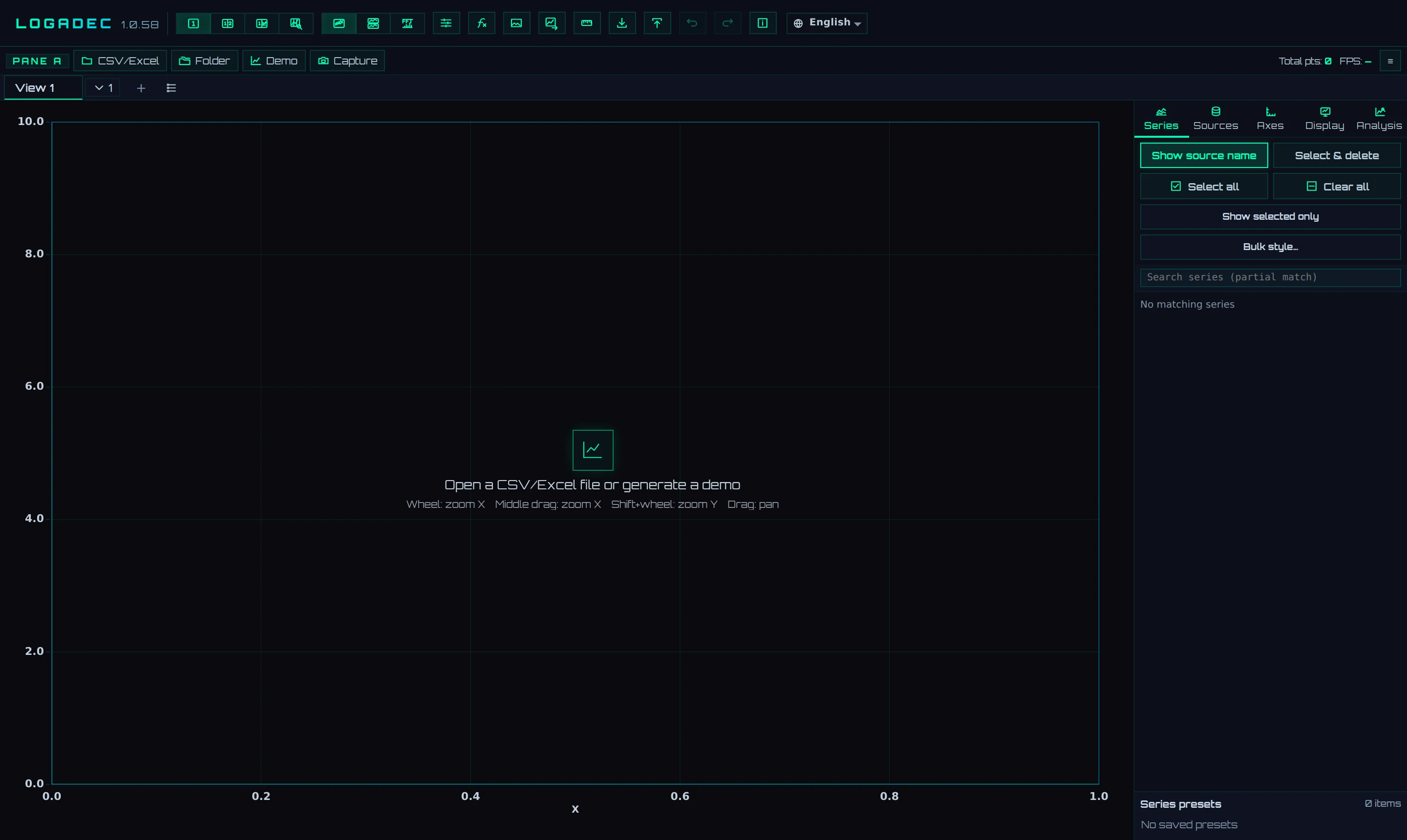
- 1CSV/Excel: Selects a file to load
- 2Demo: Creates demo data for practice (click Generate to create it)
2.3Load a file
- Click CSV/Excel at the top left of the screen and select the file to load. You can also drag and drop the file onto the graph. For practice, use the sample data
sample_endurance_run_en.csv. - The import screen opens. LOGADEC examines the contents of the file and automatically detects the header row, the unit row, where the data starts, and which column to use as the X axis.
- If the detected result matches the preview and looks correct, click Import.
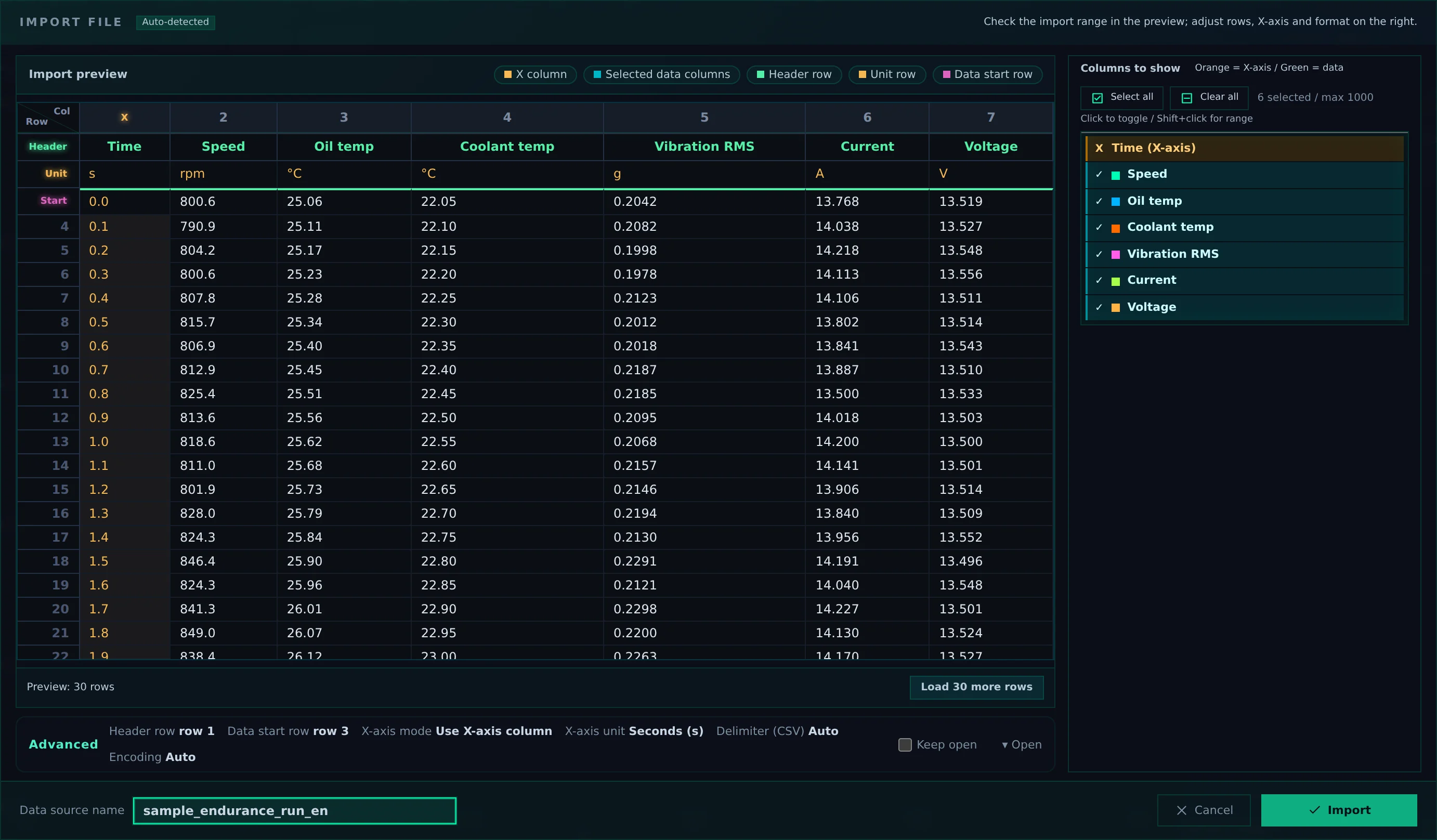
- 1Import preview: The beginning of the file. Colors indicate the X-axis column, the data columns, the header row, the unit row, and where the data starts
- 2Columns to show: Selects the columns to load. Click to toggle selection; Shift + click selects a range
- 3Advanced: The results of automatic detection. If anything is wrong, open this and correct it
- 4Data source name: The name given to the loaded data. It appears after each series name
- 5Import: Loads the data with these settings
2.4Display series
Right after loading, nothing is shown on the graph. The loaded series are listed in the sidebar on the right side of the screen. Check the series you want to display.
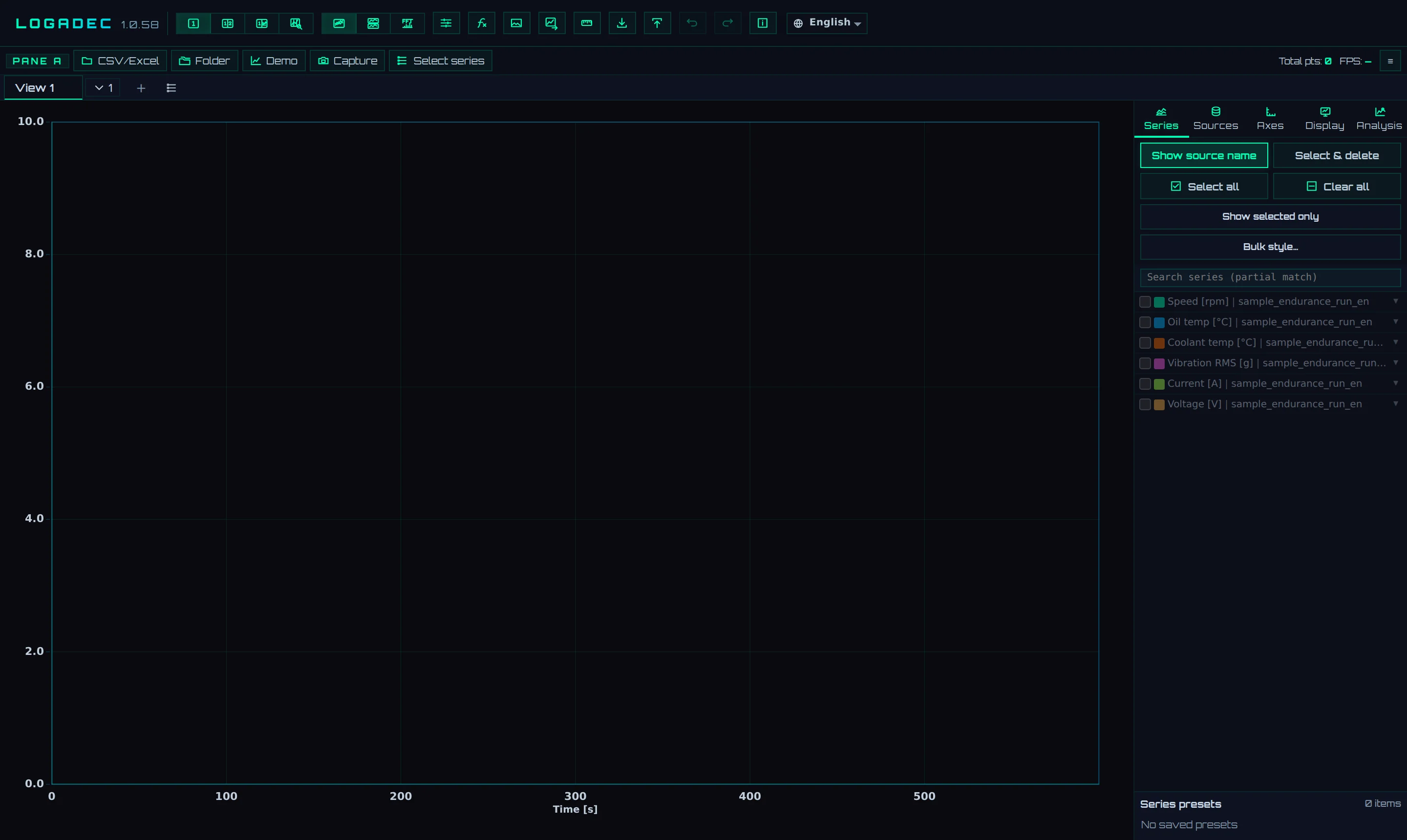
- 1The list of loaded series. Checked series are shown on the graph
- 2Select all: Displays all series in the list
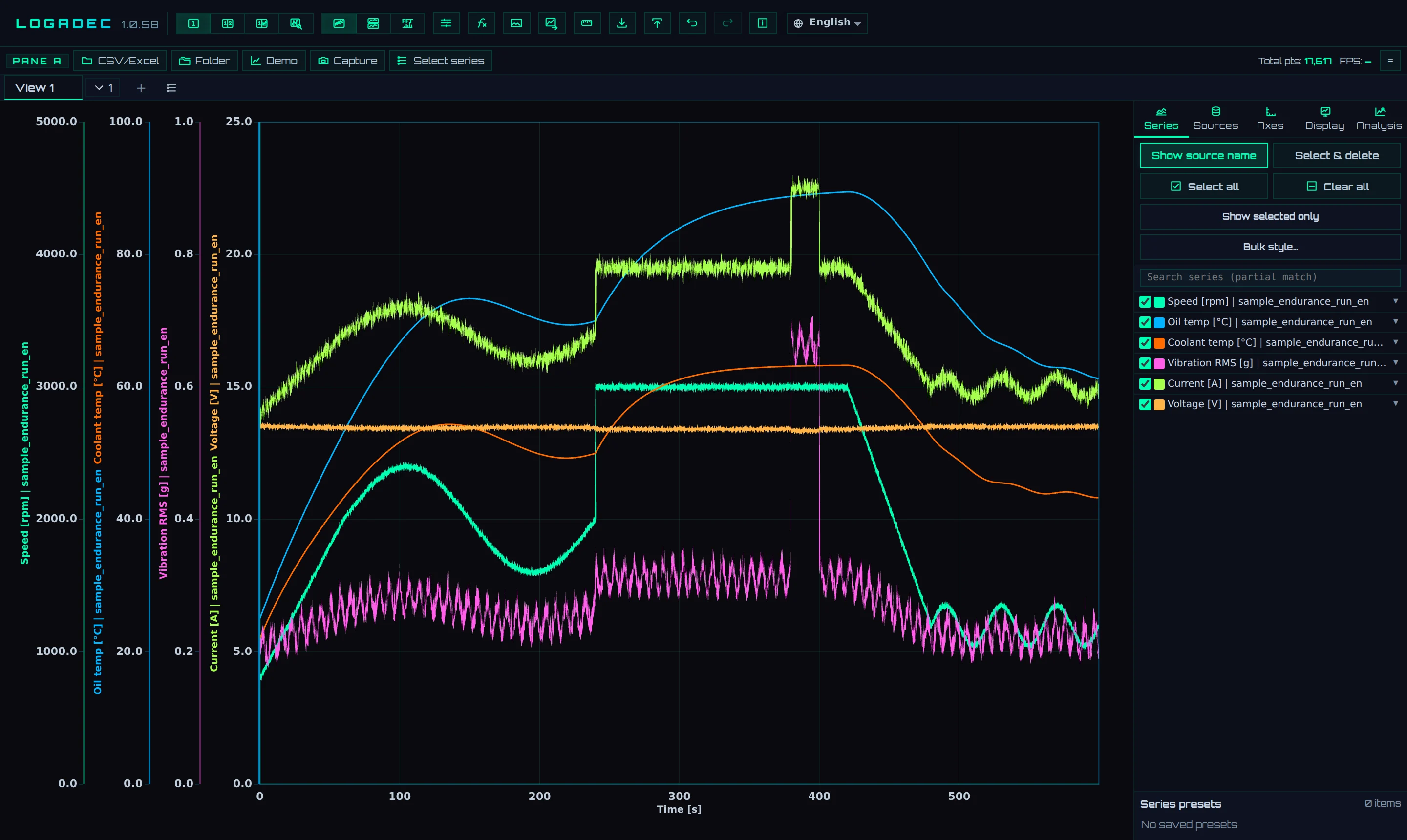
When you click Select all, all series are overlaid on one graph. A vertical axis is provided for each Y range (series with the same range share one axis), and colors show which axis belongs to which series.
2.5Make the graph easier to read
Split items into separate tiers
With many series, an overlaid display becomes hard to read. Click Stacked at the top of the screen to give each series its own tier, aligned on the same time axis.
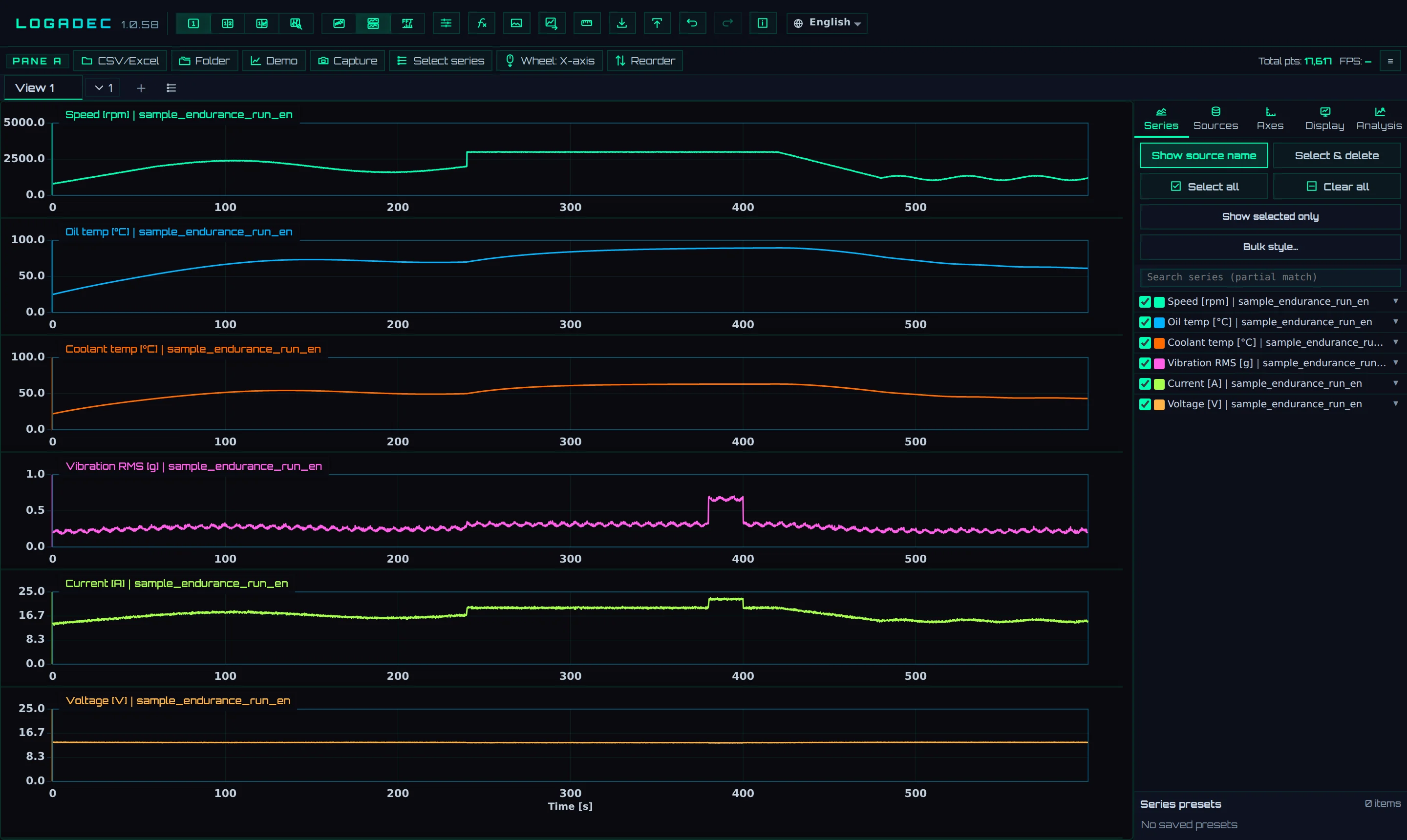
- 1Overlay: Overlays the series on one graph
- 2Stacked: Shows each series in its own tier
Zoom and pan
You can zoom and move the graph with the mouse alone.
| Action | Effect |
|---|---|
| Wheel | Zooms X in or out around the mouse position |
| Drag | Moves in the X direction |
| Click the number at the left or right end of the X axis | Enter the X range as numbers |
| Click a tick number on the Y axis | Enter the Y range as numbers |
Other operations, such as Y zoom, are described in Chapter 5.
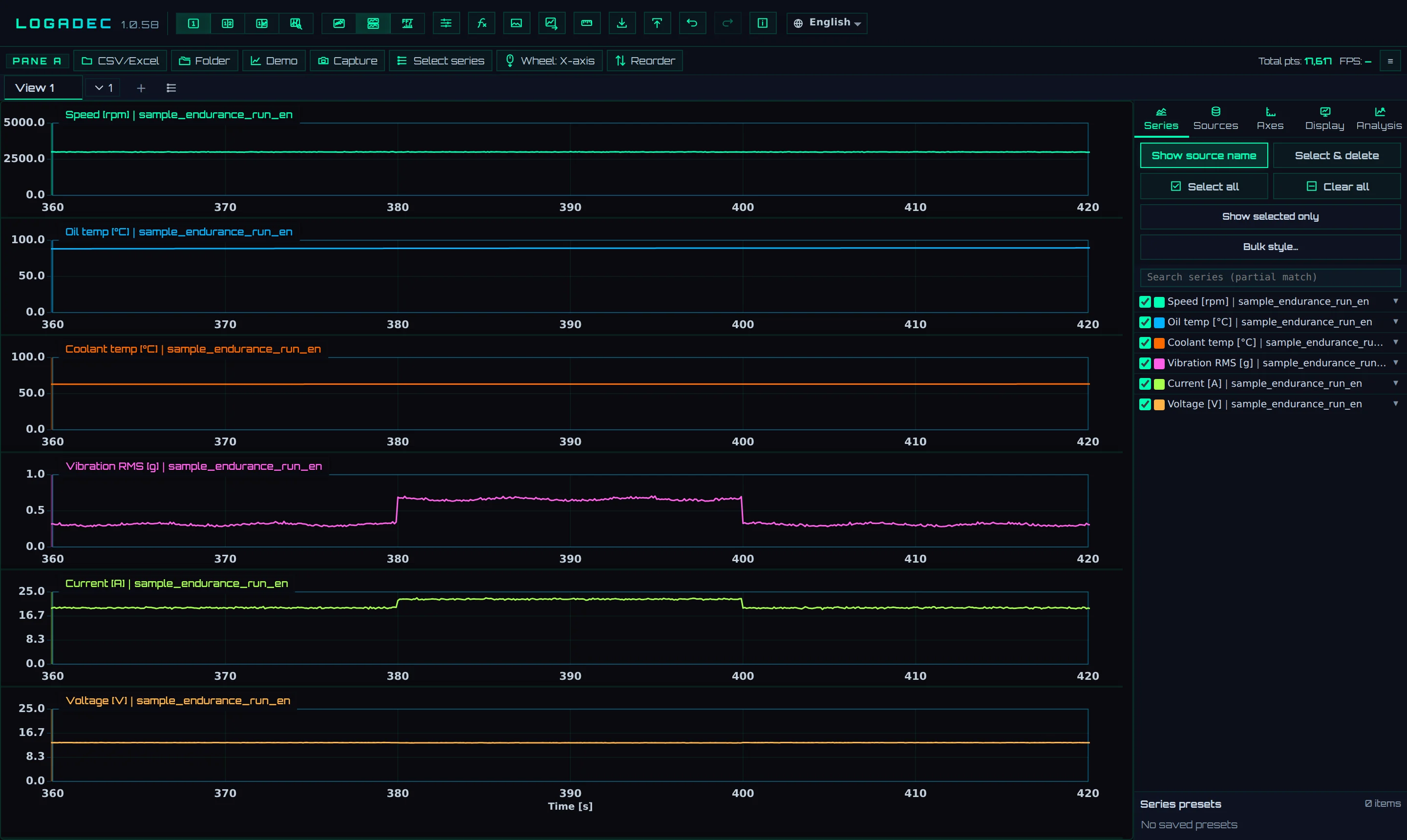
The next figure shows the sample data zoomed in to 360–420 seconds. You can see that vibration and current rise between 380 and 400 seconds.
2.6Try it with demo data
Even without your own data, you can create practice data: click Demo, choose Type and Series in the pane bar that appears, and click Generate (the created series are not displayed at first). You can work with demo data just like loaded data.