Chapter 4Loading Data
In Chapter 2, you loaded the sample data with the automatically detected settings. This chapter describes the settings on the import screen in detail. It also explains how to load data whose X axis is a date-time or time of day, how to add a second file, how to import all files in a folder at once, and how to use the Sources tab to manage loaded files.
4.1Files you can load
| Format | Extension | Notes |
|---|---|---|
| CSV (text) | .csv |
Detects the delimiter (comma, tab, semicolon) and character encoding (UTF-8, Shift_JIS) automatically. Files separated by semicolons with a comma as the decimal separator (such as 1,50;20,25) are also read as-is |
| Excel | .xlsx, .xls, .xlsm |
Reads one sheet per import. For .xls and .xlsm, a confirmation screen appears before loading |
| NI TDMS | .tdms |
Loads numeric channels as columns named "group/channel" |
| LOGADEC data | .lgd |
Restores the saved state as-is without opening the import screen (Chapter 11) |
To select a file, click CSV/Excel in the pane bar, or drag and drop the file onto a pane. CSV/Excel selects one file. To load many files at once, use Folder in the pane bar (see "Import all files in a folder" below).
4.2The import screen
When you select a file, the import screen opens. LOGADEC examines the contents of the file, estimates the header row, the unit row, where the data starts, and which column to use as the X axis, and shows them in color in the preview.
The preview shows the first 30 rows of the file. Click [Load 30 more rows] below it to see further ahead, 30 rows at a time (up to 1,000 rows). The dialog keeps the same size even for a file with only a few rows.
Select the columns to load
Use Columns to show on the right of the screen to select the columns to load.
- Click a column name to toggle it between selected and not selected.
- Hold down Shift and click to toggle all columns in between.
- Select all and Clear all toggle all columns at once.
Advanced settings
If the result of automatic detection is wrong, open Advanced and correct it. Even when it is closed, a short summary of the detected result appears next to its heading. The preview updates immediately when you make a correction, so adjust the settings while watching the colors.

- 1Row settings: Specifies which rows hold the headers, the units, and the start of the data. Rows are numbered from 1; 0 means "none"
- 2Header details: Settings for files whose headers span two or more rows
- 3X-axis settings: Specifies the column to use for the X axis and its unit
- 4Format settings: Specifies the delimiter, decimal separator, character encoding, and (for Excel) the sheet
| Setting | Description |
|---|---|
| Header row | The row that contains the column names |
| Unit row | The row that contains the units. The unit is appended to the series name, like [rpm] |
| Data start row | The row where the numeric values start |
| Header rows, Join with | When headers span several rows, the number of rows and the separator character used to join them |
| Forward-fill | Fills headers of merged cells in Excel into the columns to the right |
| X-axis mode | Choose from Use X-axis column (use a column such as time as X), Generate from sampling interval (when there is no time column, create X at a fixed interval), Cumulative sum of interval column (create X by adding up a column of intervals), and Build from hour/min/sec columns (when hours, minutes, and seconds are in separate columns; see the next section) |
| X-axis column | The number of the column to use as the X axis |
| X-axis unit | The unit of the X axis ((none / original), ms, seconds, minutes, hours). If the file's unit row (in the X column) contains a time unit, it is selected from the start (ms for ms). Without a unit row, seconds are used. Time units not in the list, such as µs and ns, become (none / original), and the file's unit is used as-is |
| Delimiter (CSV), Decimal (CSV) | The CSV delimiter and decimal separator. If both are Auto, files separated by semicolons with a comma as the decimal separator (such as 1,50;20,25) are also read correctly. If a column has no values that can be read as numbers, you are notified after loading (check the delimiter and decimal separator settings). Changing the delimiter or similar settings clears the column selection |
| Encoding | The character encoding. If Japanese names appear garbled, try switching between UTF-8 and Shift_JIS |
The data source name
Data source name at the bottom of the screen is the name given to the loaded data. Initially it contains the file name (for Excel, "file name / sheet name"). This name is appended to the item name of each series, like "Speed [rpm]|sample_endurance_run_en". When you load two or more files of the same format, it is convenient to give them distinguishable names such as run_01 and run_02.
4.3Data with a date-time or time-of-day X axis
Files whose X-axis column contains date-times (2026-10-01 08:00:00) or only times of day (08:00:00), like data-logger logs, can be loaded as-is. LOGADEC recognizes the date-time column and selects it as the X-axis column.
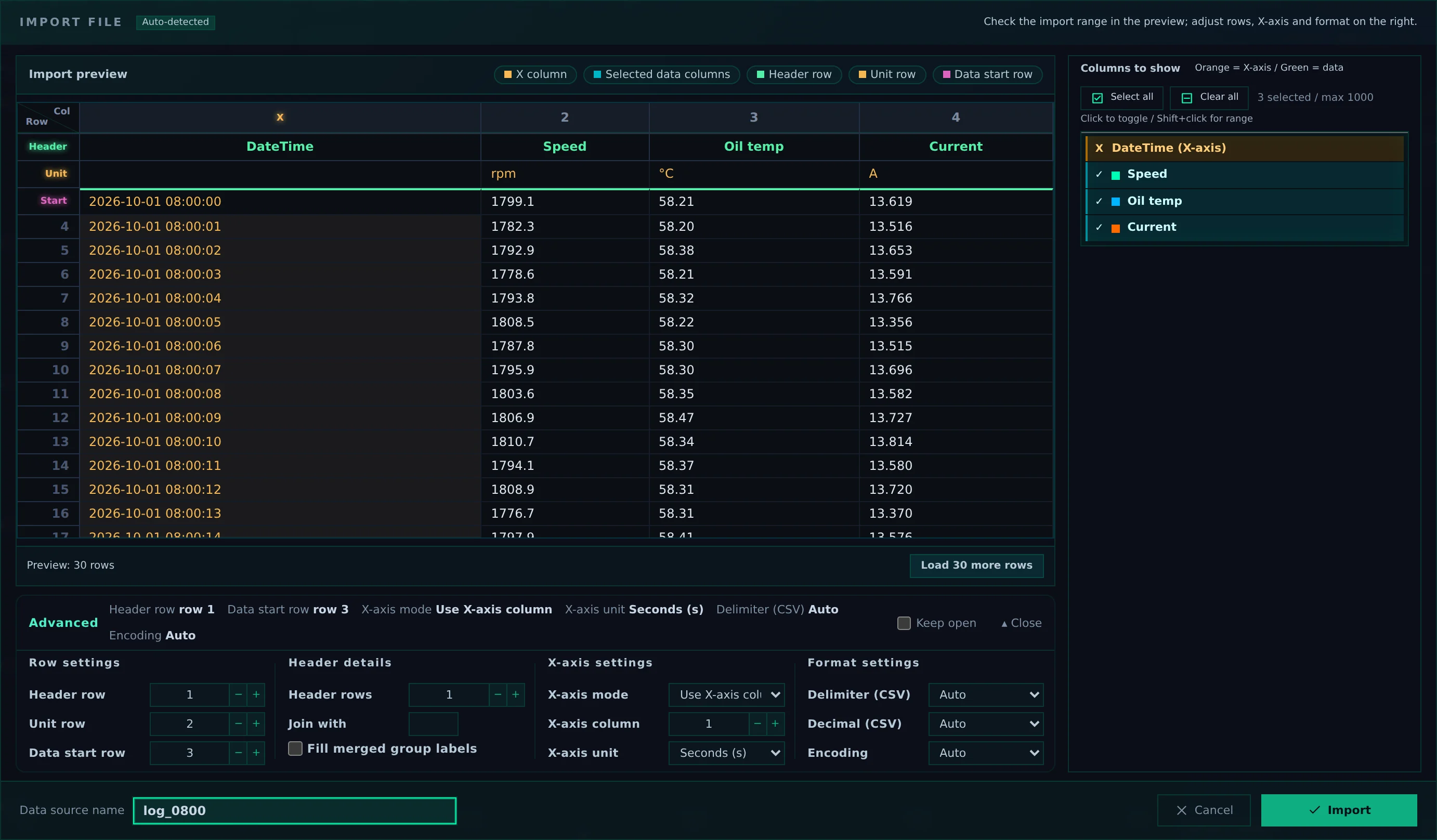
- 1X-axis column: The date-time text is detected as the X-axis column (orange)
- 2X-axis settings: X-axis mode stays at Use X-axis column. Use X-axis unit to choose the unit of X after loading
When loaded, X becomes the elapsed time from the first row. For example, a file recorded every second for one hour starting at 2026-10-01 08:00:00 becomes a graph with X from 0 to 3,599 seconds. Choose the unit of the elapsed time with X-axis unit (seconds at first).
| Format | Example | Notes |
|---|---|---|
| Date and time | 2026-10-01 08:00:00, 2026/10/01 08:00:00, 2026.10.01 08:00:00, 2026年10月01日 08:00:00 |
Date and time are separated by a space or T (2026-10-01T08:00:00). Seconds can be omitted, and fractions (08:00:00.500) can be read |
| Date-time with time zone offset | 2026-10-01T08:00:00+09:00, 2026-10-01T08:00:00Z |
The offset is subtracted, and times are counted in UTC |
| Time of day only | 23:59:58, 00:00:01 |
Where the time goes back by more than 12 hours, it is treated as crossing midnight and counting continues (00:00:00 after 23:59:59 is 1 second later) |
| Excel cells with a date/time format | A cell displayed as 2026/10/01 8:00:00 |
Recognized as a date-time from the cell format. Workbooks using the 1904 date system (such as those created in Excel for Mac) are also read with correct dates |
- If the date-time column contains a value in a different form partway through (such as a row with only a number), that row is not loaded.
- The first date-time is used as the reference for ordering files when you import files from a folder "joined in time" (described later).
When hours, minutes, and seconds are in separate columns
For files with "hour", "minute", and "second" in separate columns, choose Build from hour/min/sec columns in X-axis mode. LOGADEC finds the columns whose headers are "時・分・秒" (or hour, min, sec, and so on) and assembles the time. If there is a "日付" (or date) column, the date is used too. Even without a date column, where the time goes back by more than 12 hours, it is counted as the next day. After loading, the X axis is named "Time".
Start time of TDMS waveforms
When you load TDMS waveform channels (those with a start time wf_start_time) with Generate from sampling interval, the waveform start time is kept as the start date-time of that data. The time is converted to the local time of your PC's region. As with other data, X is the elapsed time from the start.
4.4Excel and TDMS files
- Excel: Select the sheet to load with Sheet (Excel) in Format settings. The first sheet is selected initially. When you switch sheets, the column list and the preview are replaced with that sheet's contents. To use two or more sheets, repeat the import for each sheet.
- TDMS: All numeric channels are listed as columns named "group name/channel name". Row 1 holds the channel names, and row 2 the units. If there is a time channel (such as Time), it becomes X; otherwise Generate from sampling interval is used, and the sampling interval is set to the file's waveform interval (
wf_increment). Columns to load are selected the same way as for CSV.
4.5Add a second file
When you click CSV/Excel in a pane that already has data, the selected file is added. The previous data is not removed. For example, you can overlay the first and second runs of the same test to compare them.
- Added series are not displayed at first. Check them on the Series tab to display them.
- Even if the two files differ in time range or interval, they are overlaid as they are. The X axis covers a range that includes both.
- Specify the X unit of the added data with X-axis unit on the import screen (if the file's unit row contains a time unit, it is selected from the start). If you choose a time unit different from the previous data (for example, the previous data is in seconds and the added data is in ms), the X of the added data is converted to the previous data's unit when loaded. X-axis unit keeps the value you chose last time, so check it before loading.
- If the units are not both time units (for example, the previous data is in seconds and the added data is in mm), the data is not loaded. Match X-axis unit and load again.
- To replace the previous data, delete it on the Sources tab before loading.
4.6Import all files in a folder
When you have many files of the same format, such as logs split by day or by hour, use Folder in the pane bar. It finds the CSV, Excel, and TDMS files in a folder and imports them all at once. There are two ways to import.
For practice, download sample_daily_logs_en.zip from the manual's table of contents page and extract it. Its daily_en folder contains three fictitious data-logger logs split by hour.
| How to combine | Result |
|---|---|
| One source per file | Each file becomes one data source. Use this to compare files side by side |
| Concatenate by time into one source | Joins all files into one series in time order and makes one data source. Use this to turn split logs into a single time series |
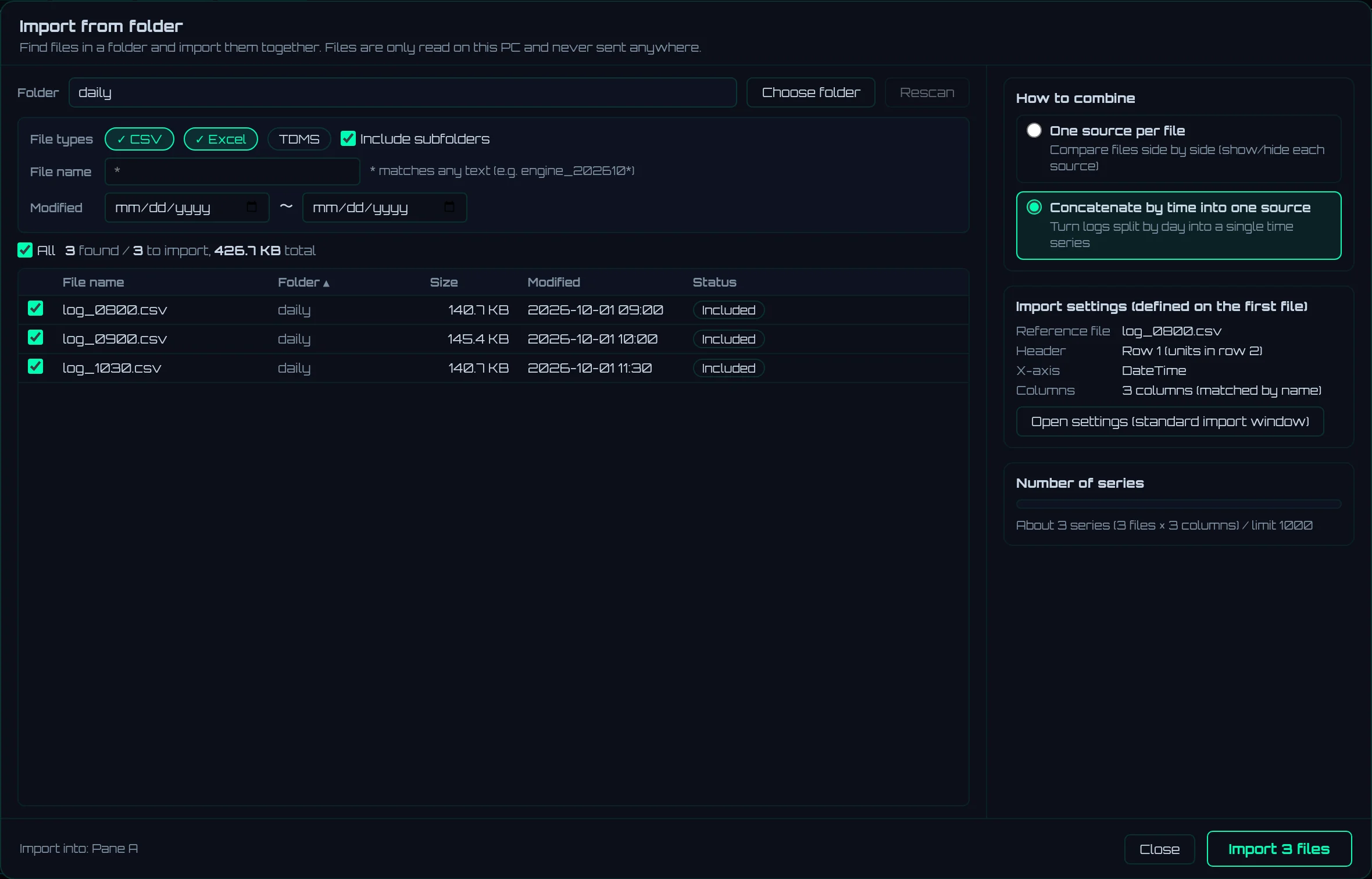
- 1Folder: Select a folder with Choose folder. Rescan searches the same folder again
- 2Filters: Narrow down the files to import with File types (CSV, Excel, TDMS), Include subfolders, File name ("*" matches any characters), and Modified
- 3The list of files found. Unchecked files are not imported. Hold Shift while checking to switch all rows from the previously checked row to this one. The Status column shows the import result
- 4How to combine: Choose One source per file or Concatenate by time into one source
- 5Import settings (defined on the first file): The import settings decided on the first file
- 6Number of series: The approximate number of series to load, and the limit
- 7Starts the import (the button shows the number of files to import)
Steps
- Click Folder in the pane bar and select a folder with Choose folder. You can also drag and drop a folder (or two or more files) onto a pane.
- Check the list. Initially CSV and Excel are included and TDMS is not. When Include subfolders is checked, folders inside are searched too.
- Click Open settings (standard import window). The usual import screen opens with the first file. Adjust the header row, X axis, and columns to load, and click Use these settings (nothing is loaded yet at this point). Clicking Open settings (standard import window) again opens the screen with the decided settings applied.
- Choose How to combine and click the button at the bottom right to import.
- The settings decided on the first file are applied to the second and later files. Columns are matched by column name, so the same columns are imported even from files with a different column order. Excel sheets are also matched by name (the first sheet if no sheet has the same name).
- For a file missing some columns that the first file had, only the existing columns are imported, and a "⚠" mark is shown in the Status column. Files without the X-axis column are not imported.
- If some files fail partway, the import continues without stopping and shows the numbers of successes, warnings, and failures at the end. The reason is shown in the Status column (hover over it to see the full text). If a file cannot be read, for example because it is open in another app or stored only in the cloud, "Cannot read the file (it may be open in another app or stored only in the cloud)" is shown. If you stop with Stop, the files read up to that point remain.
- CSV files are read several at a time, depending on the number of CPU cores. The import order stays the same as the list.
- With One source per file, each source is named after its file, and the series are not displayed at first. X is the elapsed time from the start of each file.
- If the number of series to load exceeds the limit (1,000 in the free edition), you cannot import. Reduce the files or narrow down the columns to load. This estimate includes series already loaded on the screen (shown as "already loaded n + files × columns").
Import joined in time
When you import with Concatenate by time into one source, the Review the concatenation screen opens after all files have been read. It lines up the files in time order and shows whether the joints have overlaps or gaps.
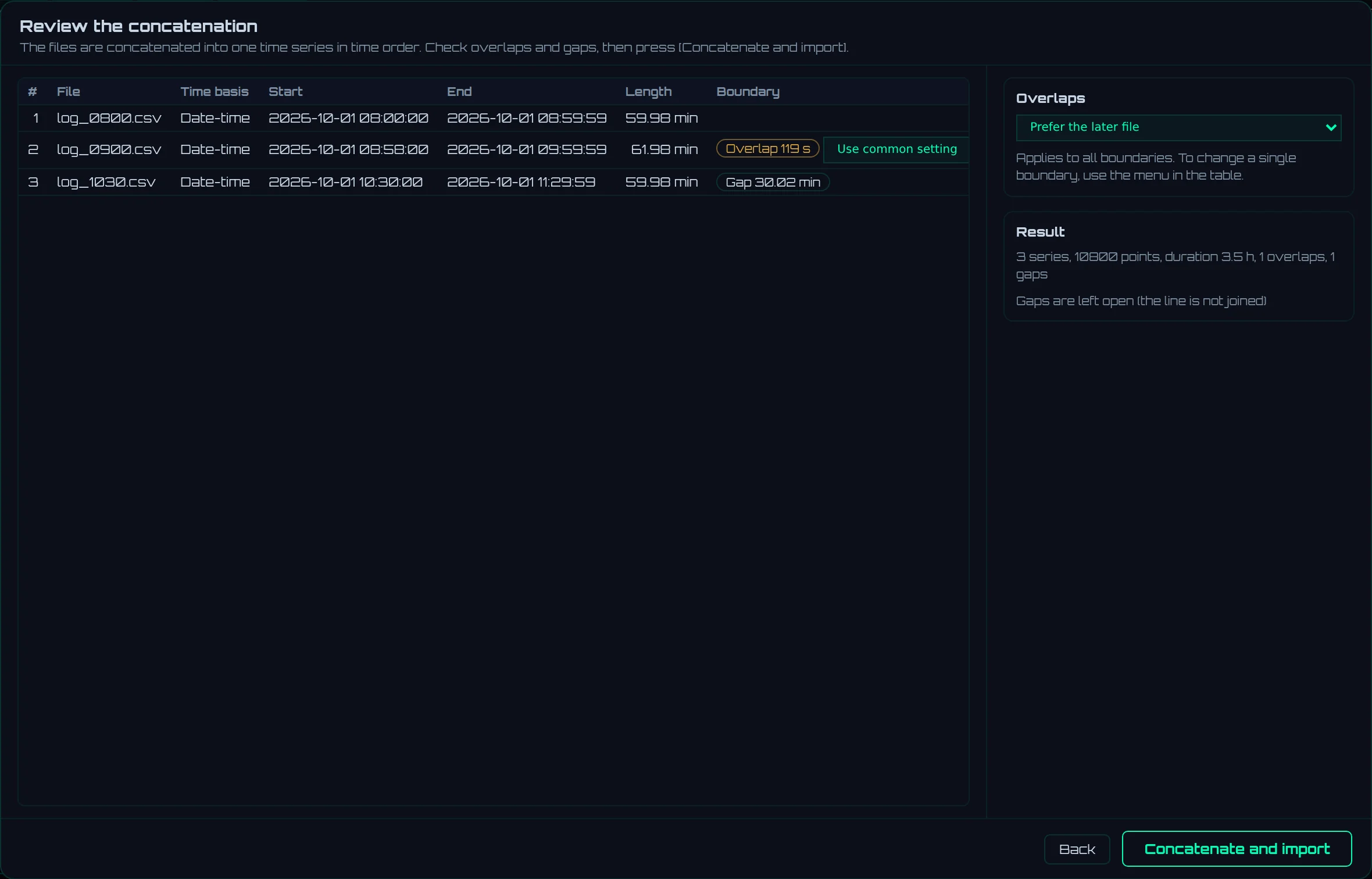
- 1The list of files. They are in time order, showing Time basis, Start, End, Length, and Boundary (overlap or gap)
- 2How to handle the overlap at each joint. If left at Use common setting, the setting on the right applies
- 3Overlaps: Chooses how to handle all overlaps at once
- 4Result: The number of series, number of points, period, and numbers of overlaps and gaps in the joined result
- 5Concatenate and import: Imports the files as one data source with these settings
The time used to order the files is determined from the file contents.
| Time basis | File contents | Ordering |
|---|---|---|
| Date-time | Files whose X axis is a date-time | Ordered by the first date-time |
| Time + file date | Files whose X axis is only a time of day | Ordered using the file's modification date as the date |
| Elapsed time only | Files whose X axis is elapsed time (numbers) | Chosen with Files without timestamps: either Continue after the previous file (in file-name order, each file starts right after the end of the previous one) or Treat the modified time as the end of recording (the start is the modification time minus the length) |
Choose one of four ways to handle overlaps.
| Overlap handling | Joined result |
|---|---|
| Prefer the later file | For the overlapping time, the later file's data is used (the earlier file is cut at the start of the later file) |
| Prefer the earlier file | For the overlapping time, the earlier file's data is used (the later file is used from the end of the earlier file) |
| Keep both | Keeps the data of both files and sorts it in time order |
| Exclude the later file | Does not use the overlapping later file at all |
- At gaps (where the time from the end of one file to the start of the next exceeds twice the data interval), the line is not connected and is left open.
- The X of the joined data is the elapsed time from the earliest data. The source is named "folder name (N files joined)".
- Click Back to return to the previous screen without importing.
- CSV files are read several at a time, depending on the number of CPU cores. Even when joining several large files, the Review the concatenation screen opens in about the time it takes to read one file.
- When you click Concatenate and import, LOGADEC builds the joined data and the reduced data used to draw wide ranges quickly. Meanwhile the button reads "Concatenating…". The reduced data keeps the maximum and minimum of each pixel column, so the shape of the graph does not change.
4.7The Sources tab
The Sources tab lists the loaded files (data sources), one per row.

- 1Show all, Hide all: Toggles the display of all sources
- 2Sort order: Each click switches between Load order, By name, By count, and Manual order
- 3Check box: Hides that source's series from both the list and the graph. The data is not deleted
- 4Source name: Double-click to rename it. The change is reflected in the series names too
- 5X zero point: Shifts the position of X = 0 to align the start with other sources
- 6Palette button: Opens Bulk series style for this source's series only (Chapter 5)
- 7Delete (trash button): Deletes the source and its series
- Drag the left end of a row (⠿) to reorder the sources. The order is reflected in the series list, the Y axes, and the legend.
- When there are many sources, use the search box above the list to filter them by name.
Align X zero points by a threshold
When you repeat a test several times, the time from the start of recording to the operation differs from run to run. With Bulk align by threshold, you can set the X zero point of each source to the moment an item crosses a value you choose. Any number of sources are aligned at once.
For practice, download sample_start_runs_en.zip from the manual's table of contents page and extract it. It contains three fictitious motor start tests (run_1.csv to run_3.csv). The motor starts at 6.3 s, 14.8 s, and 9.1 s.
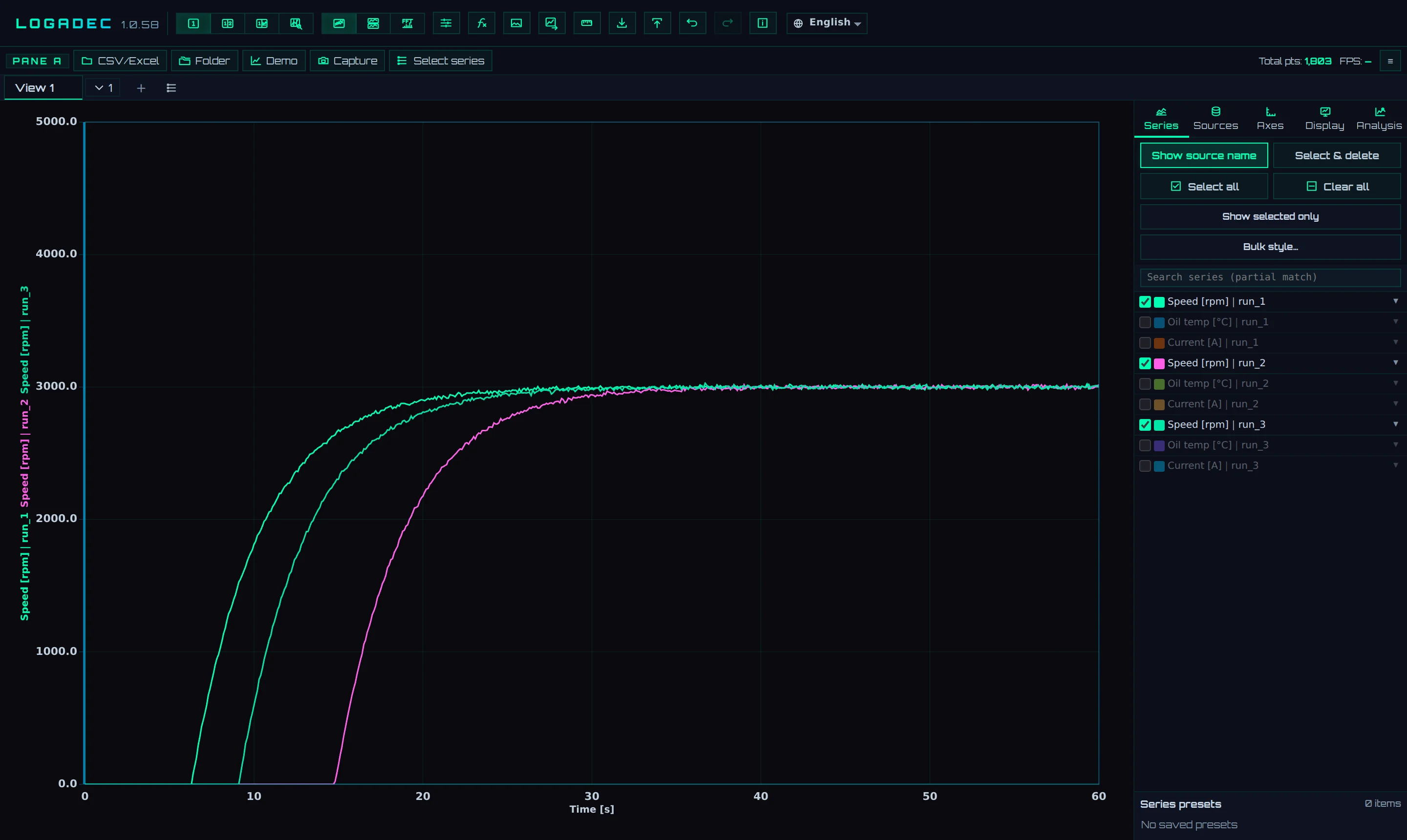
- Load the three files (add the second and third with CSV/Excel), and check the three Speed series on the Series tab.
- On the Sources tab, click Bulk align by threshold.
- Fill in the fields below and click Preview to check how many sources are found.
- Click Apply.

- 1Target parameter (series name): The name of the item to use as the marker. Choose an item with the same name in all sources (suggestions appear as you type)
- 2Threshold: The moment the data crosses this value becomes the zero point. The crossing time is found by joining neighboring data points with a straight line
- 3Direction: Choose Rising edge ↑ (crossing upward), Falling edge ↓ (crossing downward), or Both. The first crossing is used
- 4Search range: Search the Entire range data or only the Current view range. To use a later peak as the marker, zoom in around it and choose Current view range
- 5Target sources: All, or Visible only (sources checked on the Sources tab)
- 6Preview: Shows how many sources were found and not found, without changing the zero points. The names of sources not found are also shown
- 7Apply: Changes the zero points of the sources found
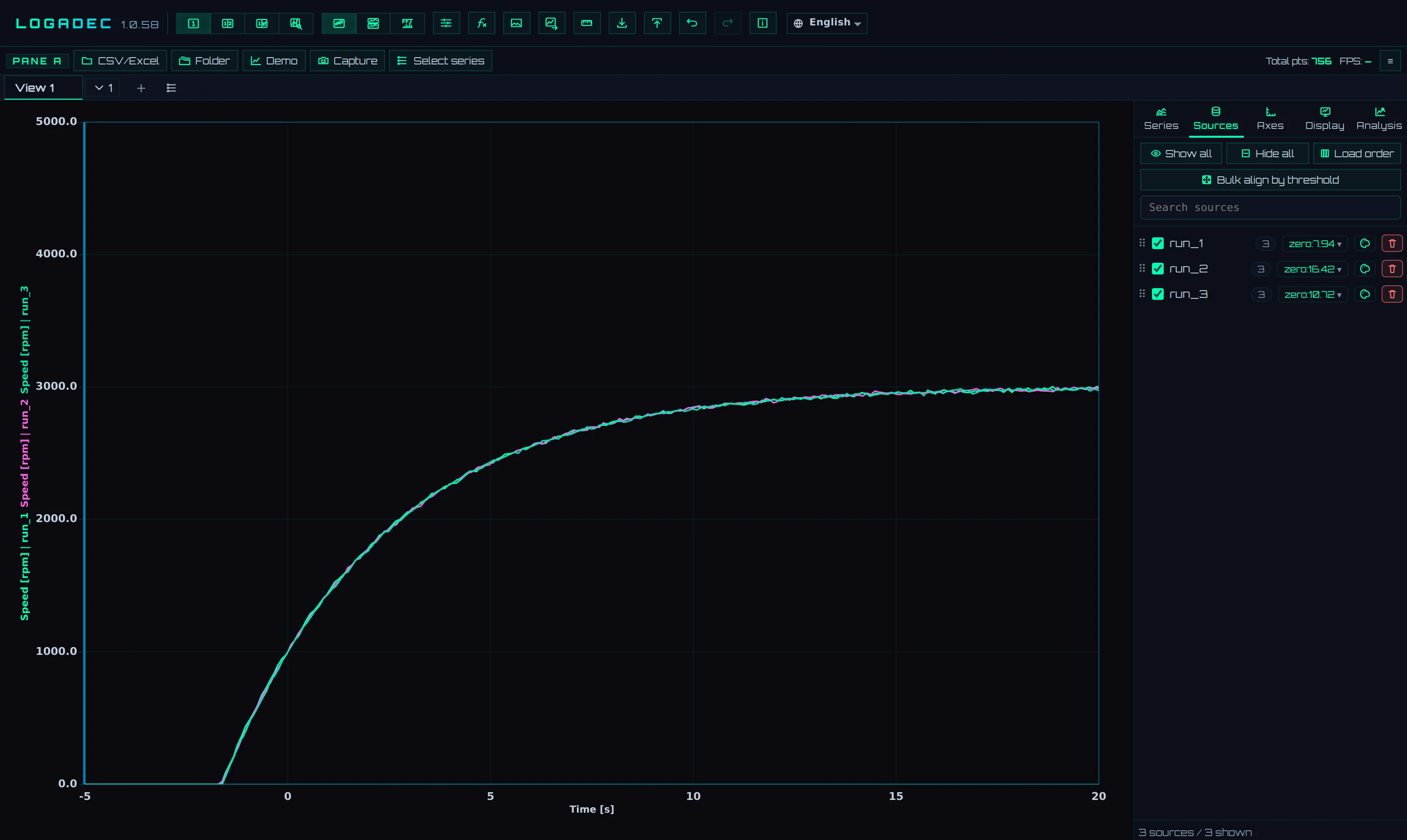
- The zero point is shown on the zero button of the source row. Click the button to edit the zero point as a number or to reset it.
- To undo, press Ctrl + Z.
- A source is not found for one of two reasons: it has no item with that name (no series), or the data does not cross the threshold within the range (no cross).
- The zero point applies to all series of the source.
4.8Limits of the free edition
The free edition has the following limits on loading and display. When a limit is exceeded, a message appears at the bottom of the screen.
| Limit | What happens when it is exceeded |
|---|---|
| Up to 1,000 series in total can be loaded on one screen (series already loaded are counted) | The excess is cut off starting from the most recently loaded series, and a notice is shown |
| Up to 150 series can be displayed at once | Select all displays the first 150 series |
Stacked and FFT views have no limit on the number of series displayed at once.
On paid editions, you can change the number of series displayed at once with Max visible series on the Display tab (300 at first). When you hit the limit, click Change limit in the message to open that field.
4.9Large files
Progress is shown at the bottom of the import screen. When you load a new large file, LOGADEC first displays the graph with part of the data and loads the rest in the background. When Import complete appears, all the data has been applied.