Chapter 8Frequency Analysis
This chapter describes the features for examining signals such as vibration by frequency: FFT view, which displays the graph by frequency; Filter, applied per series; and STFT peak, Wavelet, and Freq. anomaly on the Analysis tab.
The examples in this chapter use the practice sample data sample_vibration_en.csv. It is data from a fictitious motor vibration test (not a record of a real test).
| Item | Details |
|---|---|
| Columns | Two: Time [s] and Acceleration [m/s²] |
| Recording | 18 seconds at 1000 Hz (every 0.001 seconds). The highest frequency that can be handled (the Nyquist frequency) is 500 Hz |
| Components always present | 50 Hz (amplitude 1.0) and 120 Hz (amplitude 0.5) |
| Component added partway | 230 Hz (amplitude 1.5) is added only from 12 to 16 seconds. During this time, 230 Hz is the strongest component |
| Noise | Random noise (standard deviation 0.3) is present throughout |
8.1What frequency analysis can do
| Feature | What you learn | Where to operate |
|---|---|---|
| FFT view | Which frequency components, and how large, are contained in the whole data (or part of the time) | FFT on the toolbar, and FFT view on the Analysis tab |
| Filter | A waveform keeping only the components below (or above) a set frequency | ▾ of a series on the Series tab |
| STFT peak | How the strongest frequency changes over time | Analysis tab |
| Wavelet | The distribution of component strength on both time and frequency axes | Analysis tab |
| Freq. anomaly | Time periods when the frequency characteristics differ from usual | Analysis tab |
All analyses on the Analysis tab are used in the order Target (choose the Analysis target and the Range) → Run → Results. The results appear as a table in Analysis results at the bottom of the screen. This flow and how to read the results are explained in Chapter 9. This chapter describes only the settings and results specific to frequency analysis.
8.2Frequency units
Frequency values are derived from the unit of the X axis. The unit used by each feature is as follows.
| Feature | Frequency unit |
|---|---|
| FFT view, STFT peak, Wavelet, Freq. anomaly | When Frequency unit is Hz equiv. (the default) and the X-axis unit is a time unit (ms, seconds, minutes, hours, days, and so on), the calculation is converted to seconds and done in Hz. Even for data with an X axis in milliseconds, a 50 Hz component is shown as 50 Hz |
| Same as above (when the X-axis unit is not a time unit) | Calculated as the reciprocal of the X unit as-is, with the unit shown as Hz equiv. |
| Same as above (when Frequency unit is 1/X) | The reciprocal of the X unit, regardless of the X-axis unit. If the X axis is in milliseconds, a 50 Hz component is shown as 0.05 |
| Filter | The cutoff frequency (fc) is always the reciprocal of the X unit. Hz if the X axis is in seconds, 1/ms if in milliseconds (1/ms is 1000 Hz). The unit in use is shown in the series details |
8.3FFT view
The FFT view applies a Fourier transform to series and displays graphs (spectra) with frequency on the horizontal axis.
- On the Series tab, check the series you want to examine to display them.
- Click FFT on the toolbar. A spectrum is shown in its own tier for each displayed series. In the sidebar, FFT view opens on the Analysis tab.
- To return to the time-series view, click Overlay or Stacked.
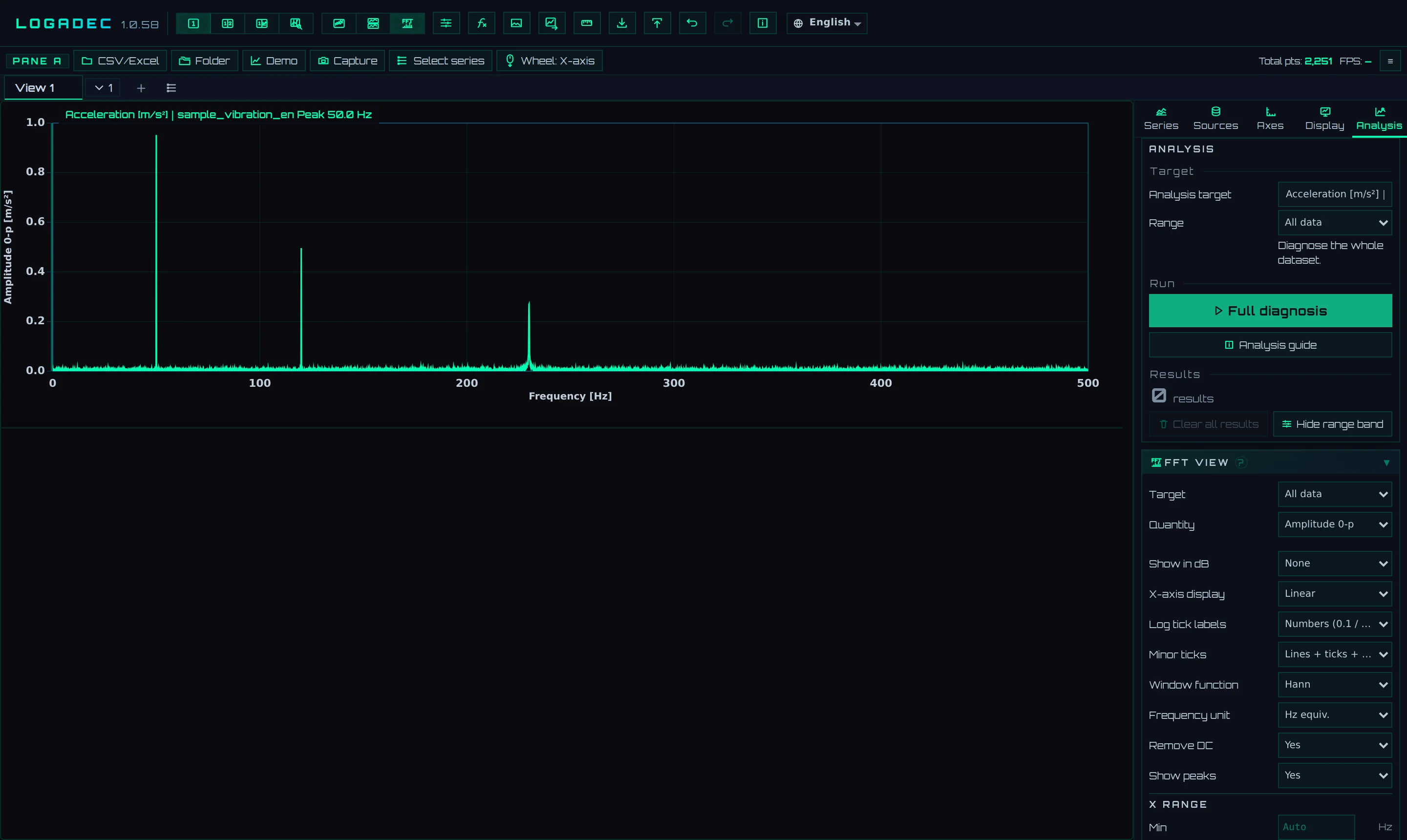
- 1FFT: Displays the graph by frequency
- 2Tier name: Shows the frequency of the largest component (Peak) after the series name. When there is a caution about the calculation, Warning is added; hover to see the details
- 3Target, Quantity: The time range used for the calculation, and the quantity shown on the vertical axis
- 4X-axis display, Log tick labels, Minor ticks: Whether the horizontal axis is linear or logarithmic, and how log ticks are shown
- 5Window function, Frequency unit: The window function used for the calculation, and the frequency unit
- 6Remove DC, Show peaks: Whether to subtract the mean before calculating, and whether to show Peak in the tier name
In the sample data, peaks appear at 50 Hz (about 0.96), 120 Hz (about 0.50), and 230 Hz (about 0.27). The 230 Hz component has an amplitude of 1.5, but it is present for only 4 of the 18 seconds, so it appears small when calculated over the whole data. To know its size during that time only, set Target to Current display range, display 12–16 seconds in the time-series view, and then return to FFT. This way, 230 Hz reads about 1.50.
List of settings
| Setting | Options (bold is the default) | Description |
|---|---|---|
| Target | All data/Current display range | With Current display range, only the X range last displayed in the time-series view (Overlay, Stacked) is calculated |
| Quantity | Amplitude 0-p and others (table below) | The quantity shown on the vertical axis |
| PSD method, Segment length, Overlap | Periodogram (single segment)/Welch (averaged PSD) | Shown only when Quantity is PSD (described later) |
| Show in dB | None/Show in dB | Shows the vertical axis in dB, relative to Reference (1 at first). If Peak = 0 dB is Yes, the maximum value of each tier becomes 0 dB |
| X-axis display | Linear/Log | With Log, the 0 Hz point is omitted from the plot |
| Log tick labels | Numbers (0.1 / 1 / 10)/Powers of 10 (10⁰ / 10¹) | How the tick numbers on a logarithmic horizontal axis are written. Has no effect with Linear |
| Minor ticks | None/Grid lines/Axis ticks/Lines + ticks + 2/5 | How ticks between powers of 10 (2 to 9 times) are shown on a logarithmic horizontal axis. With Lines + ticks + 2/5, 2 and 5 are also labeled with numbers |
| Window function | Hann/Hamming/Blackman/Flat top (amplitude accuracy)/Rectangular | Table below |
| Frequency unit | Hz equiv./1/X | See the section "Frequency units" |
| Remove DC | Yes/None | With Yes, the mean is subtracted before calculating. This prevents a large value at 0 Hz from making other peaks hard to see |
| Show peaks | Yes/None | Shows in the tier name the frequency of the largest point, excluding 0 Hz |
| X range | Min, Max | Set the displayed frequency range as numbers and click Apply FFT range. Reset FFT range returns to the full range |
| Y range (all series) | Min, Max | Gives the vertical axes of all tiers the same range (Apply Y range to all/Reset Y range) |
Turn the wheel over a spectrum to zoom the frequency axis in or out, and drag to move it. Only the display range changes; the spectrum is not recalculated.
Display amount
| Display amount | Description | Vertical-axis unit (when the series unit is m/s²) |
|---|---|---|
| Amplitude 0-p | The amplitude of a sine wave (from 0 to the peak) | m/s² |
| Amplitude p-p | The size from peak to valley. Twice the 0-p value | m/s² |
| RMS | The effective value. For a sine wave, 1/√2 times the 0-p value | m/s² |
| Power | The square of the 0-p value | (m/s²)² |
| PSD | Power per 1 Hz (power spectral density). It does not depend on the number of points used in the calculation, so use it to compare noise levels | (m/s²)²/Hz |
p-p and RMS are correct values for sine-wave components. To compare the size of noise spread over a wide frequency range, use PSD.
Window functions
A window function is a weighting that smoothly brings both ends of the calculated interval close to 0. The choice slightly changes the height and width of peaks. The values read for the sample data's 50 Hz component (amplitude 1.0) with Amplitude 0-p are included.
| Window function | Suitable use | 50 Hz reading |
|---|---|---|
| Hann | Everyday use. This is the default | 0.964 |
| Hamming | Properties close to Hann | 0.957 |
| Blackman | When you want to narrow the skirts of large peaks | 0.970 |
| Flat top (amplitude accuracy) | When you want to read amplitude as a number. Peaks become wider, and two close frequencies are harder to separate | 0.991 |
| Rectangular | Applies no weighting. For signals where the interval length is exactly an integer multiple of the period | 0.918 |
With Hann, when a component's frequency falls between the calculation step (resolution) ticks, the amplitude can read up to about 15% low. When you use amplitude values in a report, choose Flat top (amplitude accuracy).
PSD and the Welch method
When you set Quantity to PSD, you can choose the PSD method.
| Method | How it is calculated |
|---|---|
| Periodogram (single segment) | Calculates the whole data as one interval. Frequencies are finely resolved, but the noise part is jagged |
| Welch (averaged PSD) | Divides the data into intervals of Segment length and averages the spectra of the intervals. The noise part becomes smooth, making the noise level easier to read. In exchange, the frequency resolution becomes coarser |
- Segment length is specified in seconds (seconds even for data with an X axis in milliseconds). If set to 0, one eighth of the number of data points is used as the interval.
- Overlap is the proportion by which adjacent intervals overlap (0%, 50%, 75%).
- The frequency resolution is 1 ÷ (the number of points in the interval rounded up to a power of 2 × the step). With the sample data and a segment length of 0.5 seconds, 500 points are rounded up to 512 points, and the resolution is about 1.95 Hz. Peak frequencies are also read on this grid, so the 50 Hz component is shown as 50.8 Hz.
- If two or more intervals cannot be obtained, the calculation uses Periodogram (single segment), and Warning is added to the tier name (Too few segments; computed as a periodogram. Use a shorter segment length.).

Calculation rules
- The values used for the calculation are the values plotted on the graph (after Unit conversion / rename and filters).
- When there are more than 65,536 points, an averaging that suppresses aliasing (high frequencies appearing as low frequencies) is applied, and the points are reduced before calculating. High-frequency components become smaller. Warning is added to the tier name.
- When there are fewer than 8 points, nothing is calculated.
- When X goes backward or the same X repeats somewhere, nothing is calculated (The data is not uniformly sampled, so the FFT is not computed is shown).
- When the step deviates from the median by more than 5% somewhere, the data is treated as evenly spaced for the calculation, and Warning is added (with a note that the FFT frequencies are approximate because the X spacing varies widely). This caution also appears when there are missing values or time jumps (see the section "Handling missing values and time jumps").
8.4Series filters
A filter removes components at set frequencies from a series' waveform. On the Series tab, click ▾ for the series and set it up in the Filter field.
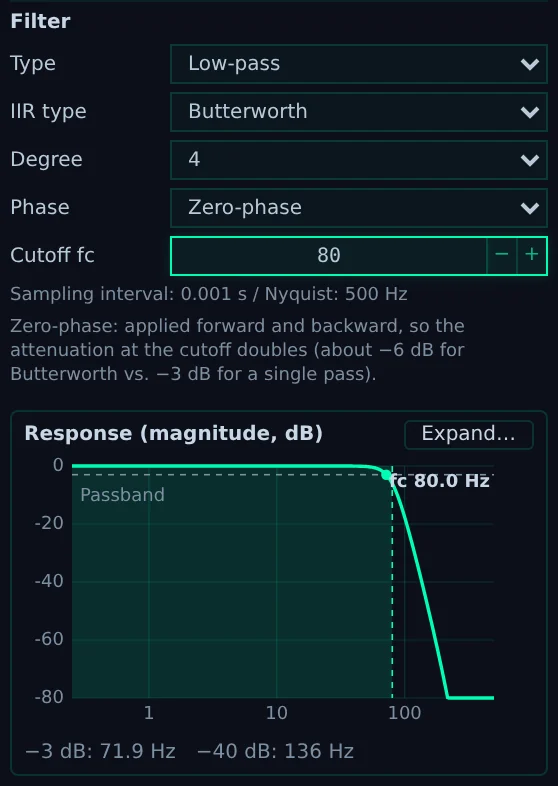
- 1Type: Choose from None, Low-pass, High-pass, Band-pass, Band-stop, Notch, Moving average, and Moving median. The fields below change with the type (described later)
- 2IIR type: Choose from Butterworth, Chebyshev (1dB), and Bessel
- 3Degree: 1 to 6. The larger the value, the more steeply frequencies outside the cutoff are reduced
- 4Phase: Choose Normal or Zero-phase
- 5Cutoff fc: The cutoff frequency. For Band-pass, there are two: Low fc and High fc
- 6The data step and the highest frequency that can be handled (Nyq = Nyquist frequency). Enter the cutoff frequency in this unit
- 7Explanations and cautions about the calculation (described later)
- 8Response graph: shows how much this filter reduces each frequency (the amplitude ratio in dB) (described later)
- 9Expand…: Opens the larger view
| Setting | Default |
|---|---|
| Type | None |
| IIR type | Butterworth |
| Degree | 1 |
| Phase | Normal |
| Cutoff fc, Low fc | 0.1 times the Nyquist frequency (50 Hz for the sample data) |
| High fc | 0.3 times the Nyquist frequency (150 Hz for the sample data) |
The cutoff frequency is kept within the range from one trillionth of the Nyquist frequency to just below the Nyquist frequency.
Filtered values are used for the graph, the FFT view, and analyses (when Data is Filtered (as displayed)). When Unit conversion / rename is used, the filter is applied to the converted values. The loaded data itself does not change.

What the cutoff frequency (fc) means
| Type | Frequencies passed | Attenuation at fc |
|---|---|---|
| Low-pass | Frequencies below fc | −3 dB (amplitude about 0.71 times) with Normal, −6 dB (about 0.50 times) with Zero-phase |
| High-pass | Frequencies above fc | Same as above |
| Band-pass | Between Low fc and High fc | A high-pass at the low fc and a low-pass at the high fc are applied in succession. Each fc has the same attenuation as above |
For all three characteristics, fc is "the frequency at which a single pass gives −3 dB". For Chebyshev (1dB) too, fc is the −3 dB point, not the edge of the passband ripple.
These are the results of filtering a sine wave at the same frequency as fc and measuring the amplitude ratio (1000 Hz data, fc 50 Hz; orders 1–6 and all three characteristics gave the same values).
| Phase | Amplitude ratio at fc |
|---|---|
| Normal | −3.01 dB (0.707 times) |
| Zero-phase | −6.02 dB (0.500 times) |
Differences between characteristics
These are the results of measuring the amplitude ratio (dB) at each frequency and the overshoot in response to a step input, with Low-pass, 4th order, Normal, and fc 50 Hz.
| Characteristic | 10 Hz | 20 Hz | 30 Hz | 40 Hz | 50 Hz | 100 Hz | Overshoot |
|---|---|---|---|---|---|---|---|
| Butterworth | 0.00 | 0.00 | −0.07 | −0.66 | −3.01 | −25.0 | 10.9% |
| Chebyshev (1dB) | +0.55 | +0.96 | +0.11 | +0.66 | −3.01 | −36.7 | 21.9% |
| Bessel | −0.11 | −0.44 | −1.01 | −1.85 | −3.01 | −14.1 | 0.9% |
- Butterworth: Passes frequencies below fc almost flat. Choose this if you are unsure.
- Chebyshev (1dB): Reduces frequencies above fc most steeply. In exchange, the amplitude ripples by up to about 1 dB below fc, and it rings strongly after a step.
- Bessel: The attenuation is gradual, but it hardly distorts the waveform shape. Choose it when you want to see the shape of steps and pulses.
Normal phase and zero phase
| Phase | How it is applied | Characteristics |
|---|---|---|
| Normal | Applied once, forward in time | The filtered waveform lags behind the original. The attenuation at fc is −3 dB |
| Zero-phase | Applied forward, then once more backward | No time lag. Suitable for comparing with the original waveform at aligned times. Because it is applied twice, the attenuation at fc is −6 dB, and the attenuation outside fc also doubles (in dB). Small ringing also appears before a step |
How the band-pass is built
Band-pass is a high-pass at Low fc followed by a low-pass at High fc. Degree is used for each of the high-pass and the low-pass. When the low and high limits are close, the attenuation of the two filters overlaps, and frequencies in between are reduced too.
| Band (Butterworth, Zero-phase) | Ratio at low fc | Ratio at center | Ratio at high fc |
|---|---|---|---|
| 30–100 Hz, 4th order | −6.02 dB | −6.46 dB | |
| 40–60 Hz, 2nd order | −7.57 dB | −6.33 dB (50 Hz) | −7.57 dB |
Band-stop and notch
Band-stop removes the band from Low fc to High fc and passes the frequencies outside it (the opposite of a band-pass). It is built by transforming the low-pass prototype of the IIR type into a band-stop filter. The attenuation is −3 dB at the low and high limits (−6 dB with Zero-phase).
Notch removes only a very narrow band around Center f0. Use it to remove 50/60 Hz mains noise or the first order of a rotation.
| Field | Meaning |
|---|---|
| Center f0 | The frequency to remove |
| Q (sharpness) | A higher Q removes a narrower band. The removed width (the −3 dB width) is about f0/Q. The default is 30 |
| Harmonics | How many of f0, 2f0, 3f0 … to remove together (1 to 10; 1 removes only f0). Frequencies above the Nyquist frequency are skipped |
The amplitude ratios (dB) below were computed for 1000 Hz data.
| Band and settings | 5 Hz | 20 Hz | 30 Hz | 50 Hz | 80 Hz | 120 Hz | 200 Hz |
|---|---|---|---|---|---|---|---|
| Band-stop 20 to 120 Hz (Butterworth, 4th order, Normal) | 0.00 | −3.01 | −23.6 | almost 0× | −25.5 | −3.01 | −0.01 |
| Notch (f0 50 Hz) | 40 Hz | 45 Hz | 49 Hz | 50 Hz | 51 Hz | 55 Hz | 60 Hz |
|---|---|---|---|---|---|---|---|
| Q 30 | −0.02 | −0.10 | −2.20 | almost 0× | −2.27 | −0.13 | −0.03 |
| Q 5 | −0.76 | −2.72 | almost 0× | −3.13 | −1.09 |
Moving average and moving median
These smooth the series over time by combining neighboring points. Both compute over Window (pts) points centered on each point, so there is no time delay. Near the ends of the series, only the available points are used.
| Type | Calculation | Use |
|---|---|---|
| Moving average | Mean of N points | Smooths out noise. It works like a low-pass, and fs/N (the frequency at which N points make exactly one cycle) and its multiples are removed |
| Moving median | Median of N points | Removes spikes. If spikes fill less than half of the window, the original waveform is kept almost unchanged. It selects values by size (nonlinear), so it has no frequency response |
For 1000 Hz data, the −3 dB frequency of a Moving average is about 90 Hz with 5 points and about 40 Hz with 11 points.
Response graph
Below the Filter field in the series details, a response graph for the current settings appears. The horizontal axis is frequency (log), and the vertical axis is the amplitude ratio (dB). Shading marks the passband; dotted lines mark −3 dB and fc. The curve is computed from the very coefficients that are applied. With Zero-phase, it shows the attenuation of the two passes. A Moving median has no frequency response, so an explanation appears instead of the graph.
Click Expand… to open a larger view.
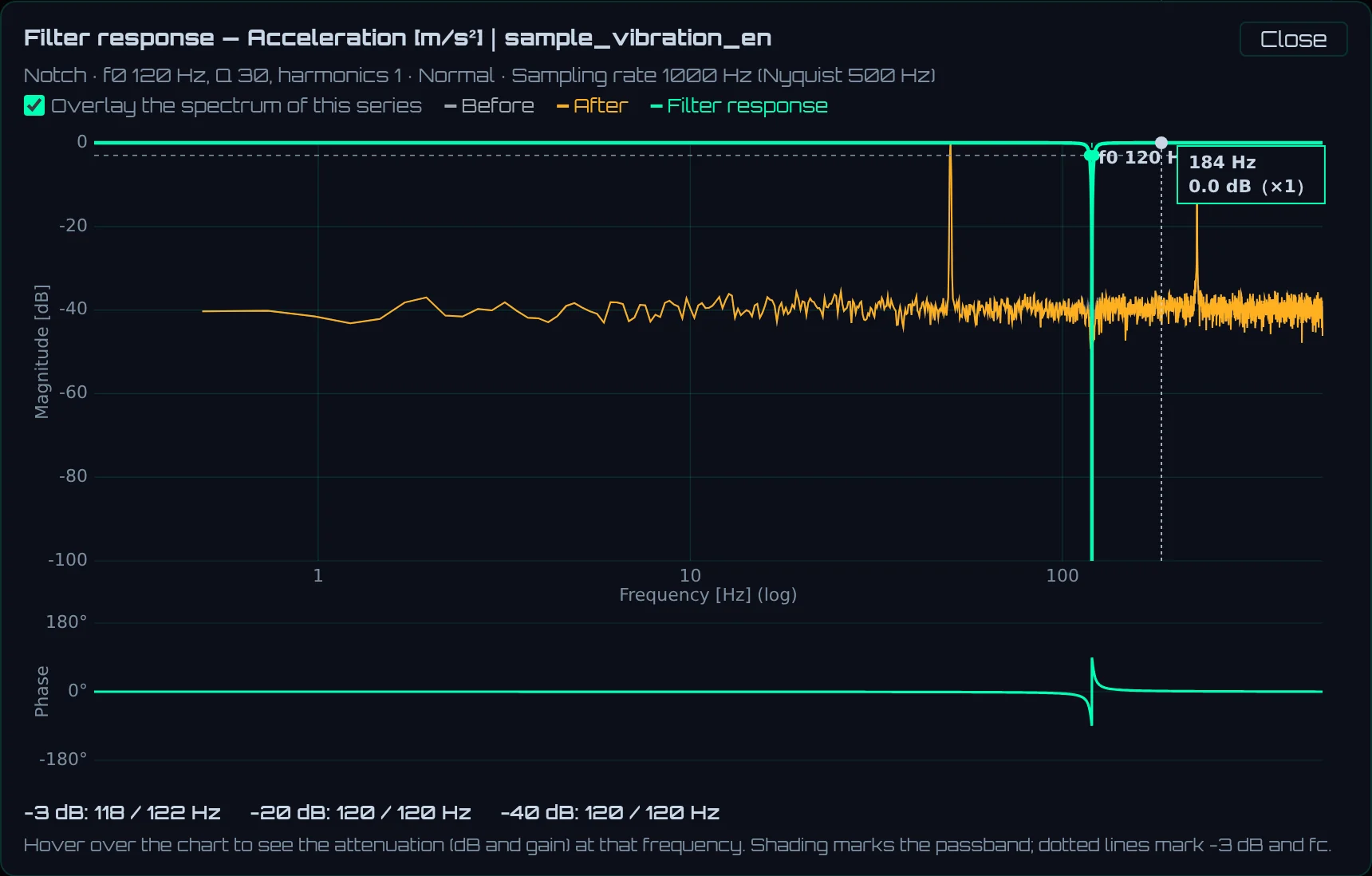
- 1A summary of the settings and the data step (sampling frequency and Nyquist frequency)
- 2Overlay the spectrum of this series: Overlays the spectrum of the series before (gray) and after (orange) filtering
- 3Amplitude ratio (dB). Hover over the graph to see the attenuation (dB and gain) at that frequency
- 4Phase shift. With Zero-phase, there is none
- 5The frequencies where the attenuation reaches −3 dB, −20 dB, and −40 dB, and the attenuation at 2× and 10× fc
To close it, click Close or press Esc.
Explanations and cautions shown
The following text is shown below the Filter field in the series details.
| Display | When it appears |
|---|---|
| Zero-phase: applied forward and backward, so the attenuation at the cutoff doubles (about −6 dB for Butterworth vs. −3 dB for a single pass). | When Phase is Zero-phase (explanation) |
| Band-pass: a high-pass (low fc) followed by a low-pass (high fc). When the two are close, frequencies between them are attenuated too | When Type is Band-pass (explanation) |
| Band-stop: removes the band between the low and high fc (the low-pass prototype transformed to a band-stop; −3 dB at both edges) | When Type is Band-stop (explanation) |
| Text starting with Notch: removes only around f0 | When Type is Notch. It includes the removed width (about f0/Q) |
| Text starting with Moving average: the mean of | When Type is Moving average. It includes the number of points and the removed frequency (fs/N) |
| Text starting with Moving median: the median of | When Type is Moving median |
| Text containing split at missing values and time gaps | When there are missing values or time jumps (next section). It includes the number of segments, the number of missing points, and the number of jumps |
| Text containing Filters assume even spacing, so the result is approximate | When the step deviates from the median step by more than 5% somewhere. The result is approximate |
| Text containing is shorter than 3 periods of fc, so edge transients remain large in the result | When the length of the shortest segment (counted in X-axis units) × the lowest fc is less than 3 (see the caution below) |
| Text containing Not filtered | When X goes backward or the same X repeats somewhere. No filter is applied |
Missing values and time jumps
The filter splits a series into segments at missing values (non-numeric values such as blanks) and time jumps (intervals of more than 1.5 times the median step), and applies the filter to each segment. Values are never connected across segments. Missing positions remain empty after filtering. The step used is the median of the intervals between adjacent points. Missing values and jumps do not cause the step to be overestimated.
8.5STFT peak
STFT peak divides the data into short time windows, calculates a spectrum for each window, and finds the strongest frequency in each window. Use it to track changes in rotational speed or components that appear partway.
- On the Analysis tab, choose the series to examine in Analysis target.
- Open STFT peak and enter Window and Step.
- Click Compute peak trend.
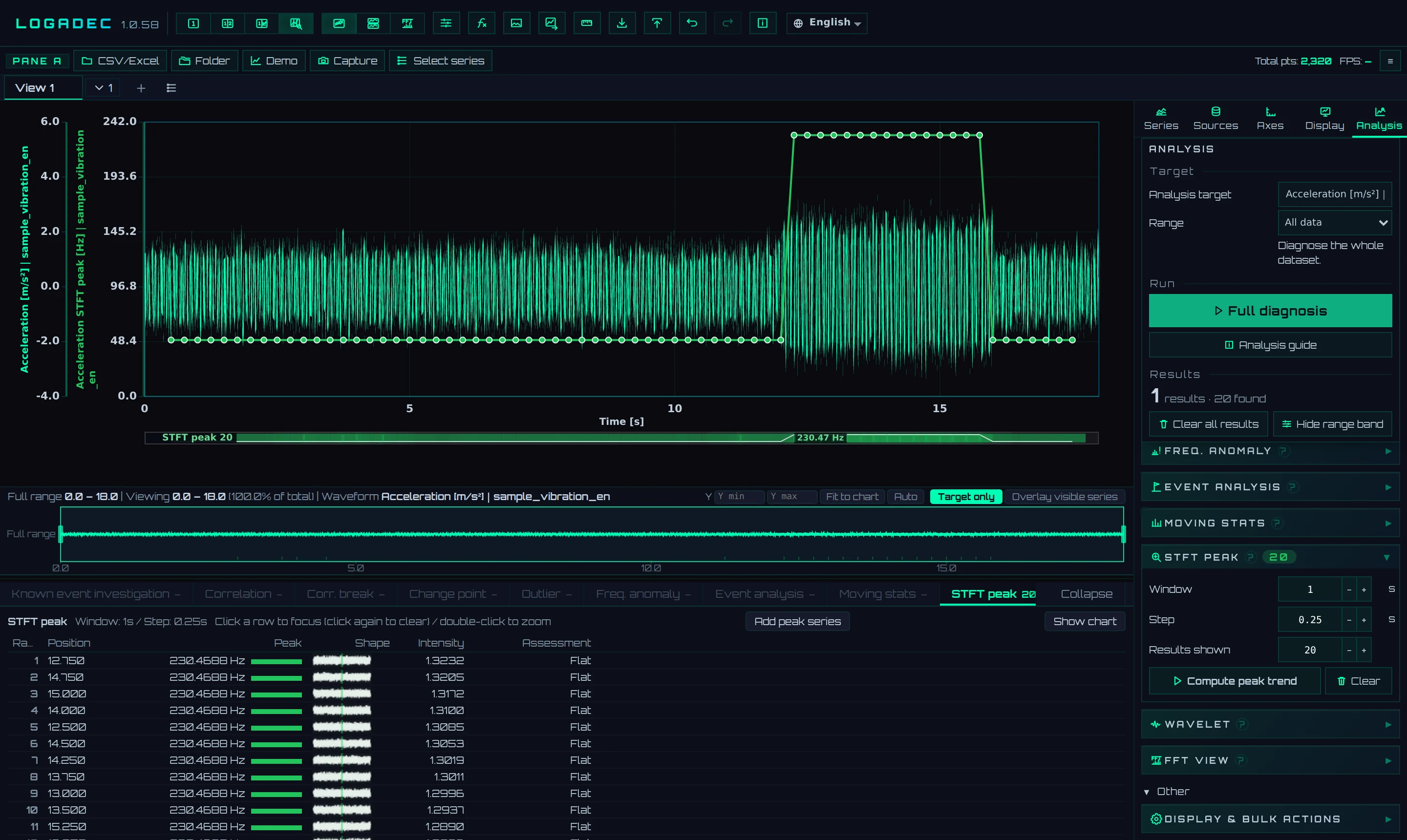
- 1Window, Step, Results shown: The window length, the interval by which the window shifts, and the number of rows in the table
- 2Compute peak trend: Calculates
- 3Results table: The time at the center of the window, the strongest frequency, its strength, and Assessment. Sorted by strength in descending order
- 4Add peak series: Adds the peak frequency of each window to the graph as a new series
In the sample data, the peak frequency changes from 49.8 Hz to 230.5 Hz only between 12 and 16 seconds. The added series (its name includes STFT peak, and its unit is Hz) shows when the change occurred.
| Setting | Default | Description |
|---|---|---|
| Window | 10 | Specified in X units. The number of points in the window is kept within 8–8192 points. For 1000 Hz data, specifying 10 seconds gives 8192 points (8.192 seconds). The window width actually used is shown in the result heading |
| Step | 2 | Specified in X units. It cannot be larger than the window width. If there would be too many calculations, it is widened automatically |
| Results shown | 20 | 3–100 |
- The frequency resolution is 1 ÷ (the number of points in the window rounded up to a power of 2 × the step). With a 1-second window (1000 points → 1024 points), it is about 0.98 Hz. That is why 50 Hz is shown as 49.8 Hz and 230 Hz as 230.5 Hz.
- The window function and frequency unit are those of Window function and Frequency unit in FFT view. Strength is amplitude (0-p). When Quantity in FFT view is Power, it is power.
- Assessment is the change compared with the peak frequency of the previous window. More than 8% higher is Rising, more than 8% lower is Falling, and anything else is Flat.
8.6Wavelet analysis
Wavelet analysis displays component strength on both time and frequency axes as a color distribution (scalogram). It is suitable for finding components that appear only briefly. The calculation uses the Morlet wavelet.
- On the Analysis tab, choose the series to examine in Analysis target.
- Open Wavelet and, if necessary, enter Min frequency and Max frequency.
- Click Compute wavelet.

- 1Min frequency, Max frequency, Frequency bins, Time limit: The frequency range to calculate, and how frequency and time are divided
- 2Compute wavelet: Calculates
- 3Scalogram: Time runs horizontally and frequency vertically (low at the bottom, logarithmic scale). Redder means a stronger component. The dark areas at the edges are the Cone of influence (COI)
- 4Results table: The strongest frequency at each time (the ridge), sorted by strength in descending order
In the sample data, a 50 Hz band is visible throughout, and a 230 Hz band from 12 to 16 seconds.
| Setting | Default | Description |
|---|---|---|
| Min frequency | Auto | Automatically, 1 ÷ the data length (seconds). About 0.056 Hz for the sample data |
| Max frequency | Auto | Automatically, 0.8 times the Nyquist frequency. 400 Hz for the sample data |
| Frequency bins | 48 | 12–96. Divides the range from minimum to maximum into equal logarithmic intervals |
| Time limit | 900 | 100–2000. The maximum number of points calculated in the time direction. The actual number also does not exceed 12000 ÷ Frequency bins (about 250 points with 48 bins) |
| Results shown | 20 | 3–100 |
- The frequency unit follows Frequency unit in FFT view. When Frequency unit is Hz, the automatic lower limit is calculated in seconds regardless of the X-axis unit (when 1/X is chosen, it is calculated in X-axis units).
- The Cone of influence (COI) (the range affected by the boundaries) is the low-frequency part near the ends of the data. Strength in this part comes out small because the calculation is cut off at the ends. In the table, Assessment is Inside COI (indicative only), and these rows are also excluded from the ridge calculation. Other rows are Energy burst if their strength is at least half of the table maximum, and Baseline if less than half.
- With Add peak series, you can add the ridge frequency at each time to the graph as a new series.
8.7Frequency anomaly
Frequency anomaly extracts one metric from the spectrum of each window and lists windows where that metric differs greatly from usual as candidates.
- On the Analysis tab, choose the series to examine in Analysis target.
- Open Freq. anomaly and enter Metric, Window, Step, and Threshold.
- Click Detect frequency anomalies.

- 1Metric, Window, Step, Threshold: What to compare, the window length and interval, and the size of Z that makes a candidate
- 2Detect frequency anomalies: Detects
- 3Results table: The interval, main frequency, change, and verdict of each candidate window. Sorted in time order
In the sample data, 8 windows from 11.8 to 16.2 seconds become candidates. The main frequency is 230.47 Hz (about 4.6 times the baseline of 49.80 Hz), and Assessment is Higher freq..
| Setting | Default | Description |
|---|---|---|
| Metric | Peak frequency | Peak frequency: The strongest frequency in the window. Peak amplitude: Its strength (amplitude 0-p). Band power: The mean of the squared values in the window (excluding 0 Hz; the unit is the square of the series unit) |
| Window | 10 | Specified in X units. The number of points in the window is kept within 8–8192 points (same as STFT peak) |
| Step | 2 | Specified in X units |
| Threshold | 3 | 0.5–20. Windows whose Z (how many times the usual spread they deviate) is at or above this value become candidates. The meaning of Z is explained in Chapter 9 |
| Results shown | 20 | 3–100 |
- Of candidates that are close together (closer than half the window width), the one with the larger Z is kept.
- Dominant freq. (baseline {b}) in the results table is the peak frequency of the candidate window. The baseline is the median of the peak frequencies of all windows. Change is the ratio to the baseline: more than 1.15 times is Higher freq., less than 0.87 times is Lower freq., and anything else is Flat.
- The window function and frequency unit use the FFT view settings.
- With Add score series, you can add Z for each window to the graph as a new series.
- As with STFT peak, make the window shorter than the change you want to see. If you calculate the sample data with the default settings, only 5 windows can be taken, and there are 0 candidates.
8.8Handling missing values and time jumps
Missing values (non-numeric values such as blanks) and time jumps (intervals of more than 1.5 times the median step) are handled by each feature as follows.
| Feature | Handling | On-screen display |
|---|---|---|
| FFT view | Excludes missing points and calculates the remaining points packed into one series. Time jumps are also joined as they are for the calculation | Warning in the tier name (a note that the FFT frequencies are approximate because the X spacing varies widely) |
| Filter | Splits into segments at missing values and jumps, and filters each segment. Missing positions remain empty | Text containing split at missing values and time gaps |
| STFT peak, Freq. anomaly | Rearranges the data onto an evenly spaced grid at the median step, leaving the positions of missing values and jumps empty. Gaps within a window are filled with that window's mean. Windows more than half empty are not calculated | missing points left empty, missing points in windows filled with the window mean, and windows skipped (more than half missing), each with its count, in the result heading |
| Wavelet | Rearranges onto the same grid, and fills gaps with the overall mean | missing points left empty with its count in the result heading |
- Series in which X goes backward or the same X repeats are not calculated by any feature. The reason is shown on screen.
- When time jumps are too large to arrange the data on an evenly spaced grid, the analysis stops and asks you to select a range.