Chapter 7Formulas
Formulas let you calculate new series from the loaded series. For example, you can multiply current by voltage to get power, and integrate power to get energy. The series you create (formula series) can be displayed like ordinary series and used for measurement and analysis.
The examples in this chapter are values calculated with the sample data sample_endurance_run_en.csv.
7.1Open the formula screen
Click Formula on the toolbar to open the formula screen. It opens at full size at first, with the list of saved formulas on the left and the fields for creating a formula on the right.
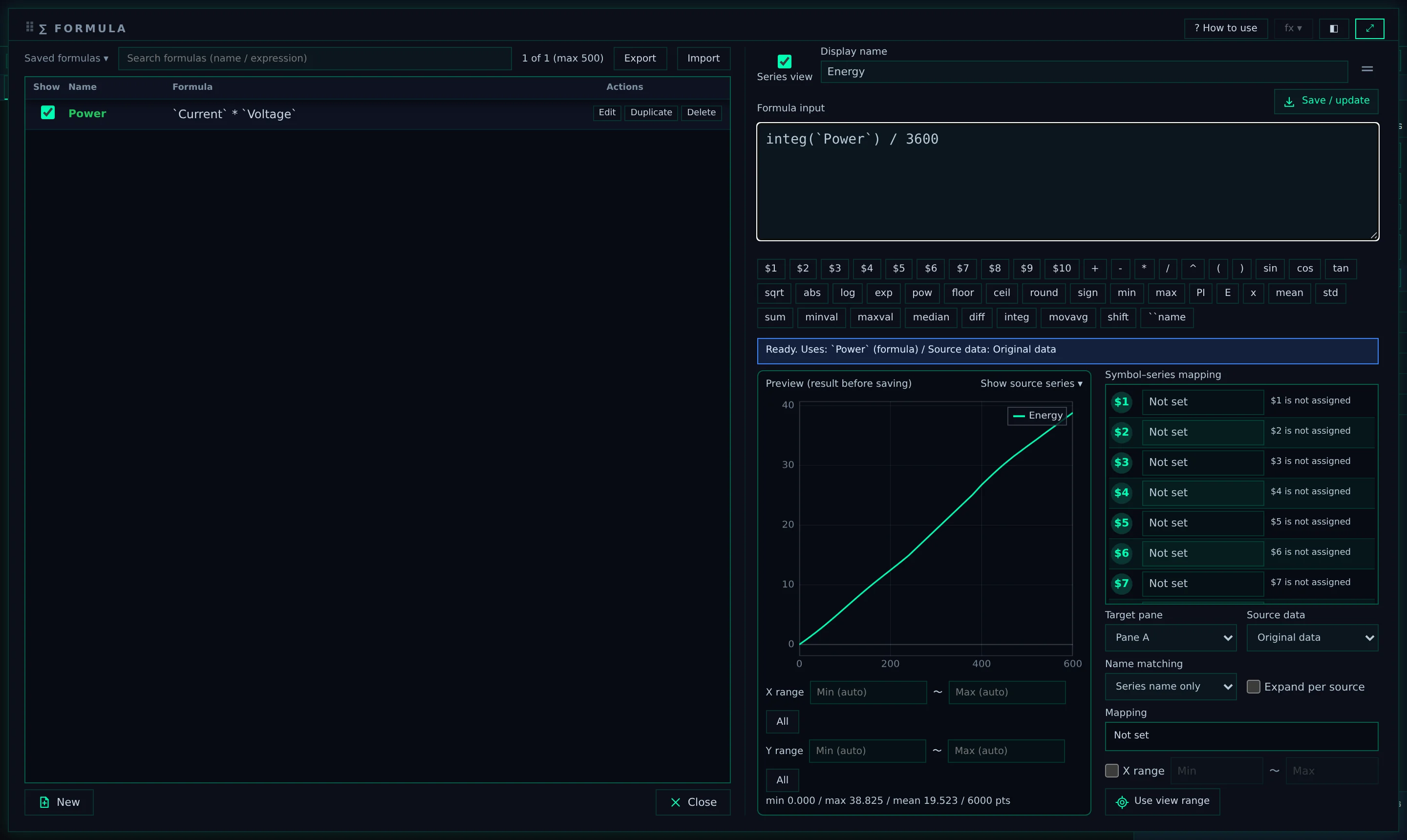
- 1Saved formulas: The list of saved formulas. The Show check box on the left toggles display on the graph
- 2List search (filter by part of a name or expression), and Export and Import
- 3Series view and Display name: The name of the series to create. If you uncheck Series view, the series is not displayed on the graph even when saved
- 4Formula input: The field where you write the expression
- 5Save / update: Saves the formula and creates the series
- 6Buttons for symbols, operators, and functions. Clicking one inserts it at the cursor position in the input field
- 7Status display: Shows the series used in the expression and whether it can be calculated. If there is a syntax error, the reason is shown
- 8Preview (result before saving): The calculation result before saving
- 9Symbol–series mapping: Assigns series to the symbols $1–$10
- 10Target pane, Source data, Name matching, Expand per source, Mapping
- 11X range: Limits the X range to calculate
- 12Switches the screen display (see the table below)
- 13New (clears the input fields to start a new formula), Close
The buttons at the top right of the screen switch the display. The display you choose is used the next time you open the screen too.
| Button | Action |
|---|---|
| ? How to use | Shows a short description of how to write symbols and functions. Click again to hide it |
| ⤢ (Maximize / restore to normal size) | Switches between the full-size display and a slightly smaller display. In the smaller display, the list of saved formulas appears below |
| ◧ (Compact view) | Shows a thin bar with only the input field below the graph (described later) |
| fx ▾ (Functions) | Available only in compact view. Opens and closes the function buttons |
7.2Create a series with a formula
As an example, create power from current and voltage.
- Click Formula to open the formula screen.
- Enter "Power" in Display name. If you leave it empty, the name will be something like "CALC1".
- Enter
`Current` * `Voltage`in Formula input. Enclose series names in half-width backquotes (`). - Check that the status display shows Ready and that the result appears in the preview.
- Click Save / update.
"Power" is added at the end of the list on the Series tab and displayed on the graph. With the sample data, the value at 0 s is 13.768 A × 13.519 V = 186.13. Below the preview, the overall values min 182.695 / max 306.133 / mean 232.981 / 6000 points are shown.
| Input aid | How to use |
|---|---|
| ``name button | Inserts two backquotes and places the cursor between them. Then type the name |
| Suggestions | While you type, suggestions for functions, series, and saved formulas appear. You can also show them with Ctrl + Space. Select with ↑ and ↓, and insert with Enter or Tab |
| Full-width symbols | Full-width operators such as ×, ÷, −, and ( ) are read as their half-width equivalents. Full-width digits (for example, 3) and the long vowel mark "ー" cannot be read as a minus sign (see the table in the appendix) |
- Formula series have no unit or file name. The name is exactly as entered in Display name.
- A saved formula series is displayed only on the view tab that was open when you saved it. On other tabs, it is added to the list unchecked.
- For formula series too, you can set filters, unit conversion, color, and more from ▾ (Chapter 5).
- You cannot create formulas with the same name in the same pane (case is not distinguished).
7.3Check with the preview
The preview is the calculation result before saving. When you change the expression, it is recalculated immediately.
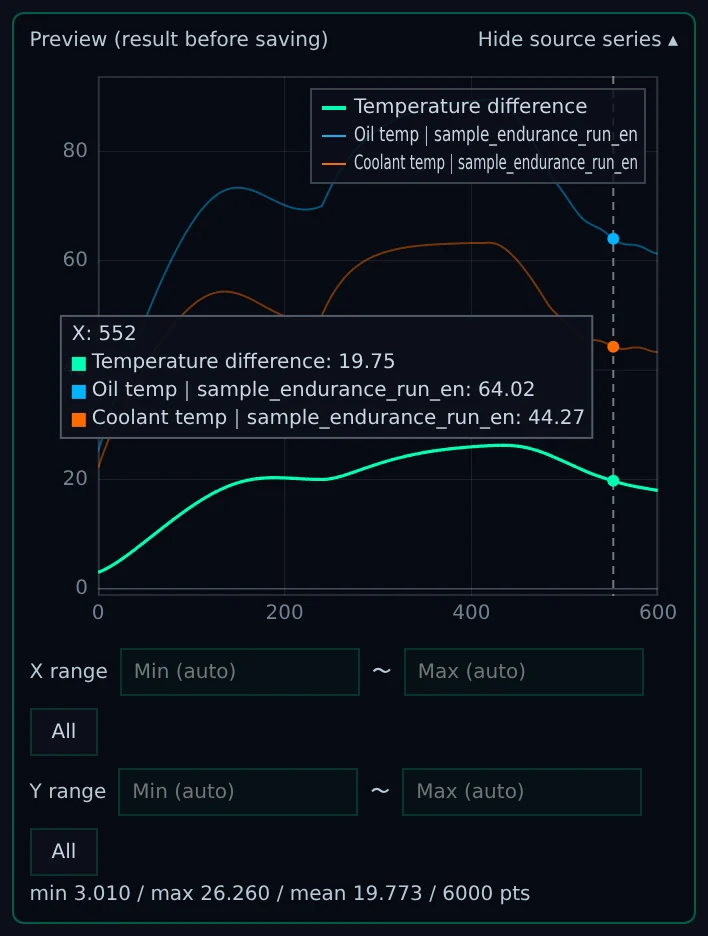
- 1Graph: The result of the formula. Hover the mouse to show a vertical line and the values at that position (X, result, source series)
- 2Show source series ▾: Also overlays the series referenced by the expression as thin lines. When clicked, it changes to Hide source series ▴
- 3X range, Y range: Set the displayed range as numbers. All returns to automatic
- 4The overall minimum, maximum, mean, and number of points. If some points have no value, their number (NaN) is shown too
| Action | Effect |
|---|---|
| Wheel | Zooms X in or out around the mouse position |
| Shift + wheel | Zooms Y in or out |
| Wheel over the axis numbers | Zooms only that axis |
| Drag | Moves (dragging over the Y-axis numbers moves Y) |
| Double-click | Returns to the full view |
- Zooming and moving in the preview are for viewing only. They do not change the formula result or the graph's display range.
- The min, max, and mean below are values over all calculated points, not over the displayed range.
- In the example in the figure, Temperature difference 19.75 is shown from Oil temp 64.02 and Coolant temp 44.27 at 552 s.
7.4Reference series
There are three ways to refer to a series in an expression.
| Syntax | Example | Description |
|---|---|---|
`name` |
`Current`, `Current|sample_endurance_run_en` |
Enclose the series name in backquotes. You can write just the item name (the part before "|") or include the file name |
| $1–$10 | $1 * 2 |
Assign series to the symbols in Symbol–series mapping |
| Unenclosed name | Base * 2 |
Only names consisting of half-width letters, digits, and "_" can be written without enclosing. Names with any other characters, such as Japanese names or names with spaces, must always be enclosed (otherwise an invalid character error occurs) |
Use symbols ($1–$10)
With symbols, you can swap only the referenced series without changing the expression.
- Write a symbol such as $1 in the expression.
- In Symbol–series mapping, click the field for that symbol (Not set at first) and choose a series. Enter part of a name in the field to narrow down the candidates. Besides the data series, saved formulas are also listed as candidates.
- The assignment is also shown in Mapping.
Example: Calculate angular velocity (rad/s) from speed. The expression is 2*PI*$1/60, with "Speed|sample_endurance_run_en" assigned to $1. The value at 0 s becomes 83.84 from 800.6 rpm.
You cannot save while a symbol in use is still Not set.
Reference rules
References written as `name` find series using the following rules.
| Situation | Rule |
|---|---|
| Name comparison | Leading and trailing spaces and the case of letters are not distinguished |
| A data series and a formula have the same name | The data series is used. The status display says so |
| A name not found among the data series | Saved formulas in the same pane are searched (next section) |
| Only the item name is written, and one file has that item | The series from that file is used |
| Only the item name is written, and two or more files have that item | One file is chosen in this order: 1. the same file as other references in the same expression, 2. the file used when the formula was saved, 3. the top file in the list on the Sources tab. The chosen file is shown in the status display. To calculate for all files, use Expand per source |
| One file has two or more columns with the same name | The first column is used, and the status display says so. To use another column, choose it with a symbol |
| Name matching is Series name + file name | Write the file name too (for example, `Current|run_02`). The item name alone is not found |
A series chosen with a symbol keeps using the chosen column after the file is reloaded, as long as the name is the same. It is not swapped even if there are other columns with the same header.
Calculations between series with different X
When an expression uses series with different steps or times, it is calculated on the X of the first series referenced in the expression (the series of a symbol, if symbols are used). The other series are linearly interpolated to those X times.
- Outside the X range of a referenced series, there is no value (NaN).
- Series whose X goes backward partway cannot be interpolated, so they have no value.
- When a referenced series has a time gap of more than 1.5 times its step, no interpolation is done inside the gap, and there is no value.
Formulas with such warnings are shown with their names in red in the list. Hover over the name to see the reason, such as the number of points given no value.
Source data
| Option | Values used for the calculation |
|---|---|
| Original data | The values as loaded |
| Filtered data | The values after the filter and unit conversion set with the series' ▾ (the values visible on the graph). When a formula series is referenced, the values after the filter and conversion set on that formula series are used too |
For example, if you set a unit conversion with a factor of 1000 on the Current series, the result of `Current` is 13.5–22.927 with Original data and 13500–22927 with Filtered data (shown as 1.35e+4–2.29e+4 below the preview).
7.5Call a saved formula by name
A saved formula can be used in other formulas by writing `formula name`. In the status display, (formula) is appended to the name.
Example: Integrate the "Power" (W) created earlier to get energy (Wh).
- Click New and enter "Energy" in Display name.
- Enter
integ(`Power`) / 3600as the expression. integ integrates in the unit of X (seconds here), so divide by 3600 to get Wh. - Click Save / update.
With the sample data, the result is 0 at 0 s and 38.825 at 599.9 s.
- You can call formulas in the same pane (Target pane). A formula cannot call itself. If you try to save formulas edited so that they reference each other, a message appears saying that the formula cannot be saved because of a circular reference, and nothing is saved.
- When you rename a formula that is being called, the name inside the calling expressions is rewritten to the new name.
- A formula called from other formulas cannot be deleted. First edit or delete the calling formulas.
- A formula set to Expand per source can be called only from formulas also set to Expand per source.
7.6Expand per source
When you load two or more files of the same format, one formula can create a result for each file (source). For example, you can create the power of the first and second test runs at once.
- Enter the formula and check Expand per source.
- The status display shows the number of sources that can be calculated. The preview shows the result for the first source.
- Click Save / update.
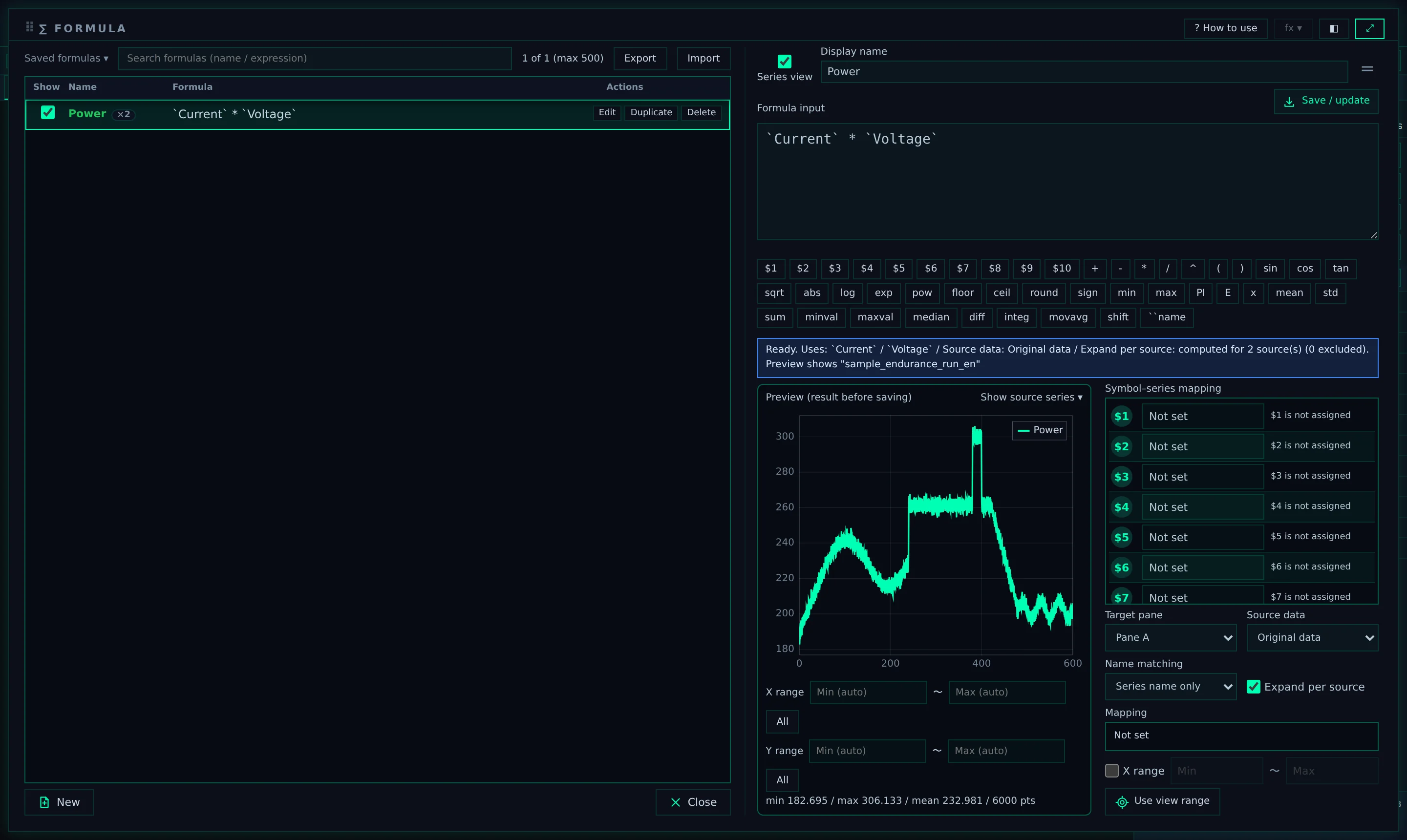
- 1Expand per source: When checked, a result is created for each source
- 2Status display: The number of sources to calculate and the number of excluded sources
- 3Number of series created: Hover over the name to see the calculated sources, and the excluded sources with their reasons
- Results are named "formula name|source name". In the example in the figure, two series are created: "Power|sample_endurance_run_en" and "Power|run_02".
- References are by item name and are looked up within each source. You do not need to write the file name.
- Each source is calculated on its own X. There is no interpolation across sources.
- Sources that lack a referenced item, and sources with two or more columns of the same name where the column to use cannot be determined, are excluded.
- The Show check box in the list shows or hides all expanded results at once. To toggle them one at a time, use the Series tab.
7.7Calculate over a limited X range
Check X range and enter a minimum and maximum to calculate only within that range.
- Points outside the range have no value.
- Aggregate functions such as mean and maxval, and time-series functions such as integ, are also calculated using only the values within the range.
- Click Use view range to fill in the current X display range of the graph.
Example: mean(`Oil temp`) is 71.816 over the whole data, but with X range set to 100–200 it becomes 71.603 and is displayed only between 100 and 200 s.
7.8Handling missing values and time gaps
When the data has missing values (empty cells), or at points that cannot be calculated (division by 0, square root of a negative number, and so on), there is no value (NaN). The graph line breaks at points without a value.
Each function handles them as follows.
| Function | Handling of missing values and time gaps |
|---|---|
| integ | Intervals that include a missing value, and time gaps of more than 1.5 times the step (the median interval), are not spanned and not integrated. The integral does not increase over that interval and continues adding from the next interval. Hover over the name in the list to see the number of spans skipped |
| Interpolation of referenced series | No interpolation is done inside time gaps, and there is no value. Hover over the name in the list to see the number of points given no value |
| movavg | If the window contains a missing value, that point has no value |
| diff | A point has no value if the point before or after it is missing |
| mean, std, sum, minval, maxval, median | Calculated excluding points without a value |
Example: For data with values every 1 s (always 2) at 0–10 s and 20–30 s, and a gap at 10–20 s, the integ result is 20 at 10 s, still 20 at 20 s, and 40 at 30 s. Integrating across the gap over 10–20 s would give 60, but LOGADEC does not span gaps.
The detailed rules for each function are summarized in the appendix "Formula Functions".
7.9Manage saved formulas
Saved formulas are listed one per row.
| Column/button | Action |
|---|---|
| Show | Whether to display the formula series on the graph |
| Name | The name of the formula. Formulas that cannot be calculated or have warnings are shown in red; hover to see the reason |
| Formula | The expression. Hover to also see the Source data and symbol assignments |
| Edit | Loads the formula into the input fields on the right. Make changes and click Save / update to overwrite it |
| Duplicate | Creates a copy, saves it in the list, and loads it into the input fields (the name will be something like "CALC1"). The copy remains even if you do not click Save / update |
| Delete | Deletes without confirmation (you can restore it with Ctrl + Z). A formula called from other formulas cannot be deleted |
- Text entered in the search box above the list filters by name and expression.
- You can save up to 500 formulas. The count is shown above the list.
- Saved formulas remain in the browser you use. Even after you close LOGADEC, they are listed the next time you open it. When you load data, saved formulas are calculated automatically with that pane's data (this also applies to the first file you load after opening LOGADEC).
- Formulas are per Target pane. With 2 panes, choose Pane A or Pane B before creating formulas.
7.10Export and import formulas
You can export formulas you create to a file and use them on other PCs or in other documents.
- Export: Click Export above the list. Choose All formulas or the formulas in the list as filtered by your search, and click Export. A file named
logadec_formulas_<date>_<time>.jsonis saved. - Import: Click Import and select an exported file. You can also select a settings file (.json) to import the formulas in it. Imported formulas are added to the current list.
When formulas with the same name already exist, choose how to handle them.
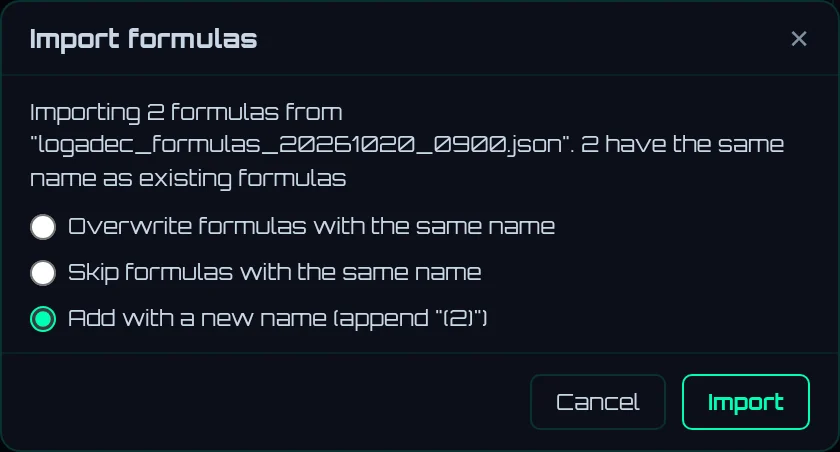
- 1The number of formulas to import and the number of formulas with the same name
- 2Choose how to handle formulas with the same name
- 3Import: Imports the formulas
| Option | Result |
|---|---|
| Overwrite formulas with the same name | Replaces existing formulas with the same name with the file's contents |
| Skip formulas with the same name | Does not import formulas with the same name |
| Add with a new name (append "(2)") | Adds them with " (2)" appended to the name (this is selected at first). Expressions that call the renamed formulas are also rewritten to the new names when imported |
For example, importing "Power" and "Energy" (integ(`Power`)/3600) under other names creates "Power (2)" and "Energy (2)" (integ(`Power (2)`)/3600). Any formulas beyond 500 in total are not imported.
7.11Formulas per document
Your usual formulas are in the list inside the browser (the shared list remembered on this PC). Data saves (.lgd) and settings files (.json) also include the formulas at that time (Chapter 11).
When you open an .lgd or settings file, the formulas and presets in it are used as that document's own.

- 1The mark showing that the document's formulas are in use. · unsaved is added when there are unsaved changes
- 2Export
- 3Import
- While a document is open, adding, changing, or deleting formulas affects only the document. When you save the document, the changes go into the document. The shared list does not change.
- Even if you delete a formula in another document, the formula is all there when you open a document that contains it.
- When you reopen LOGADEC, the shared list is used again.
7.12Write formulas while viewing the graph in compact view
Click ◧ (Compact view) to turn the formula screen into a thin bar below the graph. You can edit expressions while viewing the graph.
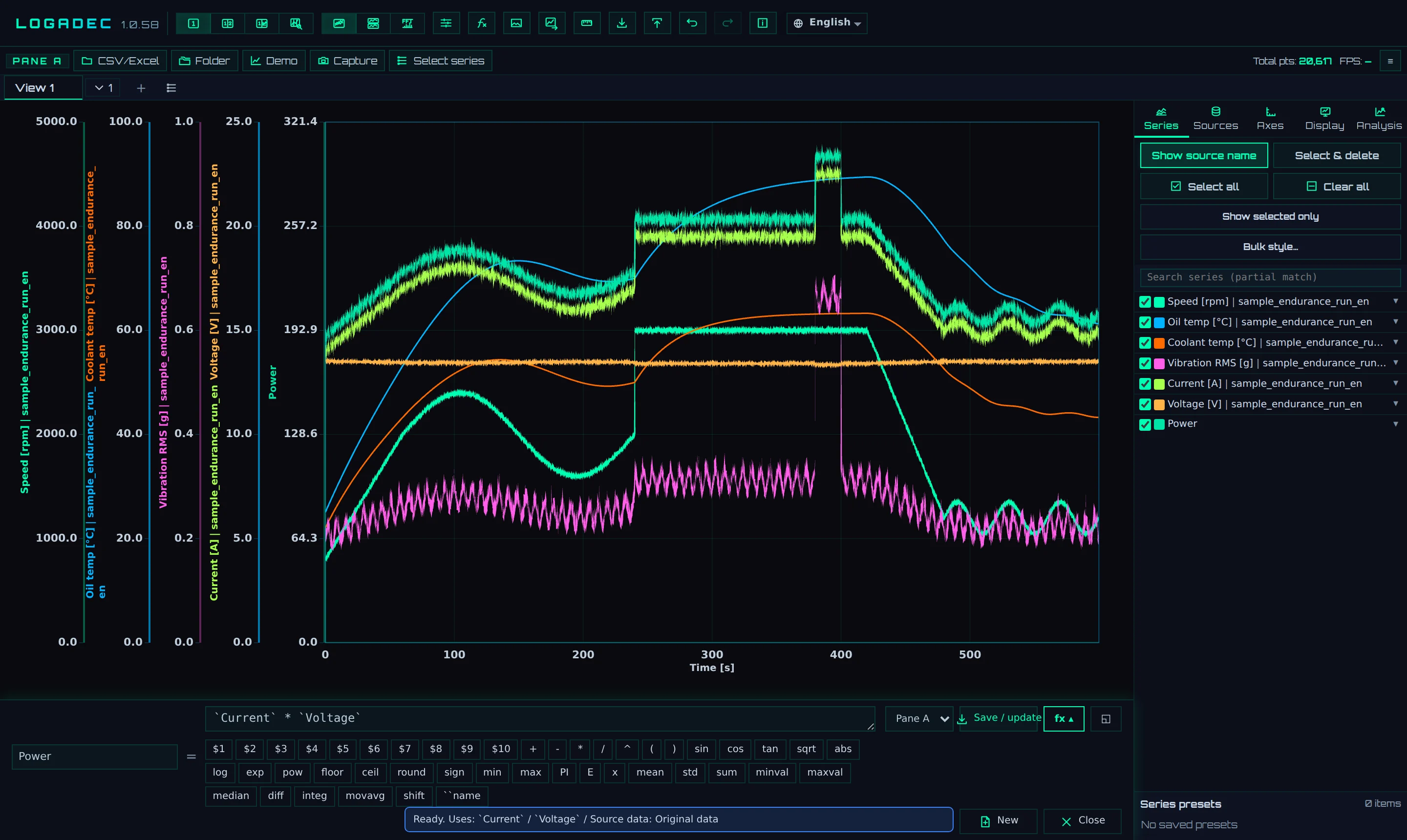
- 1The expression input field. Display name is on its left
- 2Symbol and function buttons
- 3Save / update
- 4fx ▴: Opens and closes the function buttons
- 5◱ (Full view): Returns to the full formula screen
- 6Saved formula series are added at the end of the list on the Series tab
- Compact view does not show the preview, the list of saved formulas, Expand per source, and so on. To use them, return to the full screen.