Chapter 9Time-Domain Analysis
This chapter describes the analyses on the Analysis tab of the sidebar that examine how values change over time. Frequency analysis (FFT, STFT, Wavelet, Freq. anomaly) and filters are described in Chapter 8.
| Analysis | What you learn | Suitable for |
|---|---|---|
| Moving stats | Mean, RMS, spread, maximum, minimum, and change within a window | Smoothing a strongly fluctuating signal to see the trend |
| Change point | Times when the level or slope of the values changed | Steps, level shifts, and the onset of changes |
| Outlier | Points that stand out from their neighbors | Single spikes and value jumps |
| Correlation | Series that move strongly together with the target series, and their time offset | Finding candidate causes |
| Corr. break | Time periods when the usual co-movement of two series broke down | Intervals where the amplitude is small but the relationship went wrong |
| Event analysis | Series that moved at the same time as, before, or after events in the target series | The trigger of an anomaly and the order in which it spread |
| Known event investigation | When the interval in which an anomaly occurred is known, the series that moved in that interval | Investigations where the time of a fault is known |
The examples in this chapter use the sample data sample_endurance_run_en.csv. At 380–400 seconds, Vibration RMS and Current rise temporarily.
9.1Common flow on the Analysis tab
The upper part of the Analysis tab is common to all analyses. It is divided into three stages: Target, Run, and Results. This part does not move when you scroll the sidebar, so you can always see what is being analyzed over which range, even while looking at the analysis cards below.
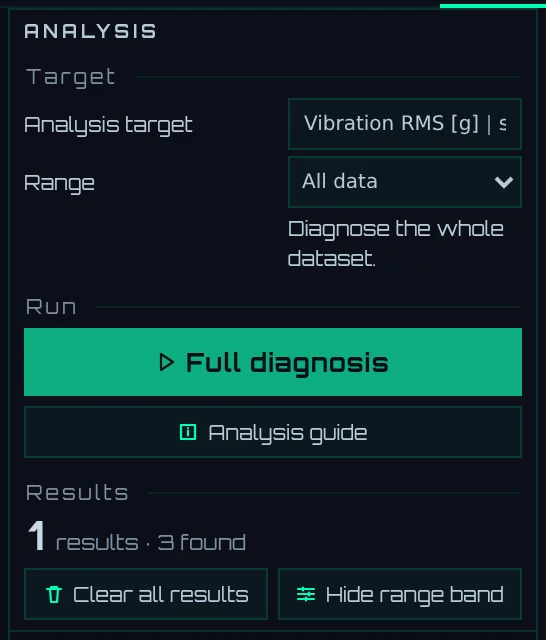
- 1Analysis target: Choose the series to analyze. Enter part of a name to filter
- 2Range: The X range to analyze (All data, Visible, Selected)
- 3Full diagnosis: Runs the analyses all at once (described later)
- 4Analysis guide: Choose which analysis to use based on what you want to find out
- 5Result count: The number of analyses with results, and the total number of findings
- 6Clear all results: Clears all analysis results and the marks on the graph (including the results of Known event investigation)
- 7Hide range band: Hides the light-blue display showing the Selected range (the range itself remains)
1. Choose the target
- Analysis target: All analyses target the one series chosen here. Hidden series can also be chosen. Series of data sources hidden on the Sources tab are not listed. When you change the target, the previous results of each analysis and of Full diagnosis (summary and findings) are cleared, and the count above returns to 0.
- Range: Choose the X range to analyze.
| Range | Range analyzed |
|---|---|
| All data | The whole loaded data |
| Visible | The X range currently visible on the graph. If you zoom in on an area of interest first, you can examine just that area |
| Selected | A specified range. Click Specify range, then click (or drag) the start and end on the graph, or enter numbers in the two fields below. If you enter only one end, the other end becomes the end of the data (the field stays empty and shows the end value in light text). If the start is after the end, they are swapped and you are notified. Clear cancels the specification |
Corr. break and Known event investigation have their own separate ranges in their cards (described later). The number of specified ranges is shown in the Clear all ranges button (the button does not appear when there are none), and this button clears all specifications at once. Analysis results are not cleared.
2. Run
Analyses are run one at a time in the cards listed below. Click a card's heading to open it. In every card, set the conditions and click the run button (for example, Detect change points). Clear clears only that card's results.
| Button | Available in | Action |
|---|---|---|
| ⚙ Auto run | Change point, Event analysis | Determines the window width and threshold automatically and combines the results of several trial settings into candidates. The chosen values are entered in the card's fields, and the reasons are shown above the results |
| Add score series, Add to series | Moving stats, change point, outlier, correlation break, and others | Adds intermediate values of the analysis (scores or moving averages) as new series (described later) |
| ◀, ▶ (Zoom to previous finding, Zoom to next finding) | Change point, outlier, correlation break, event analysis, and others | Zooms in on the detected positions one after another |
Enter time fields such as the window width in the X unit of the loaded data (the unit is shown to the right of the field). For data with X in milliseconds, 5 seconds is 5000.
Click Analysis guide to see a list of goals, such as "Pinpoint sudden jumps / spikes" and "Extract series that move around an anomaly timing". Choose one to open the cards of the analyses suited to it.
3. View the results (the investigate screen)
When you open the Analysis tab, the screen switches to the Investigate layout. Below the graph, an overview waveform and a table of analysis results appear. In 2 panes, opening the Analysis tab of Pane B shows Pane B in this layout (click 2 panes to return).
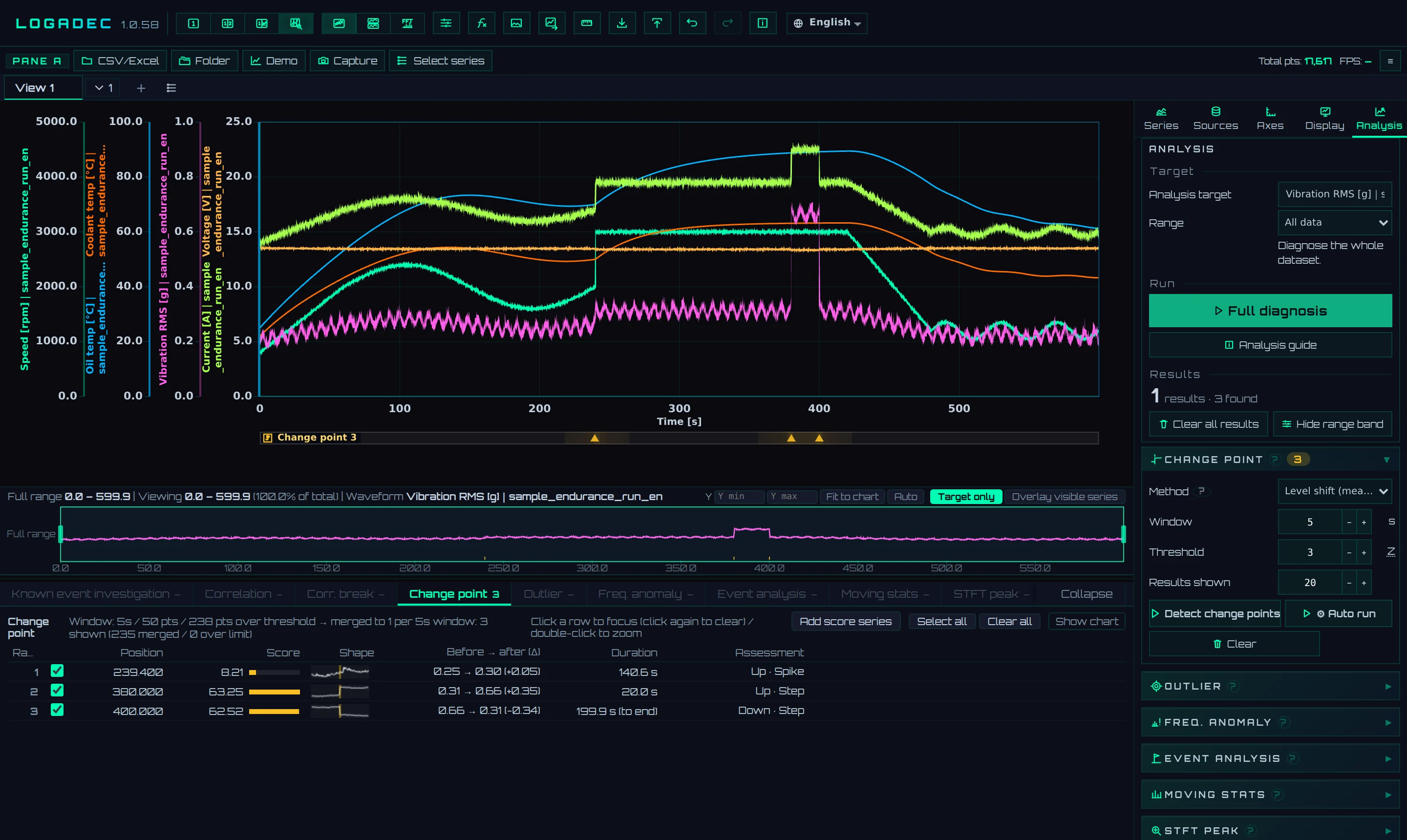
- 1Investigate: The screen switches to this layout automatically when you open the Analysis tab
- 2Result marks: One row per kind of analysis, showing the detected positions
- 3Overview waveform: A frame shows the range you are currently viewing. Drag the frame to move it, and drag its edges to zoom in or out. Click outside the frame to move to that position
- 4Analysis tabs: Switch between the results of each analysis. The number is the count of findings (– means the analysis has not been run yet)
- 5Results table: Sort by clicking a column heading. Drag the border between columns to change column widths
- 6Analysis cards: Set conditions and run
- Collapse the table with Collapse at the top right of the results table to use more of the screen for the graph. Drag the border between the table and the graph to change the table height.
- The "Shape" column in the table is a small drawing of the waveform around the detected position.
- Click Show chart at the top right of the table to also show the results as a chart (trends or rankings).
If you do not want this switch, open Display & bulk actions under Other below the cards and uncheck Open the Investigate view when the Analysis tab opens. This setting is kept in the browser you use. When you return to 1 pane or another layout, the results are shown inside the cards in the sidebar.
| Setting in Display & bulk actions | Description (initial state) |
|---|---|
| Chart legend | Shows an analysis legend on the graph (on) |
| Result tracks | Shows rows of result marks below the graph (on) |
| Marks on chart | Marks shown inside the graph: Glyphs (flag / step / ring), Vertical dashed lines, Range brackets and ▼, Range fill (all off) |
| Auto-widen sidebar on Analysis tab | When not on the investigate screen, widens the sidebar when you open the Analysis tab (on) |
| Open the Investigate view when the Analysis tab opens | Switches to Investigate when you open the Analysis tab (on) |
| Result cards on chart | The number of result cards overlaid on the graph (Off) |
Working with the results table
Some results tables have one row per "position" (Change point, Outlier, Corr. break, and others), and some have one row per "series" (Correlation, the candidates of Event analysis, Known event investigation).
| Action | Table with position rows | Table with series rows |
|---|---|---|
| Row check box | Shows the mark for that finding below the graph | For Event analysis candidates, selects the series to display when you click Show candidates |
| Click | Highlights that position on the graph (focus) | Displays that series and highlights the related positions. Series displayed by the previous click are hidden again |
| Click again | Removes the highlight | Removes only the highlight (the series stays displayed) |
| Double-click | Zooms in around that position | — |
| Ctrl + click | — | Displays the series in addition, keeping the previously displayed series |
| Shift + click | — | Displays (or hides) all series between two rows at once |
You can also remove the highlight by clicking outside the table or pressing Esc.
Tidy up displayed series
When some series have been displayed by clicking rows, Tidy up shown series appears below the result count. Click it to hide again only the series that were displayed by clicking rows. Series you displayed by checking them yourself stay displayed.
Turn intermediate values into series
Click Add score series (Add to series for Moving stats) to add intermediate values of the analysis as a new series. Added series can be displayed, saved, and exported like ordinary series, and can also be the target of another analysis.
| Analysis | Series added (example) | Unit |
|---|---|---|
| Moving stats | Vibration RMS Moving average | Same as the original series (Rate (Δ per X unit) is "Y unit/X unit") |
| Change point | Vibration RMS change-point score | Z |
| Outlier | Vibration RMS outlier score | Z |
| Corr. break | Target series name + correlation-break score | drop (amount of decrease in correlation) |
Data used for calculation (Filtered (as displayed), Raw data)
The Outlier, Correlation, and Corr. break cards have a Data field.
| Option | Values used for the calculation |
|---|---|
| Filtered (as displayed) (initial state) | The values plotted on the graph: the values after the unit conversion and filter set with the series' ▾ (Chapter 5) |
| Raw data | The values as loaded from the file |
Handling missing values and the direction of X
- Empty or non-numeric values: Those points are not used. Analyses that use a window width arrange the points on a grid at the X step (the median step) for calculation, so missing positions remain empty. A window never spans a gap to put distant points into the same window. For results with missing points, the count is shown above the results, like "100 missing points left empty".
- Time jumps: Time gaps wider than 1.5 times the step are also treated as missing. When matching series by time (correlation, correlation break, event analysis), values are never filled in across missing values or gaps.
- Data where X goes backward: Series in which X becomes smaller than the previous point, or the same X repeats, are not analyzed. When the analysis target is such a series, you are notified with a message like ""…" cannot be analysed: X goes backward (1) or repeats (0)". Narrowing Range does not change this (the whole series is checked before the range is cut out). When a non-target series is like this, that series does not appear in the results.
- Right before and after a gap, fewer points are in the window, so Change point and others may produce extra candidates. Check on the graph whether a candidate position falls on the edge of a gap.
Full diagnosis
Click Full diagnosis to run the following analyses in order under the Analysis target and Range conditions. Window widths and similar settings are determined automatically from how quickly the target series changes (the reference time constant). The chosen values are written in the summary. The fields in the Change point and Event analysis cards (method, window width, threshold, and so on) are not overwritten.
- Change point (⚙ Auto run)
- Event analysis (⚙ Auto run)
- Outlier
- Freq. anomaly
- Corr. break
- Correlation
- Moving stats
- STFT peak
- Wavelet
- Known event investigation (only when an abnormal interval is specified)
The results are collected on the Full diagnosis tab. Click a row to move to that analysis's tab and zoom in on the corresponding position. The results of each analysis are also placed on their own tabs.
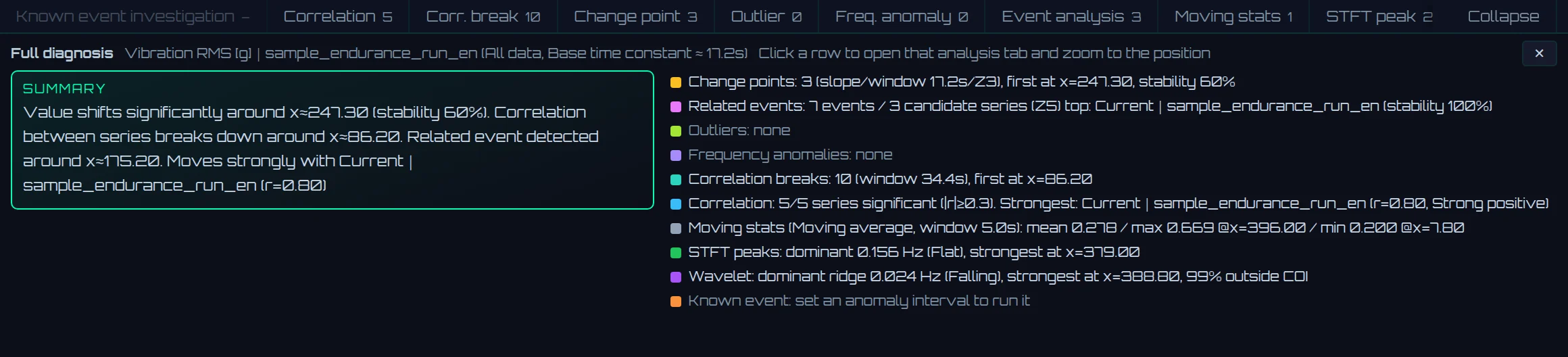
- 1The Full diagnosis tab: The summary is on the left, and the findings of each analysis are listed one per row on the right
Freq. anomaly is run with five window widths, and only the places that at least half of them mark as anomalous become findings (with a single window width, places where nothing happens can be counted as anomalies).
Full diagnosis is the starting point when you do not know where to begin. For analyses that produced findings, change the conditions in their cards to confirm.
Practice with the analysis tutorial
Click Demo in the pane bar, choose Analysis tutorial in Type, and click Generate to create practice data for analysis (6 series, 120 seconds, step 0.01 seconds). The analysis cards are filled with conditions suited to this data. If you run each analysis as-is, the following positions are detected.
| Analysis | Detected positions |
|---|---|
| Outlier | 24.5, 72.2, 101.4 seconds |
| Change point | 42, 88 seconds |
| Freq. anomaly | Around 58–72 seconds |
| Corr. break | Around 58–75 seconds |
The series names (Normal tracking, Delayed response, Leading event, Unrelated noise, and so on) indicate the role of each series.
Full diagnosis also finds the positions above for Outlier, Change point, and Freq. anomaly. It does not find the Corr. break, because Full diagnosis chooses the other series automatically (the most correlated one, Normal tracking). To find the break with Correlation break, choose it as the other series in the card.
If you add ?demo=tutorial to the end of the address when you open the file in a browser, the analysis tutorial data is created at startup (only when Pane A has no data).
9.2Moving stats
Calculates statistics within a window for the target series. The window is "that point and the window width before it". The results are shown in the sidebar and on the Moving stats tab, and can be added as a series with Add to series.
| Type | Value calculated |
|---|---|
| Moving average (initial state) | The mean within the window |
| Moving RMS | The root mean square within the window |
| Moving std dev | The standard deviation within the window |
| Moving min, Moving max | The minimum and maximum within the window |
| Delta (now − prev) | The current value − the value one window width earlier. Not calculated if there is no point one window width earlier |
| Rate (Δ per X unit) | The change ÷ the difference in X |
- The initial value of Window is 5 (in X units).
- The results show the number of points in the window, the number of points output, and the mean, maximum (position), and minimum (position).
- Results appear only at positions where the original series has points. Missing positions remain empty.
9.3Change-point detection
Finds times when the level (or slope) of the values changed. For each point, windows are taken before and after it, the difference between the before window and the after window is calculated point by point, and places where that difference is larger than usual become candidates.
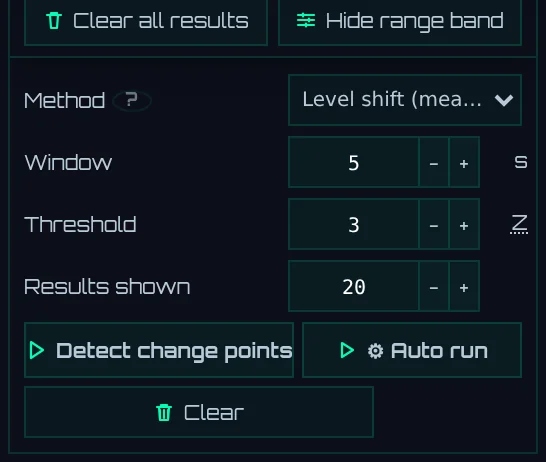
- 1Method: Choose Level shift (mean diff) or Slope change (trend diff)
- 2Window, Threshold, Results shown
- 3Detect change points: Detects with these conditions
- 4⚙ Auto run: Determines the window width, threshold, and method automatically, then detects
- 5Clear: Clears this card's results
| Setting | Description | Initial value |
|---|---|---|
| Method | Level shift (mean diff): The difference between the means of the before and after windows. Suitable for steps and level shifts. Slope change (trend diff): The difference between the slopes of the regression lines of the before and after windows. Suitable for the start and end of gradual changes | Level shift (mean diff) |
| Window | The length of the before and after windows (in X units). Set it to about the length of the change you are looking for | 5 |
| Threshold | The minimum Z for a candidate (0.5–20) | 3 |
| Results shown | The maximum number of candidates shown (3–100) | 20 |
Z (robust Z-score)
The thresholds of Change point, Outlier, and Event analysis are set in Z. Z is a number that expresses "how many times the usual spread a value deviates".
- Z = (value − median) ÷ (MAD × 1.4826). MAD is the median of the absolute differences from the median. Multiplying by 1.4826 gives a size equivalent to the standard deviation of a normal distribution.
- Because the median and MAD are used instead of the mean and standard deviation, the yardstick is not pulled by the abnormal values themselves.
- As a guideline, 2 is sensitive (more candidates), 3 is standard, and 4–5 catches only definite anomalies.
- In Change point, Z is calculated over the sequence of differences between the before and after windows. Open About Z-score in the card to read the same explanation.
Reading the results
When points above the threshold are consecutive, they are merged into the single point with the largest Z within the window width. A line above the results such as "238 pts over threshold -> merged to 1 per 5s window: 3 shown" gives this breakdown.
| Column | Description |
|---|---|
| Position | The X of the change point |
| Score | Z |
| Before → after (Δ) | The means before and after the change point, and their difference |
| Duration | The length until the next change point (for the last change point, until the end of the data) |
| Assessment | Rise or fall, and the shape of the change (Step, Spike, and so on) |
When you examine Vibration RMS in the sample data with the initial conditions (Level shift (mean diff), window width 5, Z 3), three places are found: 239.4 seconds (where speed was raised to 3000 rpm), and 380.0 and 400.0 seconds (where vibration rose and returned) (see the figure of the investigate screen).
9.4Outlier detection
Finds points that stand out from the surrounding points (the Hampel method). A window is taken centered on each point, and the point's Z is calculated from the median and MAD within the window.
| Setting | Description | Initial value |
|---|---|---|
| Data | Filtered (as displayed), Raw data (described above; shared by all analyses) | Filtered (as displayed) |
| Window | The window length including both sides of the center (in X units). Kept between 3 and 801 points | 5 |
| Threshold | The minimum Z for an outlier (0.5–20) | 3.5 |
| Results shown | The maximum number of candidates shown | 20 |
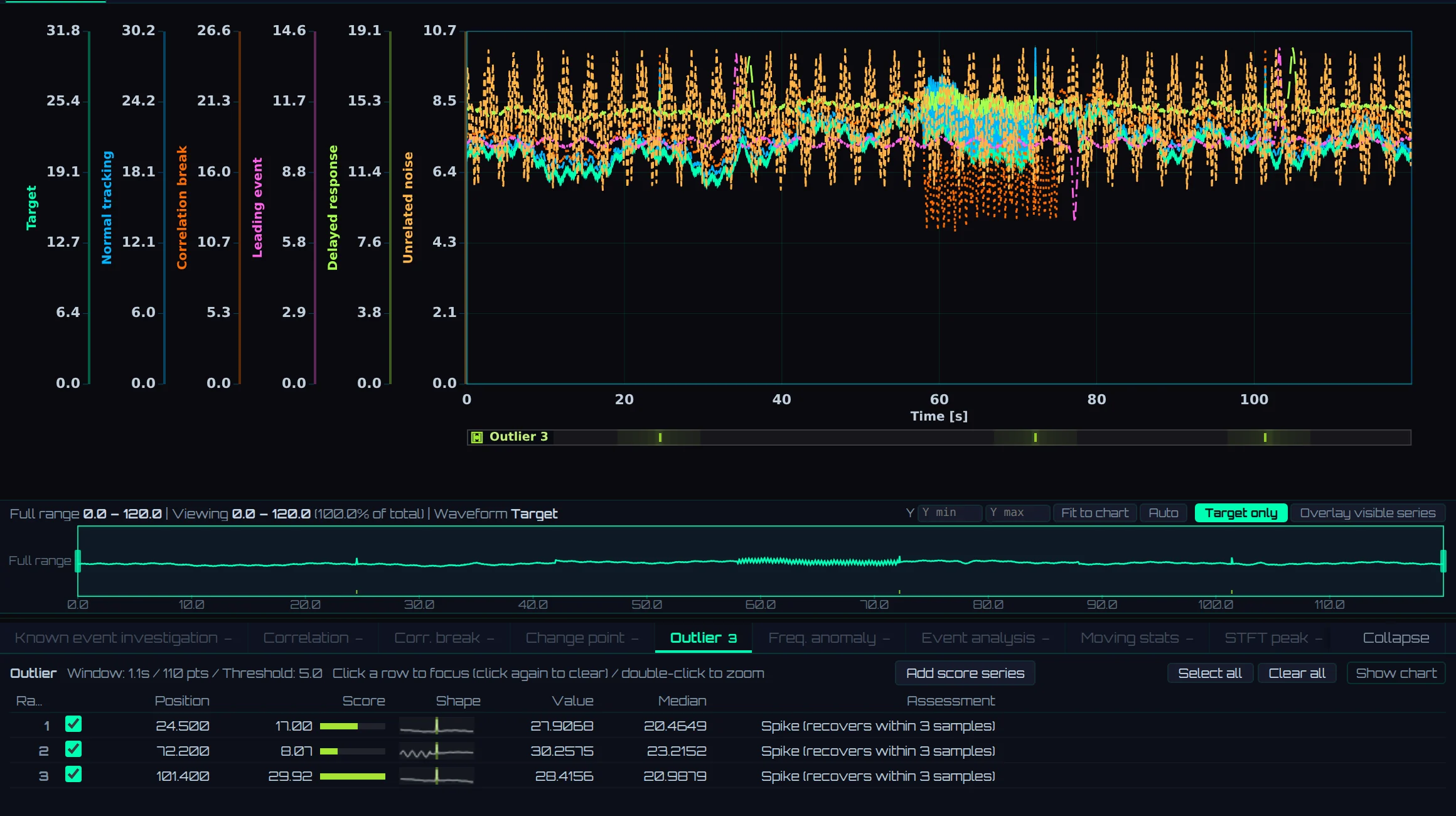
- 1The Outlier tab
- 2Results table: Position, Score (Z), Value, the window Median, Assessment
- "Spike (recovers within 3 samples)" in Assessment means that the value returned close to the median within 3 points.
- When the window contains almost the same value throughout (MAD is 0), points that differ from the median are reported as strong outliers with a score of 99. For signals with constant stretches or coarse resolution (quantized signals), even a one-step difference becomes a candidate.
9.5Correlation analysis
Calculates the correlation between the Analysis target and all other series, and lists them in order of correlation strength. It can also search for a time offset (lag).
| Setting | Description | Initial value |
|---|---|---|
| Method | Pearson: The linear relationship between values. Spearman: The relationship between the ranks of values (robust to curved relationships and outliers). Difference correlation: The correlation between differences from the previous point (removes slow trends to see co-movement of fine fluctuations) | Pearson |
| Data | Described above (shared by all analyses) | Filtered (as displayed) |
| Max lag | The range over which to search for a time offset (in X units). At 0, no offset is searched | 0 |
| Lag step | The step for searching offsets. 0 is automatic (the data step). Up to 151 offsets are searched; if there would be too many, the step is widened, and the area around the best offset is searched again more finely | 0 |
| Results shown | The number of series shown (3–100) | 20 |
The partner series are compared at the times of the target series. When searching for offsets, offsets at which the overlapping points are fewer than half of the total (at least 10 points) are not used.

- 1Correlation: The correlation coefficient r (−1 to +1). The bar length is |r|
- 2Lag: The time offset adopted
- 395% CI, p-value: The 95% confidence interval and the p-value (corrected for the number of offsets searched)
- 4Assessment: Strength, direction, significance, and the direction of the time offset
Significance (95% CI, p-value)
Points in a time series are not independent of each other, so using the number of points as-is makes even chance correlations look significant. LOGADEC calculates the confidence interval and p-value with an effective number of points that takes the autocorrelation of the series into account. When offsets are searched, the p-value and confidence interval are corrected for the number of offsets searched (Bonferroni). The corrected confidence interval spans 0 when the corrected p-value is greater than 0.05.
Significance is shown in one of the following three ways.
| State | Condition | Display in Assessment |
|---|---|---|
| Significant | The p-value was obtained and is 0.05 or less | Strength and direction. Example: Strong positive |
| No significant evidence | The p-value was obtained and is greater than 0.05 | No significant evidence |
| Not computed | No p-value is calculated (with Difference correlation, and also when the effective number of points is too small) | "(significance not computed)" after the strength and direction. 95% CI and p-value are — |
- Strength is "Strong" when |r| is 0.7 or more, "Moderate" when 0.3 or more, and "Weak" when smaller.
- No significant evidence does not mean "there is no correlation". It means that with this number of points and this spread, you cannot say there is a correlation.
- Series whose confidence interval spans 0 are shown in gray in the chart.
Direction of the time offset
When Lag is positive, the partner series moves before the target (a candidate for the cause). When it is negative, the partner follows later. Assessment adds the direction in words.
| Lag | How Assessment is written |
|---|---|
| Positive (example: +30.00 s) | Example: Strong positive (candidate leads by 30.00 s) |
| Negative (example: −1.11 s) | Example: Moderate positive (candidate lags by 1.11 s) |
| 0 | Strength and direction only |
In the analysis tutorial, Delayed response is "Moderate positive (partner lags by 1.11 s)", and Correlation break, Leading event, and Unrelated noise are No significant evidence (figure above). With Vibration RMS in the sample data as the target and Max lag set to 30, Coolant temp and Oil temp are "partner lags by 30.00 s". This is because temperatures follow changes in rotation with a delay. Conversely, with Coolant temp as the target, Speed, Current, Voltage, and Vibration RMS are "partner leads by 30.00 s" (Voltage is negatively correlated). When the offset equals Max lag, it has hit the edge of the search range. Widen the range to confirm.
How full diagnosis reports it
The Correlation row of Full diagnosis counts only series that are significant with |r| of 0.3 or more.
- When there are matching series: It reports the number of matching series and the strongest series, like "Correlation: 5/5 series significant (|r|≥0.3). Strongest: Current (r=0.80, Strong positive)".
- With Difference correlation, when no series has significance computed: It reports "Correlation: significance not computed with the difference method (5 series; …)".
- Otherwise: It reports "Correlation: none significant (5 series)".
View candidates on the graph
Click a row to display that series on the graph and highlight it. Click Show top in the sidebar card to display only the target series and the series checked in the table, hiding the other series.
9.6Correlation break
Finds time periods when the usual co-movement of two series broke down. It is suitable for finding changes that begin as a shift in the relationship, even if they are small in amplitude.
- Calculates the correlation of the two series over the whole range (the baseline correlation).
- Shifts a window and calculates the correlation in each window.
- Windows where the drop from the baseline correlation (measured in the direction of the baseline correlation) is at least Drop threshold become candidates. When the direction of the correlation reverses, the drop exceeds 1 (for example, +0.9 → −0.9 gives 1.8).
| Setting | Description | Initial value |
|---|---|---|
| Target series, Comparison series | The two series to compare. Chosen separately from the Analysis target | — |
| Range | All data, Current display range, Specified chart range. Specify Specified chart range with Specify range | All data |
| Method, Data | Settings shared with correlation analysis | Pearson |
| Window, Step | The window length and the step by which it shifts (in X units). The step is never wider than the window | 10, 2 |
| Drop threshold | The minimum drop for a candidate (0.01–2) | 0.4 |
| Results shown | The maximum number of candidates shown | 20 |
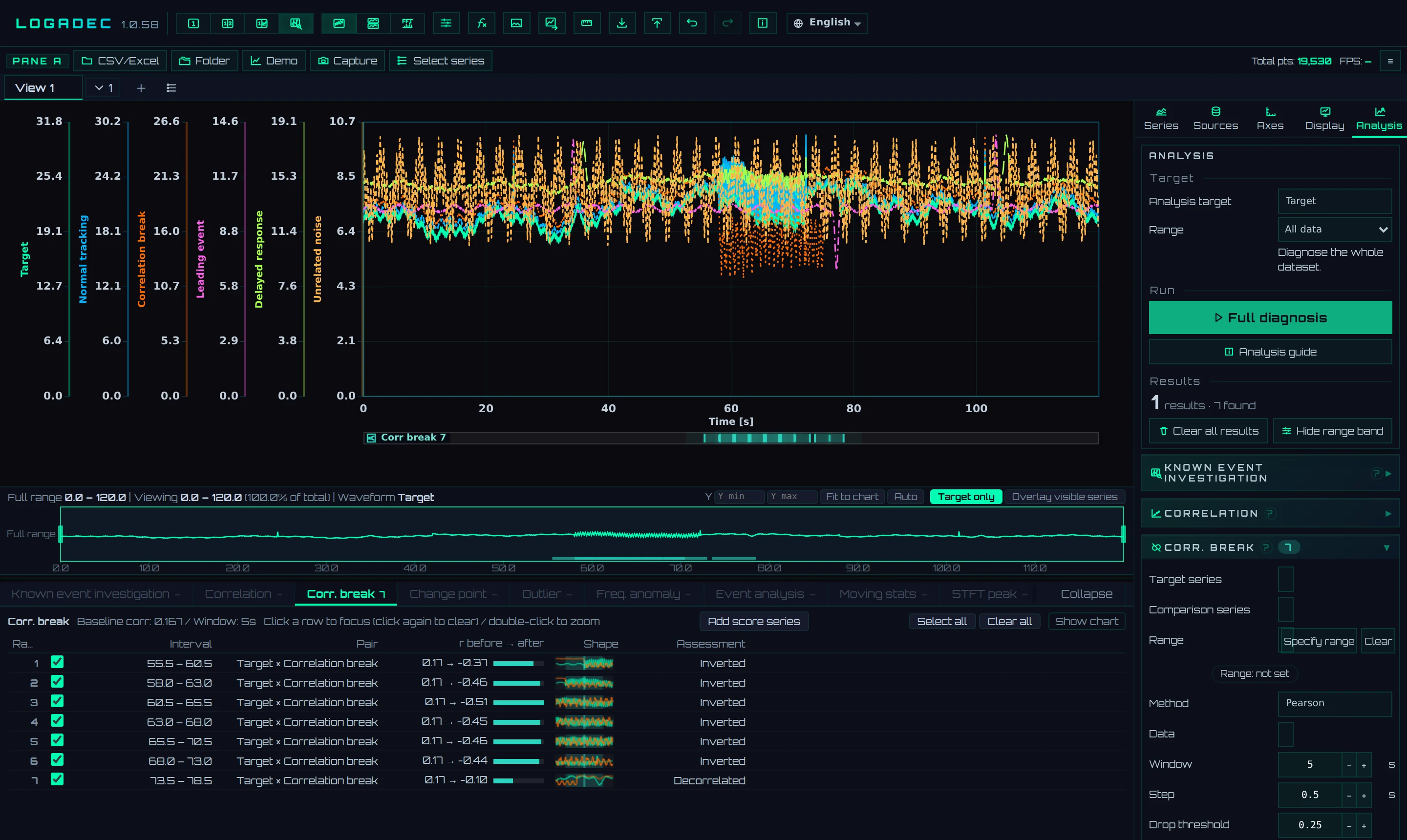
- 1Target series, Comparison series
- 2Range: A range for this card only
- 3Results table: Interval, Pair, r before → after (baseline correlation → window correlation), Assessment
| Assessment | Meaning |
|---|---|
| Inverted | The window correlation is in the opposite direction from the baseline, with an absolute value of 0.3 or more |
| Decorrelated | The absolute value of the window correlation is less than 0.3 |
| Weak | Neither of the above, but weaker than the baseline |
9.7Event analysis
Finds "events" in the target series and examines whether other series moved at the same time, before, or after them.
| Setting | Description | Initial value |
|---|---|---|
| Type | How events are found (table below) | Sudden change (diff Z) |
| Anchor time | The X of the event with Specified time (known event). Use Pick on chart to take it from the graph | — |
| Threshold | The minimum Z for an event (0.5–20) | 3 |
| Pre-window, Post-window | The ranges before and after the event in which to look for movement of other series (in X units) | 5, 5 |
| Min interval | Events closer than this are merged into one | 1 |
| Type | Where events are placed |
|---|---|
| Sudden change (diff Z) | Where the difference between adjacent points is large (the Z of the difference is at or above the threshold) |
| Specified time (known event) | Only the one specified time. Use it when the time of the anomaly is known |
| High-value event, Low-value event | Where the Z of the value itself is high or low |
| Change-point candidate | Where the difference between the means of the before and after windows is large. The window is twice Min interval (it also catches gradual co-movement) |
Up to 80 events are found. For each other series, the place with the largest Z of change within the range before and after the event is found, and if it exceeds the matching criterion, it counts as a "match". The matching criterion is set taking into account how much that series moves where there are no events. This makes it harder for noisy series to match even unrelated events.
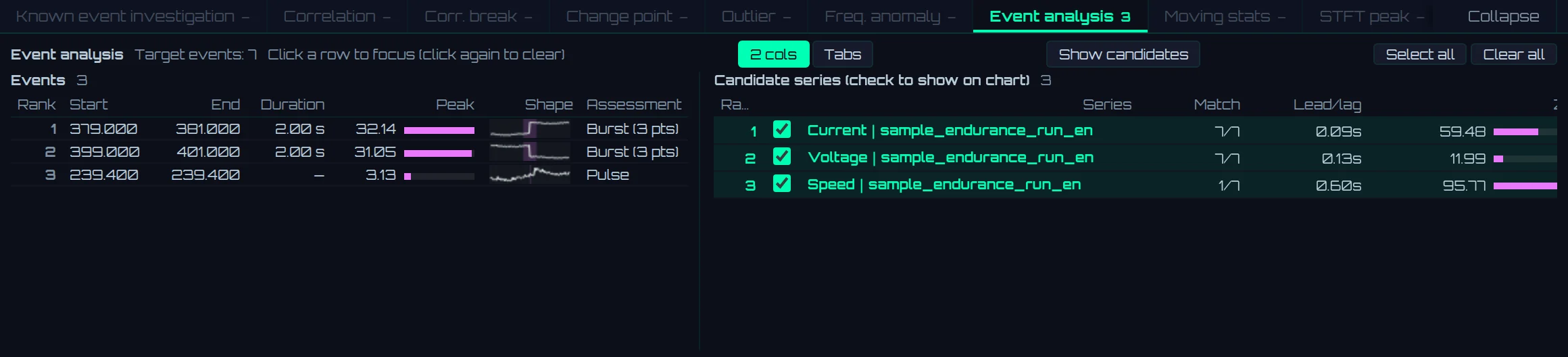
- 1Events: The events found (close events are merged and shown with start, end, and duration)
- 2Candidate series (check to show on chart): The matching series, in descending order of matches
| Candidate column | Description |
|---|---|
| Match | The number of matched events / the number of events |
| Lead/lag | The average time offset at the matches. Negative means leading (moved before the target), positive means lagging |
| Z | The average Z of change at the matches |
For Vibration RMS in the sample data, around 380 and 400 seconds and 239.4 seconds become events, and Current and Voltage match 7/7. With Sudden change (diff Z) left as-is, the fine fluctuations of vibration also become events, reaching 80. In that case, raise Threshold, or use Change-point candidate or Specified time (known event).
Click Show candidates to display only the target series and the checked candidate series.
9.8Known event investigation
Use this when the interval in which an anomaly occurred is already known. It compares that interval (the abnormal interval) with a normal interval (the baseline), examines all series, and lists the series likely to be related together with the evidence. It is used differently from Full diagnosis, which searches the whole data for anomalies.
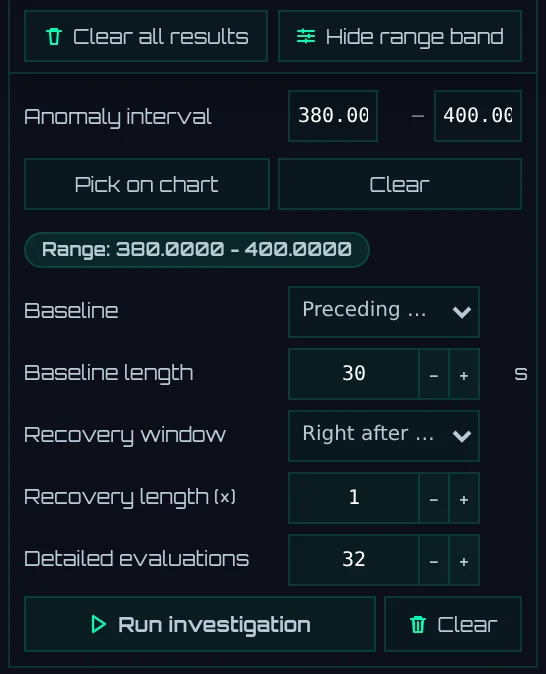
- 1Anomaly interval: Enter numbers, or specify it on the graph with Pick on chart
- 2Baseline, Baseline length: The normal interval to compare against
- 3Recovery window, Recovery length (×): The interval after the abnormal interval (to see whether things returned to normal)
- 4Detailed evaluations: The maximum number of series to examine in detail
- 5Run investigation: Runs the investigation
| Setting | Description | Initial value |
|---|---|---|
| Anomaly interval | The interval in which the anomaly occurred. If you enter only one end, the other end becomes the end of the data (the field stays empty and shows the end value in light text) | — |
| Baseline | Preceding N sec: The interval of Baseline length right before the abnormal interval. Selected normal interval: An interval specified on the graph with Pick normal interval | Preceding N sec |
| Baseline length | The length of the preceding interval (in X units; if X is in milliseconds, 30 seconds is 30000) | 30 |
| Recovery window | Right after the anomaly interval: The interval immediately after the abnormal interval. Do not use: No recovery interval is used | Right after the anomaly interval |
| Recovery length (×) | Length of the recovery interval = length of the abnormal interval × this scale (0.1–10). Not used if not even half of it can be taken before the end of the data | 1 |
| Detailed evaluations | The number of series examined in detail in stage 2 (1–200) | 32 |
How it examines
- Stage 1 (all series): For the abnormal interval and the normal interval, calculates the difference in medians (as a multiple of the usual spread) and the ratio of spreads. Series that do not cover at least half of the abnormal interval, and series that hardly move in either (the median difference is less than 1.5 times the usual spread, and the spread ratio is between about 0.7 and 1.4), are excluded here.
- Stage 2 (in descending order of change, up to the number set in Detailed evaluations): Calculates the change-point time, the correlation with a search for time offset, and a spectrum comparison. The range for the correlation offset search is the length of the abnormal interval (at least 20 data steps) when Max lag in Correlation is 0.
- Using the change-point time (or the correlation offset if there is none), the series are classified as Leading, Simultaneous, or Lagging. The width for "simultaneous" is the larger of 3 times the data step and 5% of the length of the abnormal interval. Series whose level hardly changed and whose correlation offset hit the edge of the search range are classified as Unrelated.
Reading the results
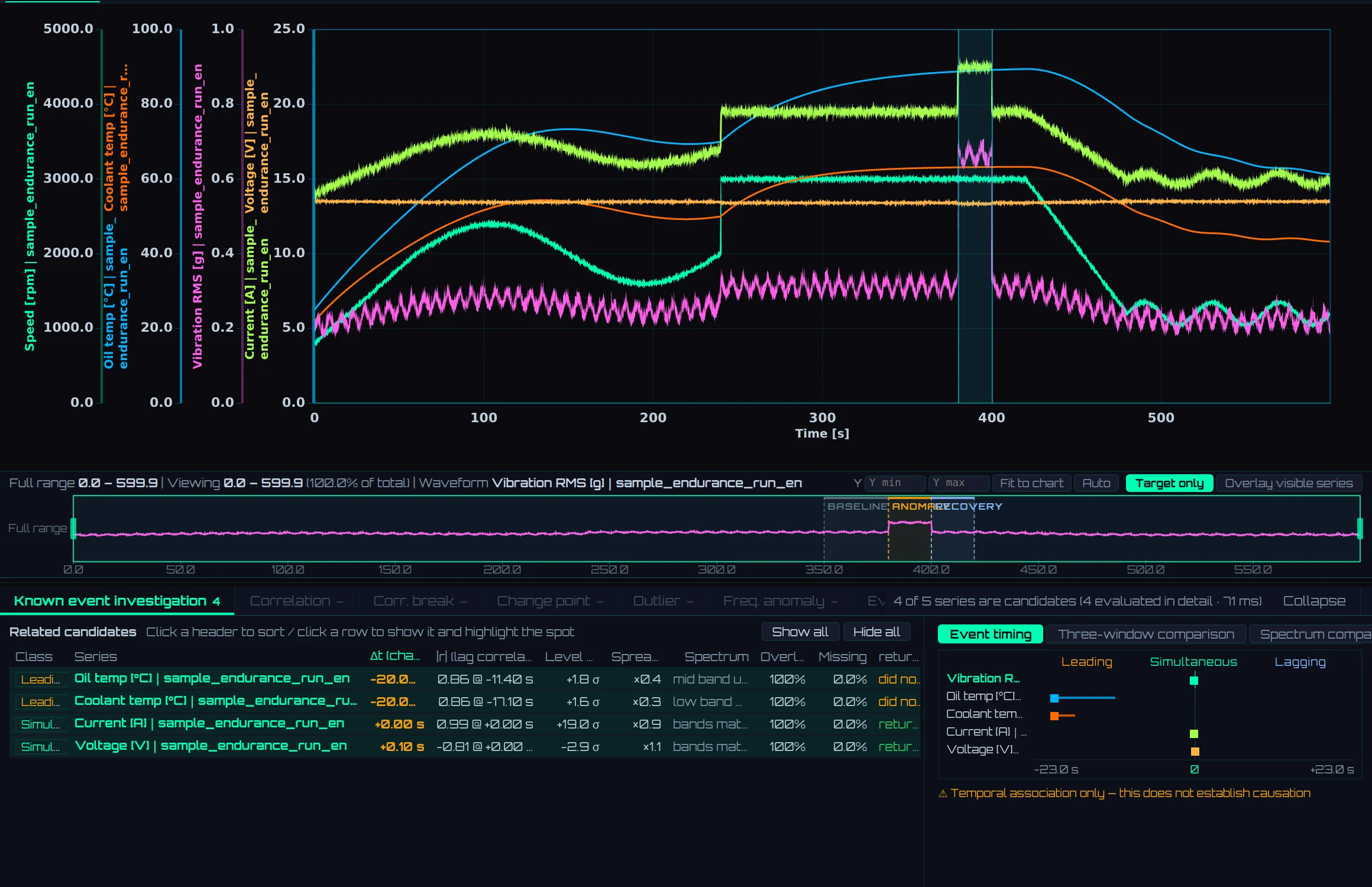
- 1Related candidates: The evidence for each series. Sort by clicking a column heading
- 2Switches between Event timing, Three-window comparison, and Spectrum comparison. Choose the series to view in detail in the field on the right
- 3Event timing: 0 is the start of the abnormal interval. Dots are change-point times, and lines extend to the correlation offset
| Column | Description |
|---|---|
| Class | Leading, Simultaneous, Lagging, Unrelated |
| Δt (change point) | The time from the start of the abnormal interval to the change point. Negative means leading |
| Lag correlation | The r of the correlation with an offset search, and that offset (r value @ offset). Here, negative means leading (the sign is opposite to Lag in correlation analysis, aligned with the direction of Δt) |
| Level shift | The median difference ÷ the usual spread (σ) |
| Spread change | The ratio of spreads (for example, ×0.4) |
| Spectrum | The result of comparing the spectrum split into low, mid, and high bands (bands match, low band up, and so on) |
| Overlap, Missing | How much of the abnormal interval is covered, and the proportion missing |
| Recovery | Whether the recovery interval returned to the normal interval (returned, did not return). It is returned if the median difference is within the usual spread and the spread ratio is about 0.7–1.4 |
In the sample data, Current (+19.0 σ) and Voltage (−2.9 σ) are Simultaneous and returned. Oil temp and Coolant temp appear as Leading, but this is because the temperatures keep rising slowly. Series that keep moving slowly can appear as Leading, so check their shape on the graph.
- Three-window comparison lists the median, spread, slope, and number of points of the three intervals (normal, abnormal, recovery), and states whether things returned to normal.
- Spectrum comparison overlays the spectra of the three intervals. When X is in a time unit (s, ms, and so on), frequencies are shown in true Hz (fixed in 1.0.28 so that ms data shows the same Hz as the FFT).
- Show all and Hide all above the table show or hide all candidate series on the graph at once.
- The results indicate temporal association and do not guarantee causation.
Export the results to CSV
Click Export candidates + event window (CSV) to save logadec_known_event.csv. This button is in the sidebar card, so it is not shown on the Investigate screen. Switch to 1 pane, open the Known event investigation card, and click it (the results remain).
The CSV consists of three parts.
| Part | Contents |
|---|---|
Leading # lines |
The target series, the abnormal interval (# event), the normal interval (# baseline), the recovery interval (# recovery), the X unit (# x_unit), and the sign convention (# sign; negative means leading) |
| Candidate table | One series per row. Class (lead, coi, lag, none), Δt, correlation, offset, level change, spread change, spectrum, overlap, missing, recovery, and the median and spread of the three intervals |
| Data | The values of the target and candidates from the start of the normal interval to the end of the abnormal interval |
- Units of Δt and offset: When the X unit is known to be a time unit (s, ms, and so on), the values are converted to seconds and written in the
dt_secandlag_seccolumns. Otherwise they are written in X units asdt_xandlag_x. Interval values and data X stay in X units. - Series with different steps: If all series have the same X as the target, an
xcolumn is followed by the value columns of the series. If even one series has a different step (such as a series from another file), each series is written as a pair of anx:series namecolumn and a value column. This is because aligning by row number would put values from different times on the same row (fixed in 1.0.27; before that, rows were aligned, and ms values were written in thedt_seccolumn).