Chapter 5Working with Graphs
This chapter describes displaying series and setting their appearance, zooming and moving, legends, reading and measuring values, comparing in two panes, and view tabs.
5.1Display and configure series
The Series tab lists the loaded series, one per row. Click ▾ to open the detailed settings for that series.

- 1Check box and color: The check box toggles display (hold down Shift and click to toggle all series in between). Click the color square to choose the series color
- 2▾: Opens the detailed settings for the series. The opened series is shown bright and the other series dim
- 3Detailed settings: Set the line, filter, unit conversion, marker, and Y range
| Setting | What you can do |
|---|---|
| Line | Changes the Line style (8 kinds, such as solid and dashed) and Line width |
| Filter | Applies a low-pass, high-pass, or band-pass filter. You can choose the characteristic (Butterworth, Chebyshev, Bessel), the order, and the cutoff frequency. The data interval and the highest frequency that can be handled (the Nyquist frequency) are also shown |
| Unit conversion / rename | Converts values with a factor and an offset, and changes the displayed unit and name. For example, use it to convert a voltage signal to pressure |
| Marker | Puts marks (circles, squares, and so on) on the data points |
| Y range | Sets the Y minimum and maximum of this series as numbers |
Filters and conversions are applied to the display only. The loaded data itself is not changed.
Change the appearance all at once
When there are many series, use Bulk series style to change colors, line styles, line widths, and markers all at once. Click Bulk style… on the Series tab to open it.

- 1Apply to: Choose from Selected series ({n}), Visible series ({n}), All series ({n}), and Choose sources ({n}). The number in parentheses is the number of series
- 2The list of sources shown when Choose sources ({n}) is selected. Check the sources to include
- 3Color: Choose from No change, Single color, Re-color in palette order, and One palette color per source
- 4Line style: Choose No change or Different style per source, or pick one line style to apply to all
- 5Line width, Markers: Choose a common width, and whether to show markers (and their size)
- 6Revert bulk style: Restores the colors, line styles, widths, and markers from before the bulk change
- 7Apply: Applies the changes to the target series
- 8Apply to all tabs: Gives the target series the same style in every view tab (View 1, View 2, ...)
| How to open | Initially selected target |
|---|---|
| Bulk style… on the Series tab | Visible series ({n}) (Selected series ({n}) when series are selected in Select & delete) |
| Select series in Select & delete and click Style | Selected series ({n}) |
| Right-click on the graph and choose Bulk style… | Same as the first row |
| The palette button on a source row of the Sources tab | Choose sources ({n}) (that source) |
- One palette color per source and Different style per source give each source its own color or line style. When you overlay the first and second runs of the same test, this makes it easier to tell which line belongs to which file. The source order is the order on the Sources tab.
- Series colors and lines are remembered separately in each view tab. Apply changes only the current tab, and Apply to all tabs changes every tab. Revert bulk style works only on the current tab.
- Revert bulk style restores the state from before the first bulk change. You can also undo one step at a time with Ctrl + Z.
Find and filter series
When there are many series, use the tools above the list.
| Tool | Effect |
|---|---|
| Item search | Enter part of a name to keep only matching series in the list (for example, "temp" for Oil temp and Coolant temp) |
| Show selected only | Keeps only checked series in the list |
| Select & delete | Select series by clicking (Shift for a range) and delete them all at once. Once clicked, this mode stays on until you click it again |
5.2Zoom and move
| Action | Effect |
|---|---|
| Wheel | Zooms X in or out around the mouse position |
| Drag | Moves in the X direction |
| Middle-button drag (or Shift + drag) | Moving up or down zooms X in or out around the point where you pressed |
| Click the number at the left or right end of the X axis | Enter the X range as numbers (confirm with Enter) |
| Click a tick number on the Y axis | Enter the Y range as numbers |
| Double-click the Y-axis name (Overlay) | Changes the axis name, name color, axis line color, and display range on the Edit axis screen |
| Wheel over the Y axis (Overlay) | Zooms Y of that axis in or out |
| Shift + wheel | In Overlay, zooms the Y axis of the series nearest the mouse; in Stacked, zooms Y of the tier under the mouse |
Make the wheel scroll in Stacked and FFT
In Stacked and FFT with many tiers, click Wheel: X-axis in the pane bar to make the wheel scroll all tiers up and down (the button label changes to Wheel: scroll). Click it again to return to the original behavior, where the wheel zooms X in and out.
| Action with Wheel: scroll | Effect |
|---|---|
| Wheel | Scrolls all tiers up and down |
| Ctrl + wheel | Zooms X in or out |
| Shift + wheel | Zooms Y in or out |
This setting is per pane, and is saved in settings files, .lgd files, and view tabs.
Return to the full view
Double-clicking does not return to the full view (in the Overlay view, double-clicking near a line adds a legend label). Zooming and moving cannot be undone with Ctrl + Z either. Use the following methods.
- Show all of X: Click Reset for the X axis on the Axes tab.
- Fit Y: Use Auto-fit A, Auto-fit B, or Auto-fit C on the Axes tab to recalculate the Y ranges from the data. Reset all returns the Y ranges of all series to the ranges used right after loading (rounded tick ranges, or the Y range of a range preset if one applies).
Y-axis groups and tier height
- In Overlay, series with the same Y range share one axis. For example, Oil temp and Coolant temp at 0–100 °C are grouped on one axis. Up to 6 axes are displayed.
- In Stacked, each tier displays one series. You can change the height of all tiers together with Height on the Axes tab. To make only one tier taller, drag its bottom edge.
Overlay the same item from different sources in Stacked
When you load two or more files, Stacked normally gives each series (each file) its own tier. Check Overlay same names under Stacked on the Axes tab to overlay series with the same name in one tier. Use this to compare the first and second test runs item by item.
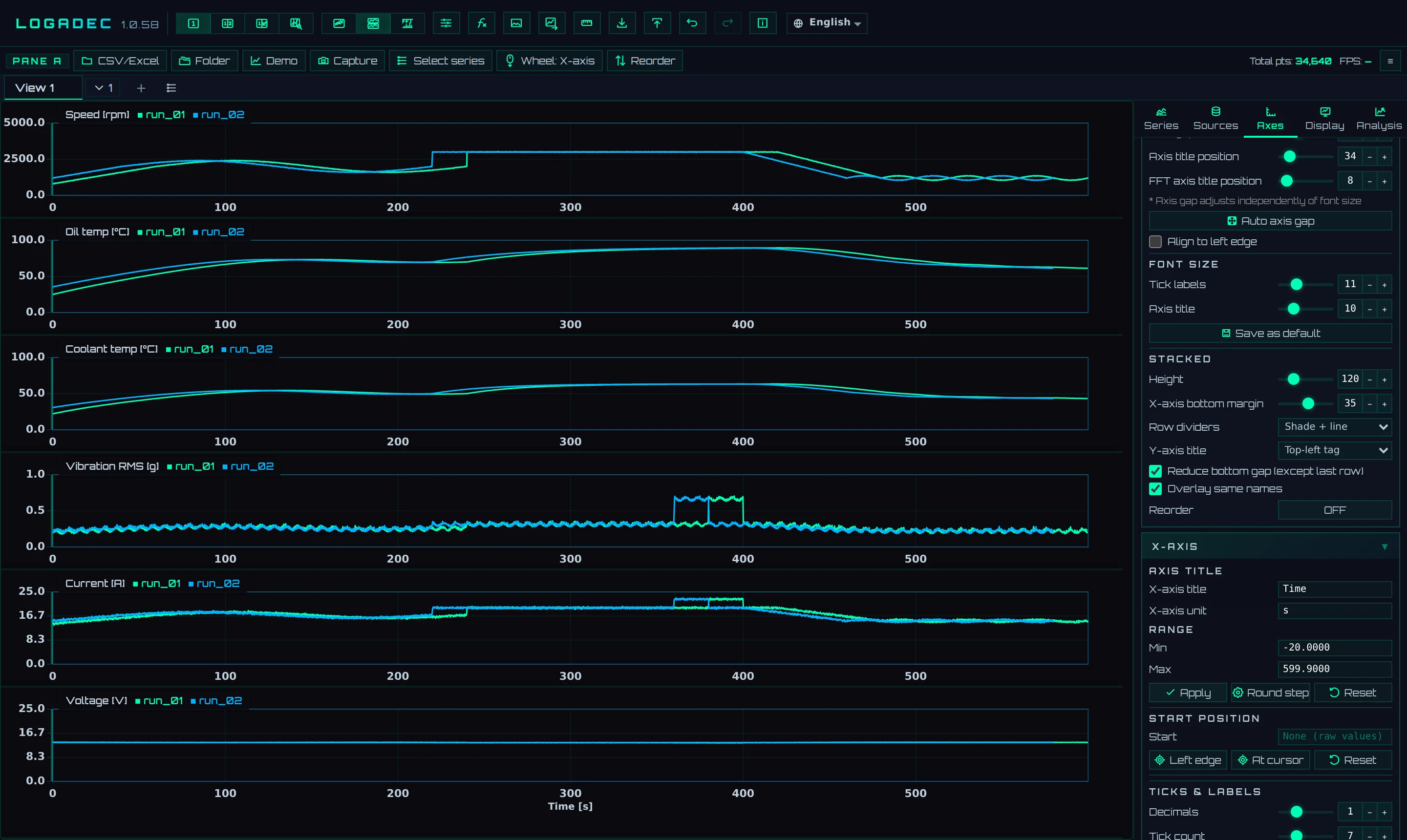
- 1Overlay same names: Overlays series with the same name from multiple sources in one tier
- 2Wheel: X-axis: Switches the wheel behavior (described above)
- The source names appear in color next to the tier name. While overlaid, line colors are assigned per source.
- Series renamed to the same name with display names (Chapter 6) are overlaid too. Series with different units are not overlaid.
Reorder the tiers in Stacked
In Stacked, you can change the order of the tiers by dragging. Click Reorder to the right of Wheel: X-axis in the pane bar. The button lights up and a ≡ handle appears at the top right of each tier. Drag a handle to the tier where you want it and release. Releasing on the upper half of a tier puts it before that tier; releasing on the lower half puts it after. When you are done, click Reorder again.
- Reorder appears only in Stacked.
- Reorder ON/OFF under Stacked on the Axes tab does the same. Switching either one updates the other.
Where Stacked shows the Y-axis name
In Stacked, each tier's name (series name and unit) normally appears as a horizontal tag at the top left of the tier. Choose where it appears with Y-axis title under Stacked on the Axes tab.
| Y-axis title | Display |
|---|---|
| Top-left tag | Shows the name as a horizontal tag at the top left of the tier (as before) |
| Along Y-axis | Shows the name vertically to the left of the Y-axis numbers, as in Overlay. If a tier is too short, the name wraps to two lines and the rest is shortened with "…" |
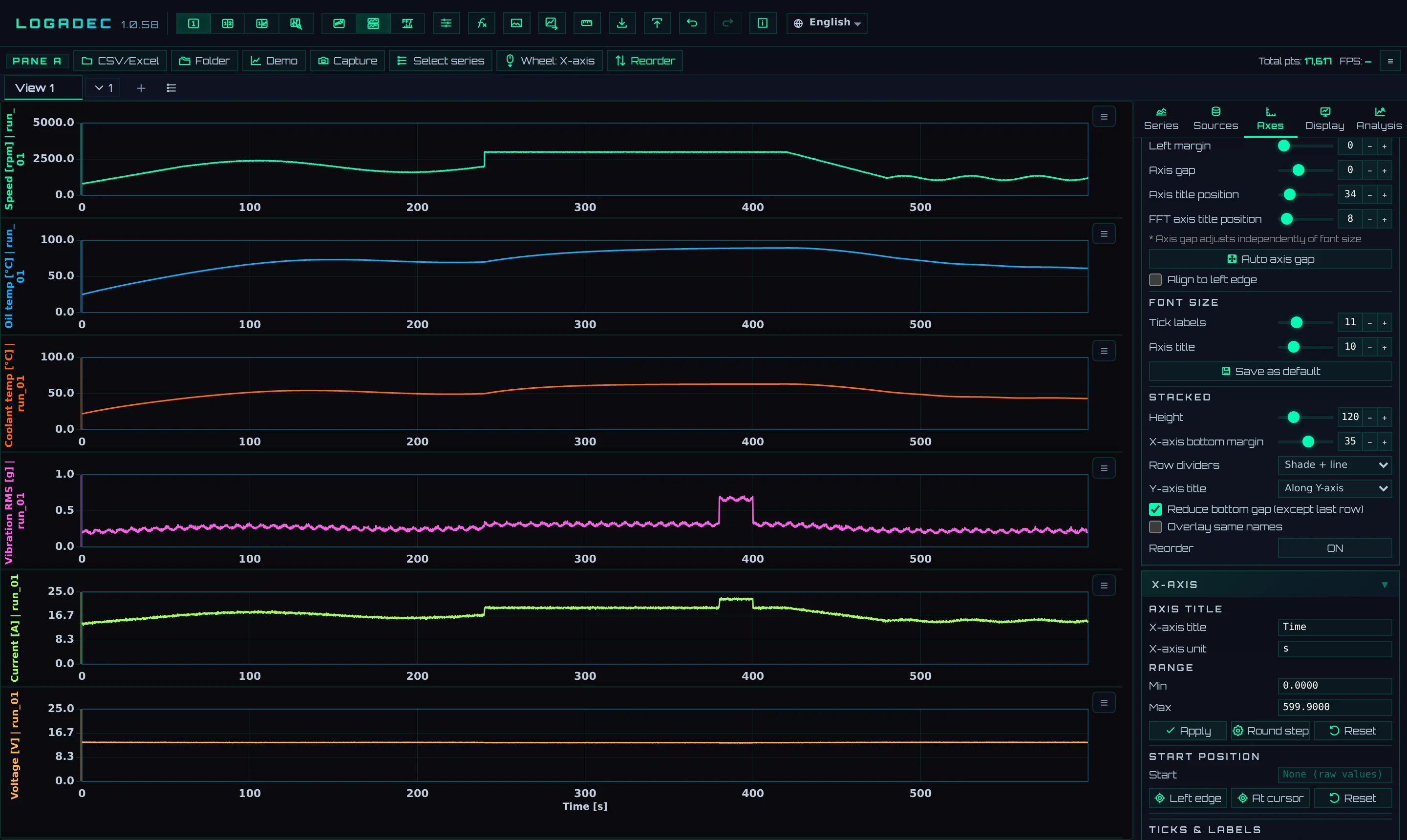
- 1Y-axis title: Chooses where the tier name appears
- 2Reorder: Turns reordering on. The button lights up while it is on
- 3≡: Drag this handle to move the tier
- 4The tier name appears vertically to the left of the Y axis
- Exported images use the same layout as the screen. The setting is saved in the file (.lgd).
- In tiers overlaid with Overlay same names, the top-left tag stays even with Along Y-axis (its colors tell you which line comes from which source).
- FFT tiers already show the quantity name vertically on the Y axis, so this setting does not change them.
5.3Legend
You can display a legend that lists series names and line samples on an Overlay graph. Set it up under Legend on the Display tab. There are two kinds of legend.
| Type | Display |
|---|---|
| Legend box | Shows series names and line samples (color, line style, marker) together in one frame |
| Labels (callouts) | Places a balloon with the name and value near the line of each series |

- 1Type: Choose Legend box or Labels (callouts)
- 2Show legend: Check to display the legend
- 3Placement: Choose from Inside the chart, Outside (right), and Outside (below)
- 4The position when Placement is Inside the chart (top right, top left, bottom right, bottom left), the font size, and Columns
- 5Reset position and size: Restores the position and size changed by dragging
Legend box
- A legend placed Inside the chart can be moved by dragging. Drag a corner to resize it.
- Double-click the legend to open the legend settings on the Display tab.
- With Outside (right) or Outside (below), the legend does not overlap the graph lines. The plotting area becomes smaller by that amount.
- Uncheck Border and background to draw no frame or background.
Legend labels (balloons)
When you choose Labels (callouts) in Type, the balloon settings appear. Click Add all visible series to add balloons to all displayed series. To add them one at a time, choose a series in Series, click Add at clicked point, and click on the graph where you want to place it.
| Setting | What you can do |
|---|---|
| Style | Choose an overall look from Standard, Subtle, and Emphasis. If you change individual settings, it becomes Custom |
| Line: shape, Line: style, Line: width | The shape (Straight, Elbow, Curve, None), style, and width of the leader line connecting the balloon and the line |
| Label | Choose Box (enclosed in a frame) or Text only |
| Border: corners, Border: style, Border: width, Border: color | The frame shape (Rounded, Square), line style, width, and color (Series color or Custom) |
| Text shown | Choose from Default (series), Series name only, and Source name only |
| Value, Anchor dot | Choose whether to show the value, and whether to draw a mark on the data point at the end of the leader line |
| Font size, Font weight, Max labels | The font size and weight, and the maximum number of balloons you can add (1–50; 12 at first) |
- Click a balloon to open a small window with the settings of that balloon only. Anchor dot (data point) and This label only start collapsed; click their headings to open them. Added balloons can be listed in Legend labels, where you can toggle their display or delete them.
- Drag the root of the leader line (the data end) to move it. A dot appears when you hover over the root. Moving it switches the balloon to Free (Screen-fixed balloons stay Screen-fixed). Undo with Ctrl + Z.
- When you reach Max labels, the message shows Change limit. Click it to open the Max labels field on the Display tab.
- Balloons are for Overlay only.
5.4Read values
When you place the mouse on the graph, a vertical line and a list of the values at that position appear. The list shows values starting from the series nearest the mouse, up to the number of rows set in Max rows on the Display tab (8 at first).
5.5Measure between two points
Use Measure on the toolbar to measure the time difference and value difference between two points.
- Click Measure to open the measurement screen.
- Click Start measuring.
- On the graph, click the first point (A) and the second point (B). Each is automatically snapped to a data point of the series nearest the clicked position.
- The results are shown on the right.
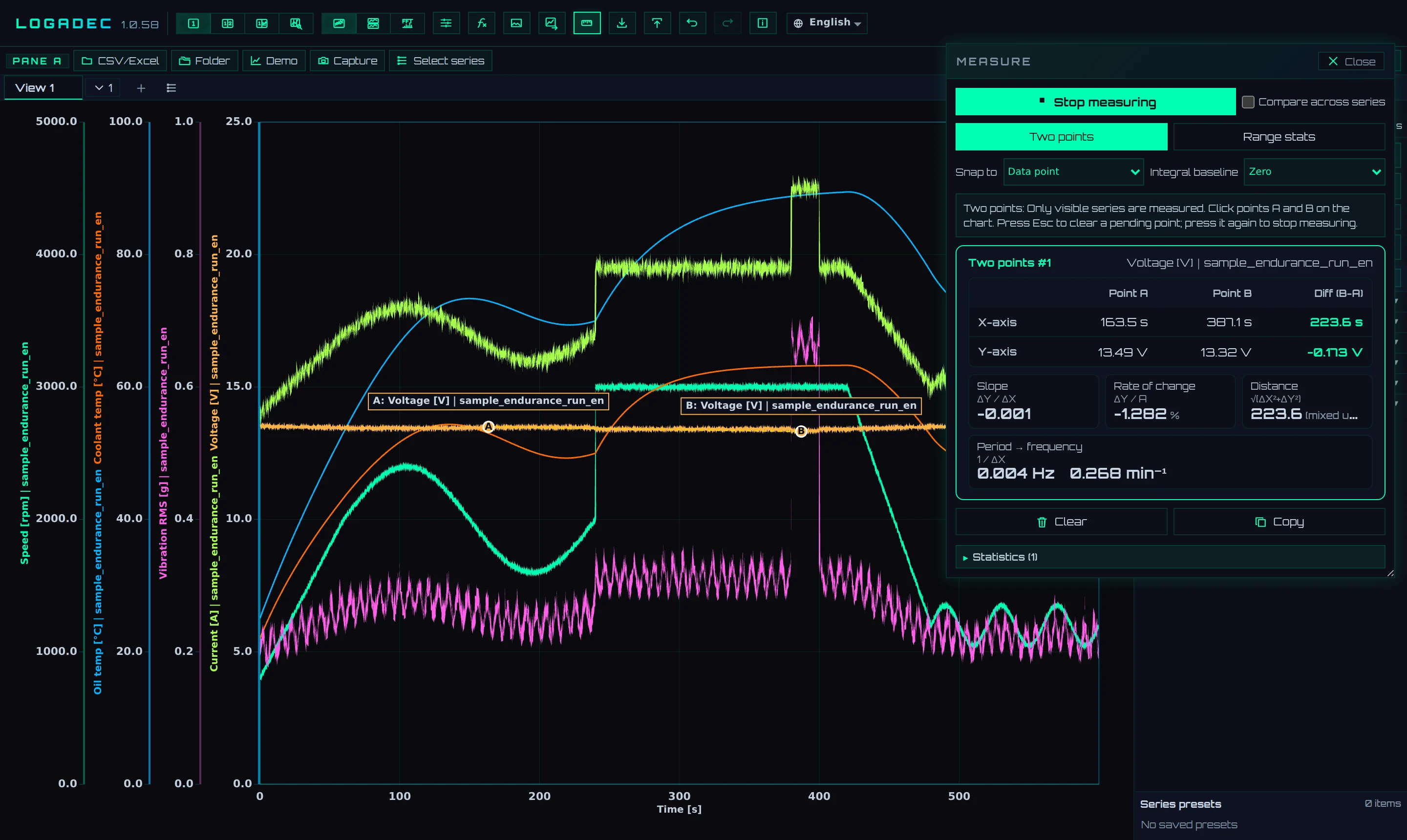
- 1Measure: Opens or closes the measurement screen
- 2Start measuring/Stop measuring: Starts or ends measuring
- 3Two points, Range stats: Choose how to measure
- 4Snap to: Chooses whether the clicked point snaps to a data point, a peak, a valley, or a zero crossing
- 5Results: The values of A and B and their difference, the slope, the rate of change, and the frequency derived from the period
| Measurement | What you get |
|---|---|
| Two points | X and Y of A and B, and their difference (B − A). The slope (ΔY/ΔX), the rate of change (%), and the frequency when ΔX is taken as the period (Hz and min⁻¹) |
| Range stats | The mean, minimum, maximum, standard deviation, RMS, median, p-p, number of data points, and area (integral) over the range from A to B. Choose the area baseline (0, the value at point A, or the range minimum) with Integral baseline. The area is calculated without spanning time gaps (where the spacing exceeds 1.5 times the data interval) or missing values, and the number of skipped spans is shown in the results |
- Copy the results to the clipboard with Copy. Clear removes the measured points.
- Press Esc to cancel a point you are placing. Pressing it when there are no points ends measuring.
- To compare points on different series, check Compare across series.
5.6Compare in two panes
Click 2 panes on the toolbar to split the screen into left and right (Pane A and Pane B). You can load different files into the two panes. Load them from CSV/Excel in each pane's bar.
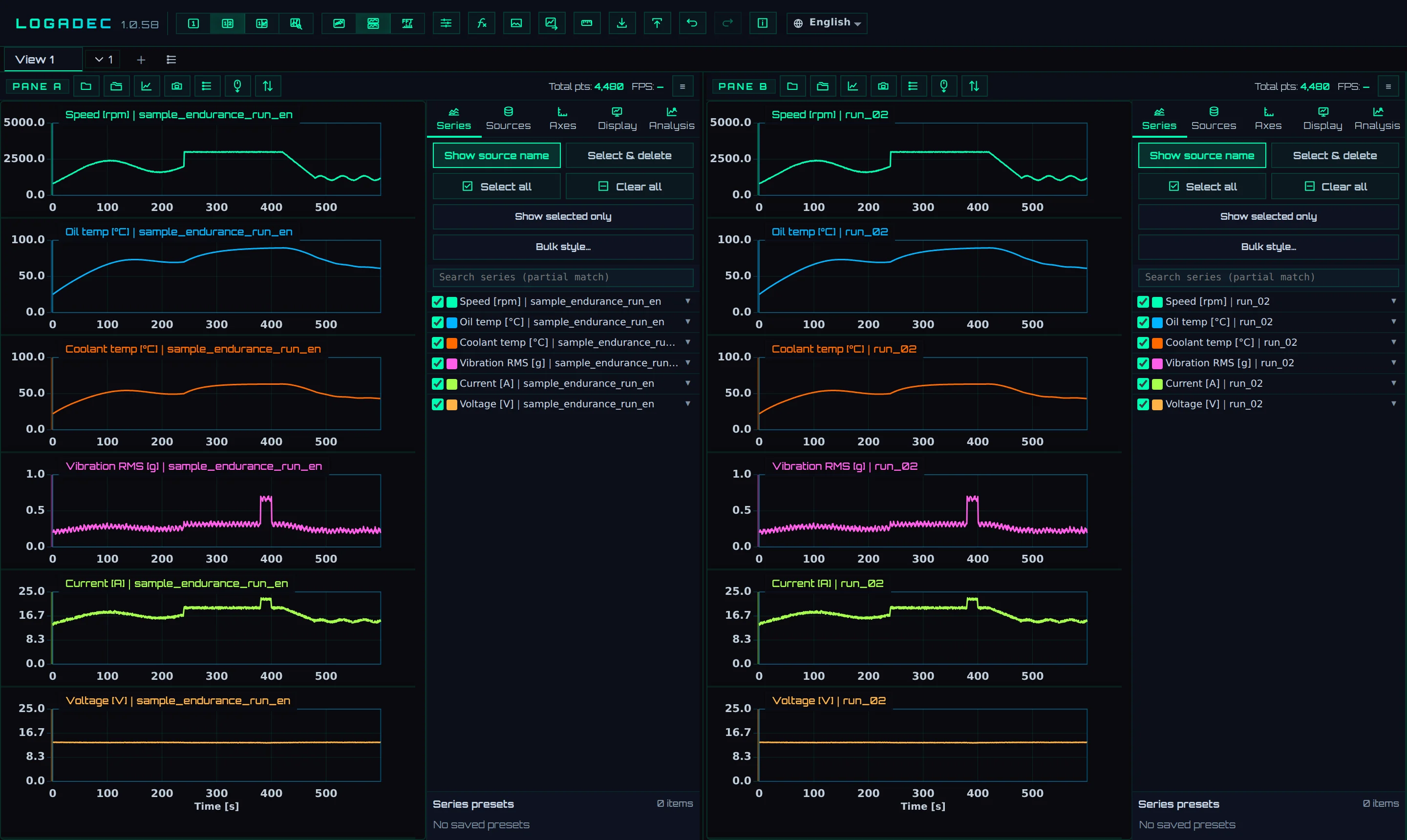
- 12 panes: Splits the screen into left and right
- 2CSV/Excel of Pane A: Loads into the left pane
- 3CSV/Excel of Pane B: Loads into the right pane
5.7View tabs
View tabs let you keep the state "which series to look at, over which range" on separate tabs. For example, if you create tabs such as "Overview", "Speed & current", and "Temperature", you can switch views with one click.
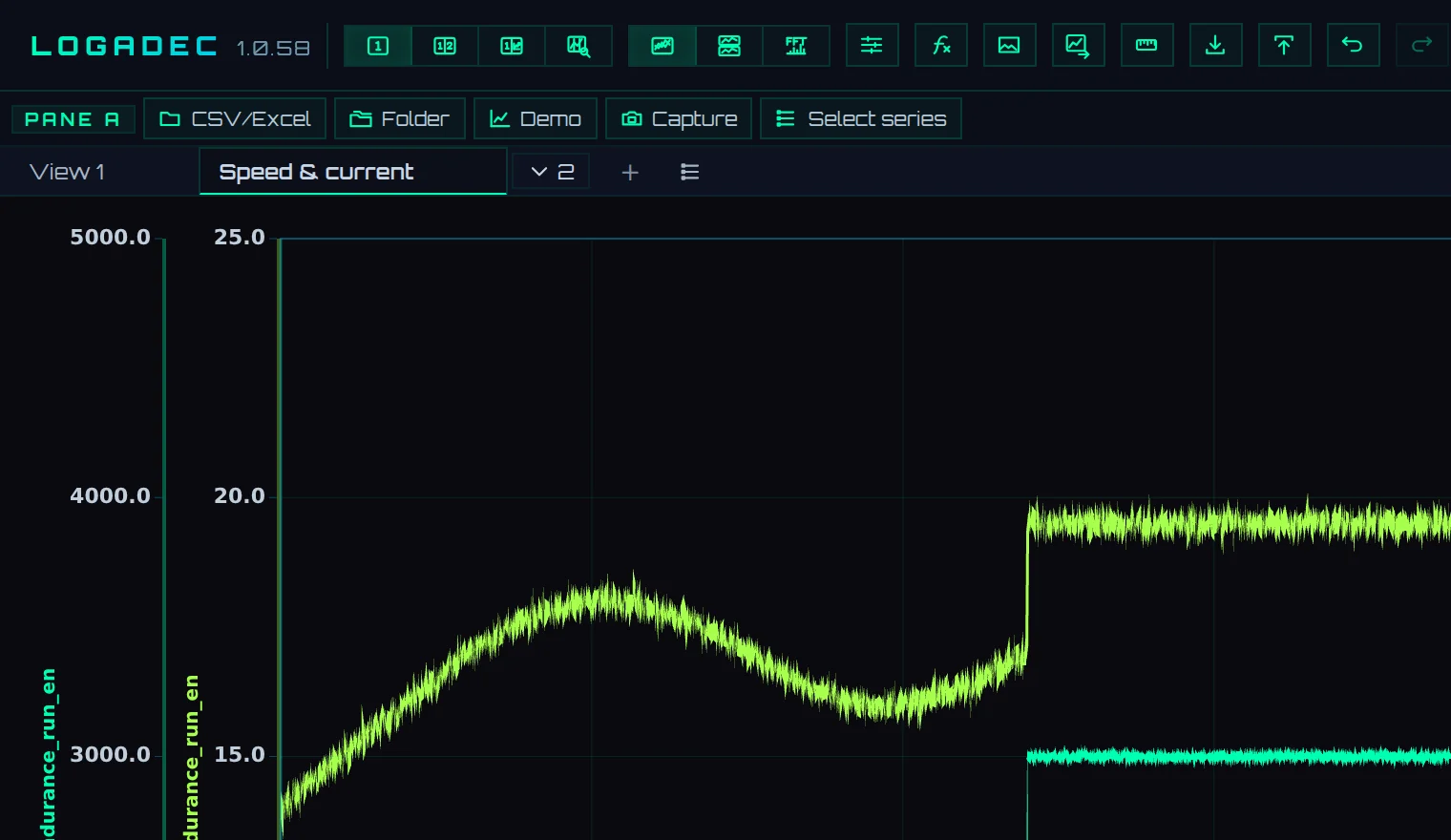
- 1The tab that exists from the start (View 1)
- 2A newly created and named tab
- 3+ (New view): Creates a new tab
- 4▾: Opens the list of tabs. The number is the number of tabs
- 5Show views as a list on the left: Shows the tabs as a vertical list to the left of the graph (see below)
| Action | How |
|---|---|
| Create | Click +. The tab starts with all series hidden, so check the series you want to see |
| Rename | Double-click the tab, enter a name, and press Enter |
| Switch | Click the tab. Alt + PageUp/PageDown moves to the previous or next tab (not while typing text) |
| Duplicate, delete | Use Duplicate this view or Delete view (×) on the tab |
| Reorder | Drag the tab |
Each tab keeps the displayed series and their settings such as color and line, the X and Y ranges, the display mode (Overlay, Stacked), the screen layout, and so on. The data itself and the presets in Chapter 6 are shared by all tabs.
When there are many tabs
When the tabs no longer fit horizontally, ‹ and › appear at the left end. Click them to scroll toward the hidden tabs. You can also scroll by turning the mouse wheel over the tabs. The tab you switch to is scrolled into view automatically.
Click ▾ to list all tabs with numbers. Enter text in the box at the top to narrow the list to tabs whose names contain that text. Enter goes to the top tab; Esc or clicking outside the list closes it.
Long names are shortened with "…" to fit the tab width. Hover the mouse over a tab to see the full name.
Show views as a list on the left
Click the button at the right end of the tab bar (Show views as a list on the left) to show the tabs as a vertical list to the left of the graph. This is useful when you have many tabs. Long names are shortened with "…"; hover over a row to see the full name.

- 1Back to tabs: Returns to the horizontal tabs
- 2Collapse the list: Narrows the list to show only the numbers. Click again (Expand the list) to restore the width
- 3Search box: Narrows the list to views whose names contain the text. Enter goes to the top view; Esc clears the filter
- 4The selected view: Shows the number, the name, and the number of displayed series
- 5New view: Creates a new view
- The rows work like tabs: click to switch, double-click to rename, and drag to reorder. Hover over a row to show Duplicate this view and Delete view (×).
- In 2 panes, a single list appears to the left of both Pane A and Pane B. Switching changes the display of both panes together.
- Drag the right edge of the list to change its width (160 to 480 pixels). Double-click the right edge to restore the original width.
- Whether the views are shown as a list, whether the list is collapsed, and the list width are remembered the next time you open the app. The search text is not remembered.