Chapter 3The Screen
This chapter describes the name and role of each part of the LOGADEC screen. Later chapters use the names introduced here.
3.1The whole screen
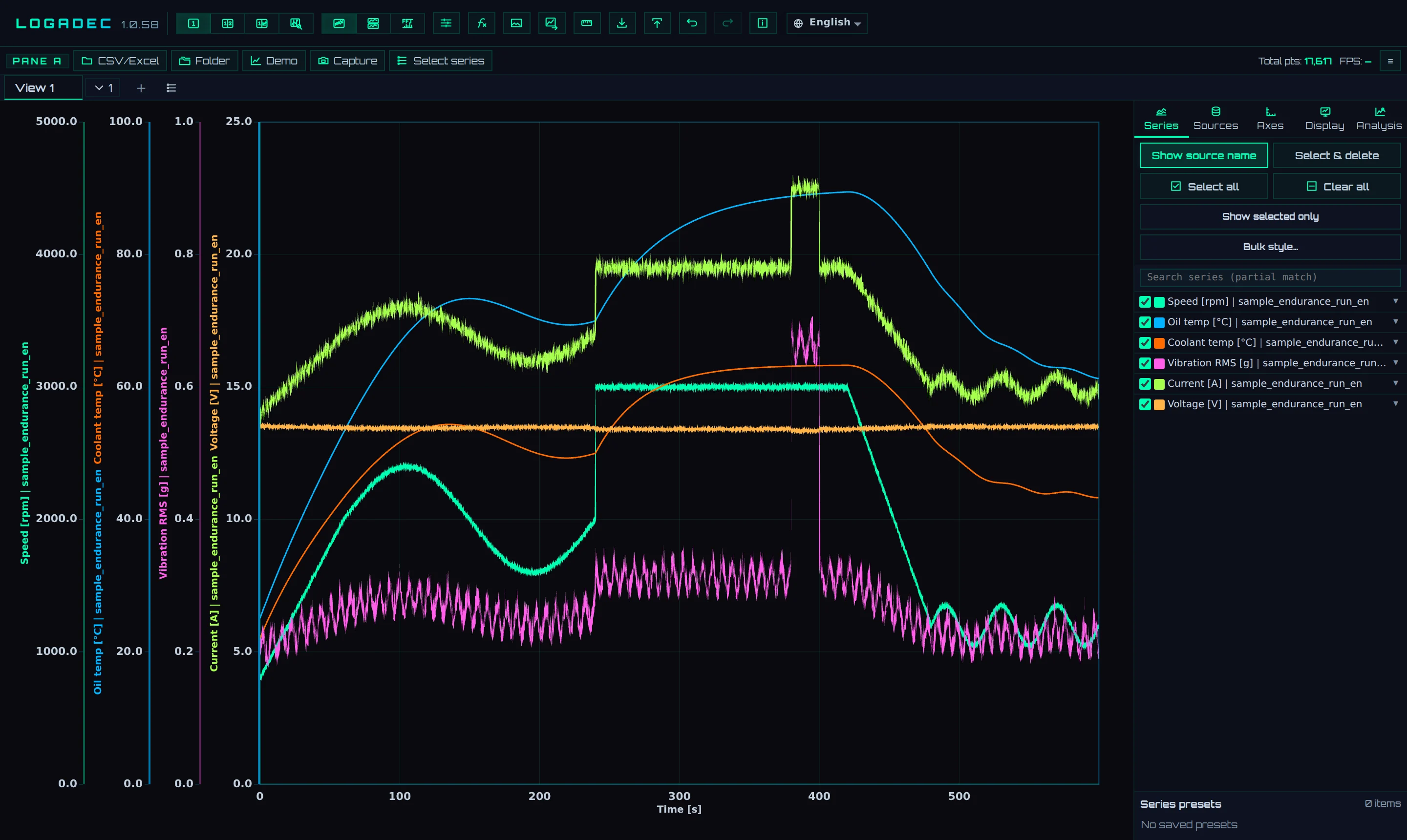
- 1Logo: Click it to open About and licenses. This is where you check the version and enter a license key
- 2Screen layout: Switches between 1 pane, 2 panes, Analysis, and Investigate
- 3Display mode: Switches between Overlay, Stacked, and FFT
- 4Tools: Presets, Formula, Export image, Export data, Measure
- 5Save, Load: Save and open settings or data (.lgd)
- 6Undo, Redo: Undo and redo operations
- 7The shortcut list, and switching the display language (Japanese/English)
- 8Pane bar: CSV/Excel, Folder, Demo, Capture
- 9View tabs: Keep display states on separate tabs and switch between them. Click + to create a New view
- 10Graph: Where series are displayed
- 11Sidebar tabs: Series, Sources, Axes, Display, Analysis
- 12Sidebar contents: Shows the contents of the selected tab
3.2The toolbar at the top
The strip at the very top of the screen holds buttons that affect the whole screen. Hover the mouse over a button to see its name.
| Button | What it does | Chapter |
|---|---|---|
| 1 pane/2 panes | Shows one graph, or two graphs side by side | Chapter 5 |
| Analysis | Shows an XY scatter plot next to the time series | Chapter 10 |
| Investigate | Examines analysis results in detail next to the time series | Chapter 8, Chapter 9 |
| Overlay/Stacked/FFT | Overlays series / splits them into tiers / shows them by frequency | Chapter 5, Chapter 8 |
| Presets | Registers and recalls display ranges and combinations of items | Chapter 6 |
| Formula | Creates new series from formulas | Chapter 7 |
| Export image | Exports the graph as an image (PNG, JPG, WEBP, SVG) | Chapter 11 |
| Export data | Exports data to CSV, TSV, or Excel | Chapter 11 |
| Measure | Measures the difference (time and value) between two points you specify | Chapter 5 |
| Save/Load | Saves and opens settings only, or settings with data (.lgd) | Chapter 11 |
| Undo/Redo | Undoes / redoes operations (Ctrl + Z / Ctrl + Y) | — |
3.3The pane bar
The strip above the graph holds operations for each "pane" (an area that displays a graph). With 2 panes, the left and right panes each get their own bar.
| Button | What it does |
|---|---|
| CSV/Excel | Loads a file into this pane. In a pane that already has data, the file is added |
| Folder | Finds files in a folder and imports them all at once (Chapter 4) |
| Demo | Creates demo data for practice (choose the type and number of series, then Generate) |
| Capture | Exports this pane as an image |
| Select series | Opens the Select series to display screen, where you search by name and select the series to display. Appears once data is loaded |
| Wheel: X-axis/Wheel: scroll | Appears only in Stacked and FFT. Switches whether the wheel zooms X in and out or scrolls all tiers up and down (Chapter 5) |
| Reorder | Appears only in Stacked. Reorders the tiers by dragging. Lights up while on (Chapter 5) |
| ≡ (right end) | Shows or hides the Sidebar |
3.4The five sidebar tabs
The sidebar is where you set which series to display and how the graph looks. The five tabs at the top switch its contents.
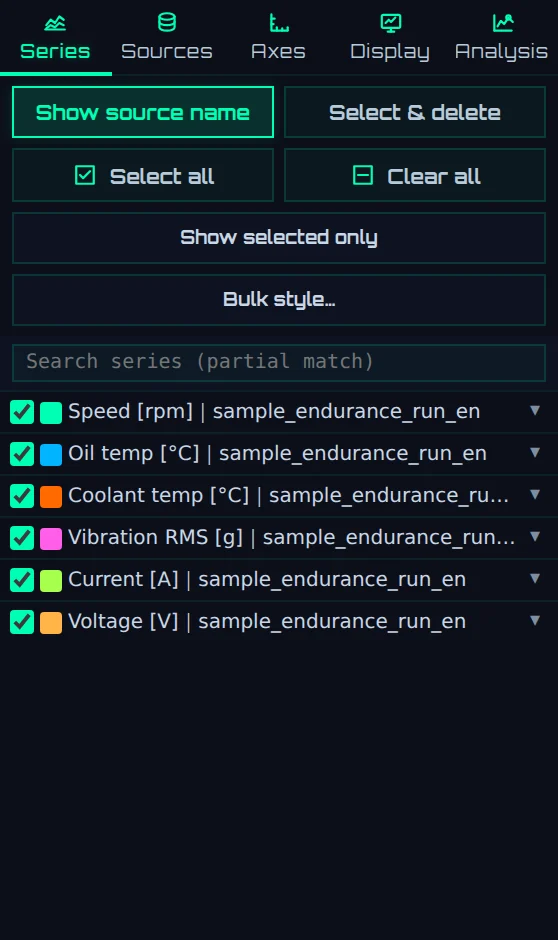
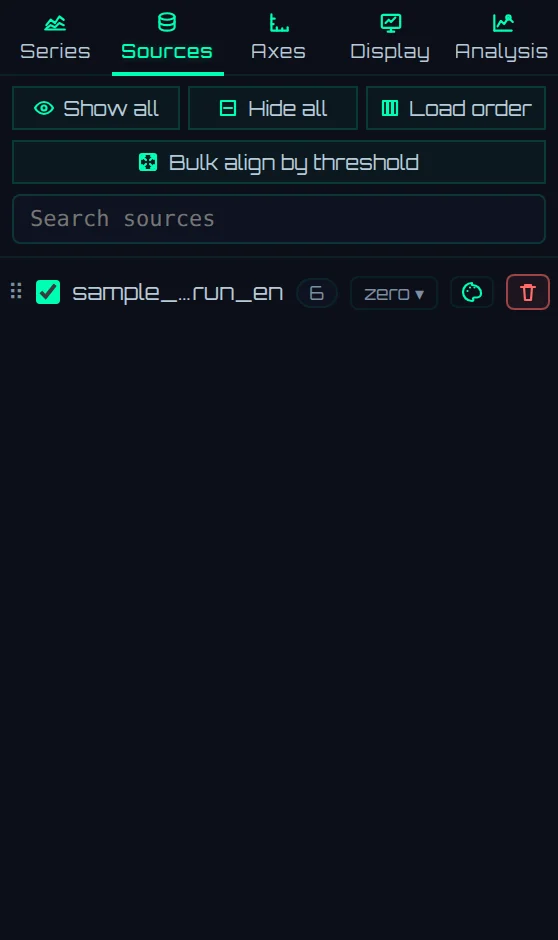
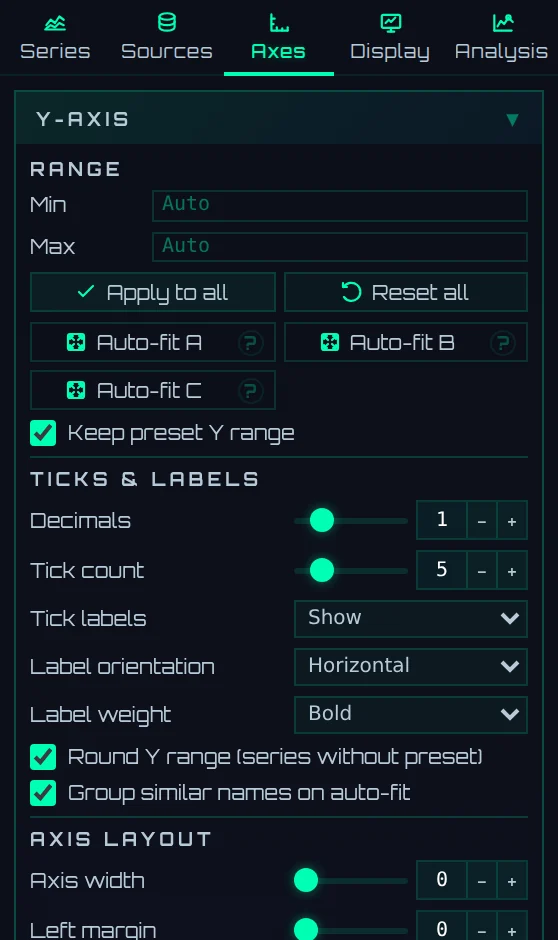
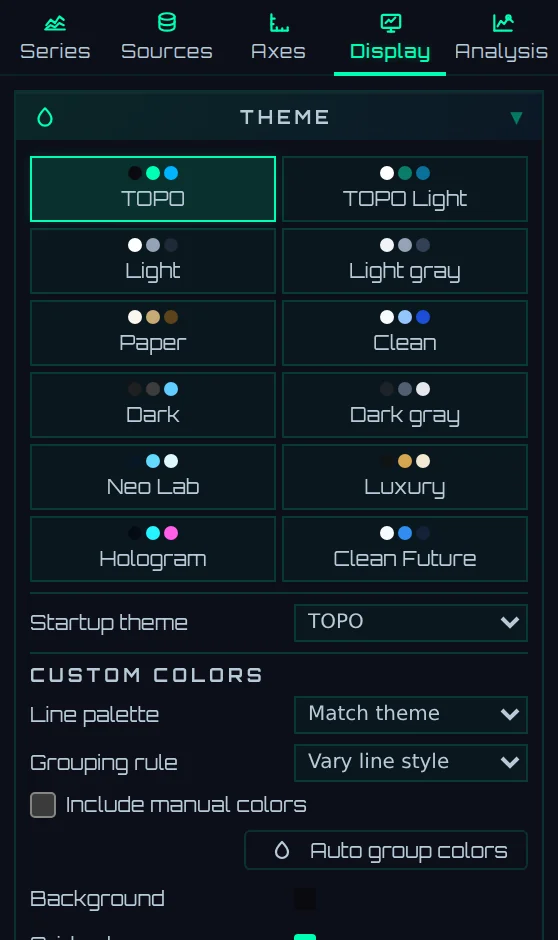
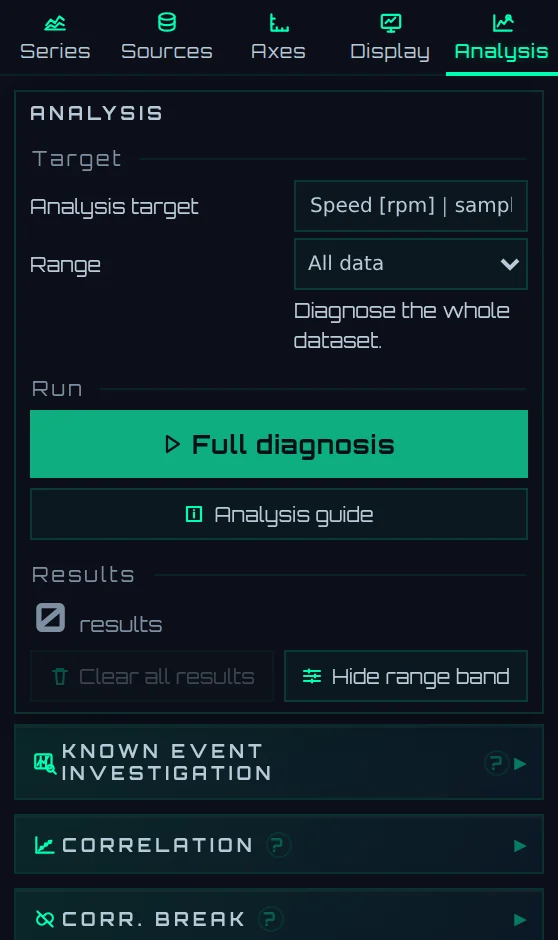
| Tab | Main contents |
|---|---|
| Series | The list of series. Toggle display with the check boxes, and use ▾ to set color, line style, filters, and more. You can also use Show selected only and filter by name. Bulk style… changes colors and line styles all at once |
| Sources | The list of loaded files (data sources). For each file, you can show or hide it, change the look of its series all at once, or delete it |
| Axes | Sets the range, ticks, labels, axis placement, and font size for the Y and X axes |
| Display | Display settings such as Theme, Legend, Zoom behavior, and Max visible series |
| Analysis | Where you run analyses. Run all analyses at once with Full diagnosis, or open and run analyses one at a time |
3.5Keyboard and mouse
This is a list of frequently used operations. In LOGADEC, press ? to display the list of operations. Zoom operations are described in detail in Chapter 5.
| Action | Effect |
|---|---|
| Wheel | Zooms X in or out |
| Shift + wheel / wheel over the Y axis | Zooms Y in or out |
| Drag | Moves in the X direction |
| Hold the middle button and drag up or down | Zooms X in or out |
| Ctrl + wheel (in Stacked or FFT with Wheel: scroll) | Zooms X in or out (the wheel without a modifier key scrolls up and down) |
| Click X-axis edge | Enter value to change X range |
| Click Y-axis | Enter value to change Y range |
| Ctrl + Z | Undo |
| Ctrl + Y | Redo |
| Ctrl + S | Save data; subsequent presses overwrite the same file |
| ? | Show this shortcut list |
| Esc | Close dialog / cancel measurement |