Chapter 6Presets
When you look at the same kind of data again and again, you develop fixed ways of viewing it, such as "I always want to see Oil temp at 60–120 °C" or "First, I want to line up only temperatures and current". Presets let you register such views under a name and recall them with one click.
LOGADEC has three kinds of presets.
| Kind | What is registered | How it is applied |
|---|---|---|
| Range | The Y range and color for each item | Applied automatically when you load a file. You can also apply it manually |
| Series | A combination of items to display, and how they look at that time | Choose from the list to apply |
| Display names | Alternative names for items (for example, Speed → Engine speed) | Always applied once registered |
Presets are linked to series by item name (such as "Speed" or "Oil temp", the part before "|"). So once registered, they can be used as-is with other files of the same format.
6.1Open the presets screen
Click Presets on the toolbar to open the presets screen. The three tabs at the top switch between the kinds.
- The left side has input fields for registering new presets.
- The right side lists registered presets. Use the search box above the list to filter by name.
- Pane A and Pane B at the top right choose which pane to create presets for when you use two panes (Chapter 5).
6.2Range presets
For each item, you register a Y range (minimum and maximum) and, if needed, a color. For example, if you register "Oil temp at 60–120 °C, shown in red", every file you load that has an Oil temp column is displayed with that range and color.

- 1Kind tabs: Range, Series, Display names
- 2Item list: Check the items to create presets for
- 3Y range (required): The Y minimum and maximum. Click From current to fill in the values of the current graph
- 4Save / update: Registers the entered values
- 5Save all visible ranges: Registers all currently displayed series at once with their current ranges and colors
- 6Card buttons: Apply (apply to the graph), Update (save the card's values), Delete
- 7Bulk apply: Applies all registered presets
- 8Set: Switches the preset list (set) (described later)
Register presets one by one
- In the item list (Load by series name (search)), check the items to create presets for.
- Enter the Y minimum and maximum in Y range (required). To use the current graph's range, click From current.
- To set a color as well, check Color (optional) and choose a color.
- Click Save / update. A card is added to the list on the right.
If you leave Preset name (optional) empty, the item name becomes the preset name. If a preset with the same name already exists, it is overwritten.
Register all at once from the current graph
After adjusting the graph by hand, click Save all visible ranges to turn the current Y range and color of every displayed series into presets. This is the quickest way to register.
Apply presets
- When you load a file: The preset ranges and colors are applied automatically to series with matching names. You do not need to do anything.
- Apply just one: Click Apply on the card.
- Reapply all: Click Bulk apply at the bottom of the screen.
Edit and delete
- Edit on the card: When you change the Y minimum, maximum, or color on a card, the card border and its Update button turn orange (hovering over the card shows "Unsaved"). Save cards one at a time with Update on the card, or all at once with Update all below. To revert without saving, click Discard edits.
- Edit in the input fields: Click a card's name to load its contents into the input fields on the left. Make your changes and click Save / update.
- Delete: Delete cards one at a time with Delete on the card. A card is deleted after a confirmation and cannot be restored with Ctrl + Z. Clear all deletes all range presets after a confirmation.
Use different sets
You can keep multiple named lists of range presets. Such a list is called a "set". For example, if you keep separate sets for each kind of test, such as "Engine test" and "Motor test", the same item names can be displayed with ranges suited to each test.
Choose the set to use with Set above the list.
| Button | Action |
|---|---|
| New | Creates an empty set and switches to it |
| Duplicate | Creates a copy of the current set and switches to it |
| Rename | Renames the current set |
| Delete | After a confirmation, deletes the current set together with its presets (the last set cannot be deleted) |
- Only one set is in use at a time. Registering, Bulk apply, and the automatic application when loading a file all act on the currently selected set.
- Switching sets does not change the current graph. To display with the ranges of the set you switched to, click Bulk apply.
- If there are unsaved changes on cards, a confirmation appears before switching.
- You can have up to 20 sets, and up to 500 presets per set.
Auto-fit or presets: which takes priority
Auto-fit A, Auto-fit B, and Auto-fit C on the Axes tab recalculate the Y ranges from the data. When Keep preset Y range below them is checked (it is checked at first), items that have presets keep their preset ranges even when you click an auto-fit button.
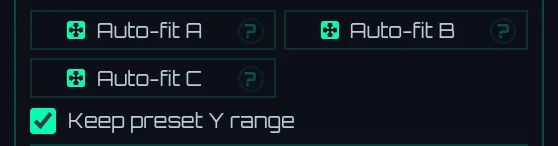
- 1Auto-fit buttons
- 2Keep preset Y range: When unchecked, auto-fit takes priority over presets
6.3Series presets
Register combinations of items to display. This is useful for switching between frequently used combinations, such as "Temperatures & current" or "Vibration", in data with many series.
More than just the combination of items is registered. The color, line, filter, unit conversion, and Y range of each series at the time of registration, and the X range, are kept as well.

- 1Item list: Check the items to include in the combination
- 2Preset name: If left empty, the name is made by listing the item names
- 3Save / update: Registers the preset
- 4Add all visible series: Registers the combination of currently displayed items as-is
- 5Apply: Applies this preset (the presets screen closes)
Register
- Select items and register: Check the items in the list, enter a name, and click Save / update.
- Register from the current display: Display the items you want to see on the graph, then click Add all visible series.
Recall
You can also recall presets from the Series presets list at the very bottom of the Series tab. You can switch without opening the presets screen, so this is usually more convenient.

- 1Only the items of the applied preset are displayed
- 2Series presets: Click a name to apply it. The applied preset is marked
- Clicking the applied preset again removes the preset, and all series are hidden.
- The list shows only the presets of the current pane (Pane A or Pane B).
6.4Display names
Display names replace item names with different names on the graph only. For example, you can show a column named "Speed" by the measuring instrument as "Engine speed" to match your report.

- 1Apply display names: When unchecked, all renaming stops and the original names return
- 2Add display name: Adds one new renaming row
- 3Enter the name to display
- 4The original items to rename. Remove them with ×
- 5+: Choose an original item from the list and add it
Register
- Click Add display name. A new row appears at the top of the list.
- Enter the name you want to display.
- Click + and choose the original item to rename from the list.
From the moment you register it, the graph legend and axis names use the new name. In the Series tab list, the original name stays, with the new name shown next to it.
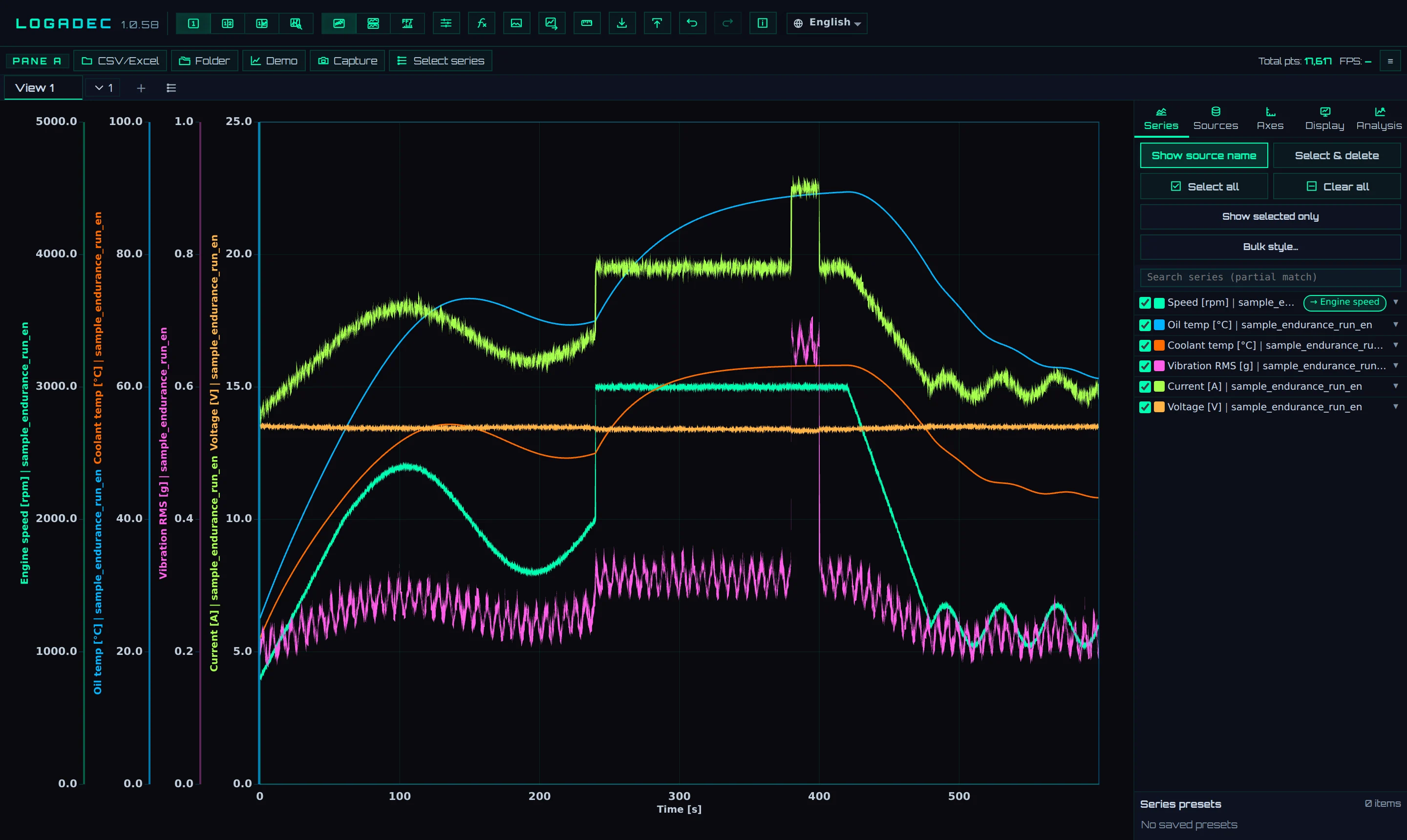
- 1The new name is shown next to the original name. Click it to open the presets screen
- You can map two or more original items to one name. For example, columns named "Speed" or "NE" depending on the file can both be shown as "Engine speed".
- An original item can be linked to only one name. If you choose an item that is linked to another name, it moves from that name.
- Use the check box on the left of a row to turn off individual renamings.
- Display names are shared by Pane A and Pane B.
6.5Import and export with files
You can export presets to CSV or Excel files and import them from files. Use this to create ranges for many items in Excel and register them all at once, or to exchange presets with colleagues. Click Export to file or Import from file on the presets screen.
Export
Click Export to file, choose a format, and click Export.
| Format | Contents |
|---|---|
| Excel (range, series and display-name sheets plus notes) | An .xlsx file with three sheets, "Range", "Series", and "Display Names", plus a sheet explaining how to write them |
| CSV | A .csv file (UTF-8) containing only the presets of the kind on the currently open tab |
The file columns are as follows. Row 1 is the header row, and the contents start from row 2.
| Kind | Columns |
|---|---|
| Range | Pane (A / B; empty means A), Item (required), Y min, Y max (if both are empty, Y is not specified), Color (#RRGGBB; if empty, no color is set) |
| Series | Pane, Preset (required), Item (required). Rows with the same pane and the same preset name form one preset |
| Display names | Display name (required), Original name, Enabled (1 / 0; empty means 1). Rows with the same display name are grouped |
Import
Click Import from file and select a file. Before importing, a screen opens showing what will change.
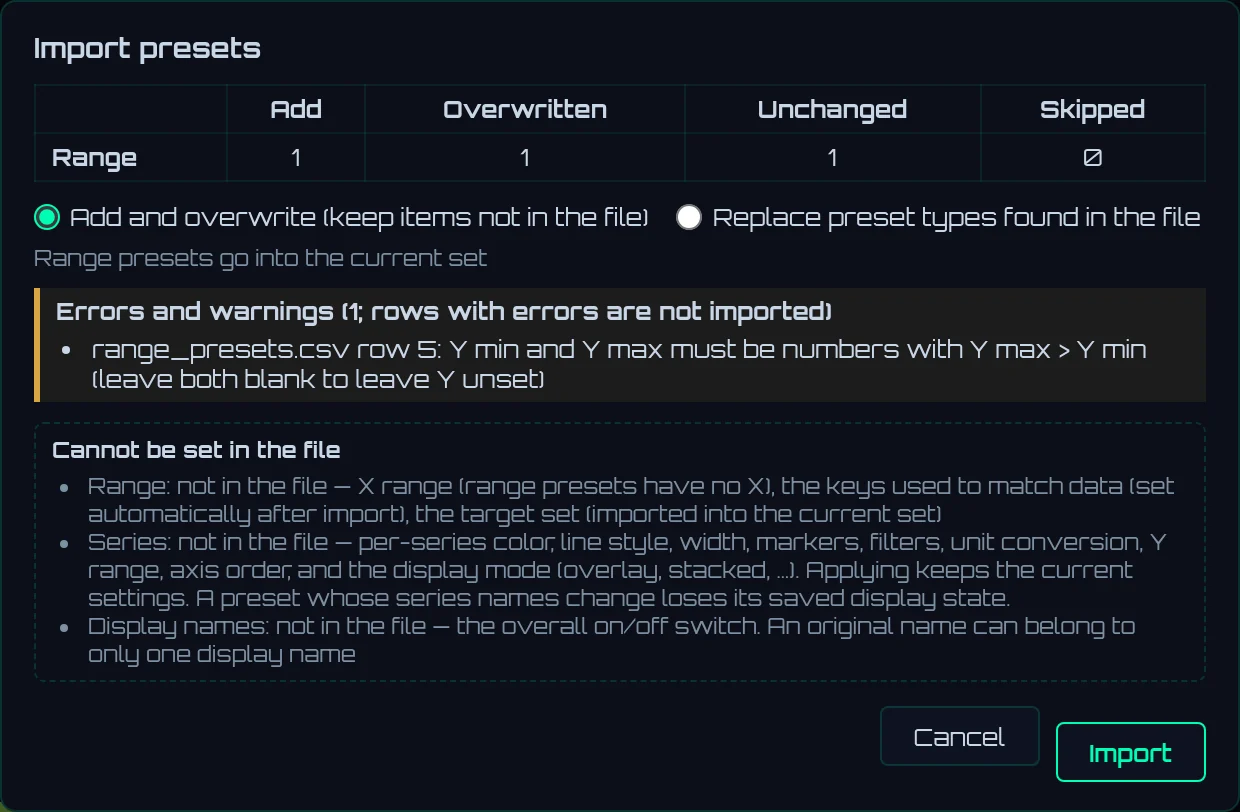
- 1For each kind, the numbers that will be Add, Overwritten, Unchanged, or Skipped
- 2Import method: Choose Add and overwrite (keep items not in the file) or Replace preset types found in the file
- 3Errors and warnings ({n}; rows with errors are not imported): Shows which row and which part is wrong. Error rows are not imported
- 4Cannot be set in the file: Explains the information that cannot be written in the file
- 5Import: Imports with these settings
- The kind (range, series, or display names) is identified from the names in the header row. Headers may be in Japanese or English. Rows starting with
#are ignored. - The character encoding of CSV files (UTF-8, Shift_JIS) is detected automatically.
- After importing, Undo appears on the screen. Click it to return to the state before importing (this is not possible after you close the screen).
6.6Saving and carrying over presets
- Presets are saved in the browser you use. They remain after you close LOGADEC and are available the next time you open it.
- Settings files and
.lgdfiles saved with Save on the toolbar include the presets. Hand them to colleagues so they can use the same presets. - Range and series presets are separate for Pane A and Pane B. On the Range tab of Pane B, Copy presets from Pane A copies the presets of Pane A.
- All preset features are available in the free edition too.
When a settings file or .lgd file is open
When you open a settings file or an .lgd file, the range presets, series presets, and display names switch to those contained in the file. If you add or change presets or display names while the file is open, only the contents of that file change. Your usual presets and display names saved in the browser do not change.
- To keep the changed presets in the file, save the file with Save. Until you save, the · unsaved mark appears at the top of the formula screen.
- If you try to open another settings file or
.lgdwhile there are unsaved changes, a screen appears asking whether to Discard and open. When you close or reload the browser tab, the browser also asks for confirmation. - When you reload the browser, your usual presets and display names return.
- Settings files also include all sets of range presets. When you open a settings file saved with a version that had no sets (up to 1.0.1), only the contents of the currently selected set are replaced, and the other sets remain.