Chapter 11Export and Save
This chapter describes how to turn graphs into images, how to export values to CSV and other formats, how to save the entire analysis state to an .lgd file and reopen it, and how to save only the display settings.
| What you want to do | Feature | Button |
|---|---|---|
| Paste figures into reports or slides | Image export | Export image on the toolbar |
| Quickly turn the current screen into an image | Capture | Capture above the graph |
| Use values in Excel or other software | Data export | Export data on the toolbar |
| Hand the analyzed state to colleagues, or reopen it later | Saving an .lgd file (paid edition) |
Save → Data and settings |
| Keep only display settings, presets, and formulas | Saving settings | Save → Settings only |
11.1Export images
Click Export image on the toolbar to open the High-resolution image export screen. The preview on the right is the same picture as the image that will be saved. Set the size and format on the left, and click the save button at the bottom right.
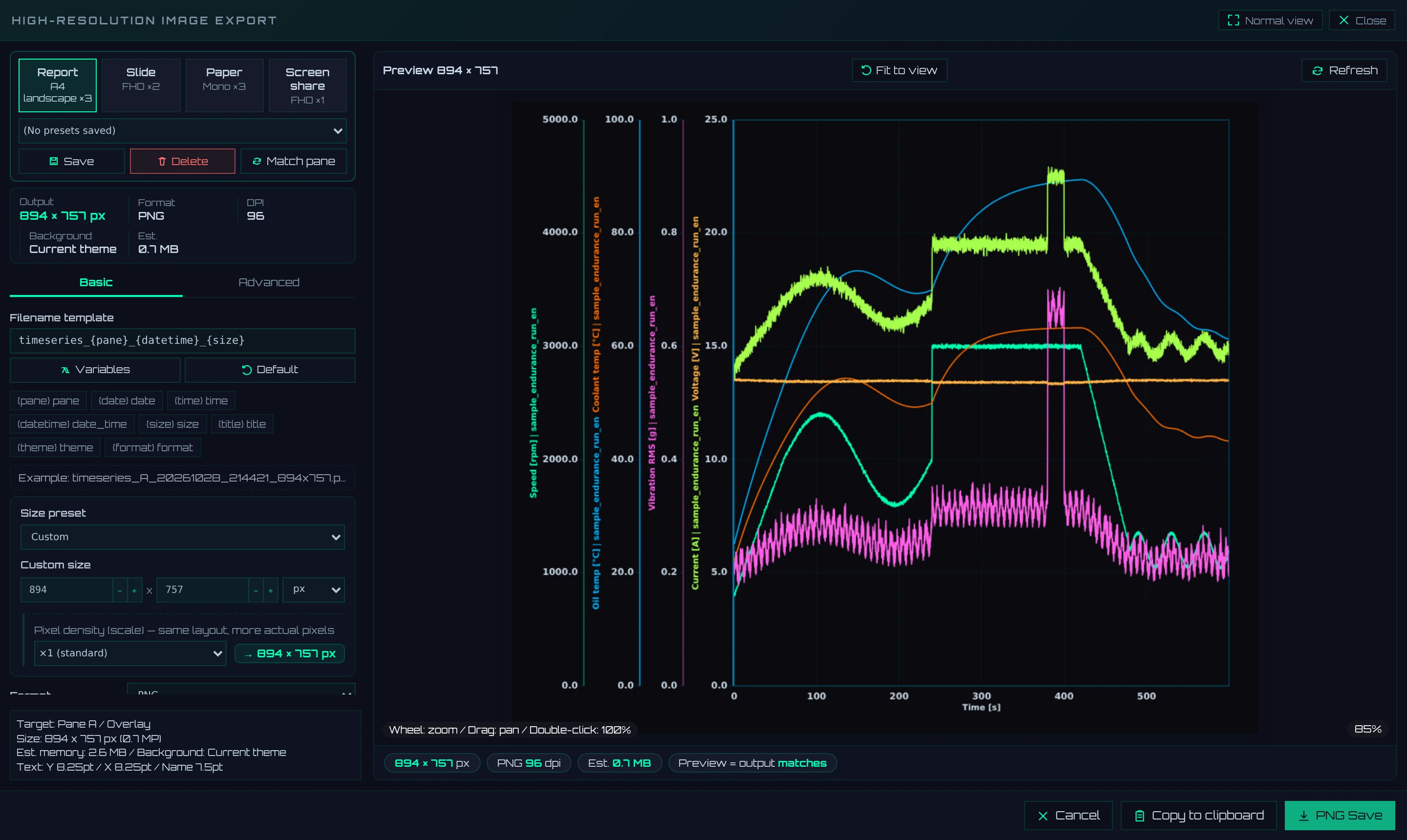
- 1Purpose cards: Click one to switch the size, density, and export theme all at once (described later)
- 2Summary: The output pixel dimensions, format, DPI, background, and estimated file size
- 3Filename template: How the name of the saved file is determined. An example name appears below
- 4Size: Set Size preset, Custom size, and density
- 5Information area: The target pane and display mode, the final pixel dimensions, and the estimated memory use
- 6Preview: Zoom with the wheel, move by dragging, and double-click for 100% view. Drag the edge to resize
- 7Save button: Shows the format name and Save. Copy to clipboard on its left is for pasting without creating a file
Right after opening, the size is the same as the graph on screen (×1 (standard), PNG). Settings changed on this screen remain while LOGADEC is open, even after you close the screen. To match the graph on screen again, click Match pane.
You can export Overlay, Stacked, and FFT graphs as images. Save XY analysis graphs from the XY analysis screen (Chapter 10).
Choose with a purpose card
If you are unsure, choosing one of the cards at the top settles things quickly. All cards use the PNG format.
| Card | Size | Density | Export theme | Output pixels |
|---|---|---|---|---|
| Report | 2456 × 1736 px | ×3 | For print (white background, dark lines, light grid) | 7368 × 5208 |
| Slide | 1920 × 1080 px | ×2 | Same as screen | 3840 × 2160 |
| Paper | 2456 × 1736 px | ×3 | Monochrome (for publication) | 7368 × 5208 |
| Screen share | 1920 × 1080 px | ×1 | Same as screen | 1920 × 1080 |
If you change settings after clicking a card, Modified appears at the top. You can keep settings you adjusted yourself under a name with Save below the cards. Recall kept settings from the list to its left.
Choose a format
| Format | Suitable use | Notes |
|---|---|---|
| PNG | Reports and slides. Lines and text stay crisp | DPI is written into the image |
| JPG | When you want a smaller file | The background cannot be Transparent. DPI is written into the image |
| WEBP | Images for the web | DPI is not written |
| SVG | When you want to edit lines or text later | Choose Vector (editable lines/text) (the initial choice) or Embedded image (legacy). Density is not used. Copy to clipboard copies the SVG together with a PNG of the same picture (apps that do not accept SVG paste the PNG) |
With Vector (editable lines/text), SVG exports lines and text as shapes. They do not become coarse when enlarged, and you can edit colors and text in Illustrator, Inkscape, and similar software. Only image parts such as spectrograms are embedded as images.
Size and DPI
How the size is set depends on the unit of Custom size.
| Unit | Meaning of width and height | DPI written into the image |
|---|---|---|
| px | Number of pixels | 96 × density |
| mm, inch | Printed dimensions. The number of pixels is determined by dimensions × Resolution (DPI) | Resolution (DPI) × density |
Density (×2, ×3) increases only the pixels, without changing the layout of the figure or the font size. Because DPI rises with the pixels, the size when pasted into Word or PowerPoint does not change.
The following table shows values of images actually exported.
| Setting | Image pixels | Image DPI | Size when pasted |
|---|---|---|---|
| 1200 × 800 px, ×1 | 1200 × 800 | 96 | About 318 × 212 mm |
| 1200 × 800 px, ×2 | 2400 × 1600 | 192 | About 318 × 212 mm |
| 170 × 100 mm, 300 DPI, ×1 | 2008 × 1181 | 300 | 170 × 100 mm |
| 170 × 100 mm, 300 DPI, ×2 | 4016 × 2362 | 600 | 170 × 100 mm |
| 170 × 100 mm, 600 DPI, ×1 | 4016 × 2362 | 600 | 170 × 100 mm |
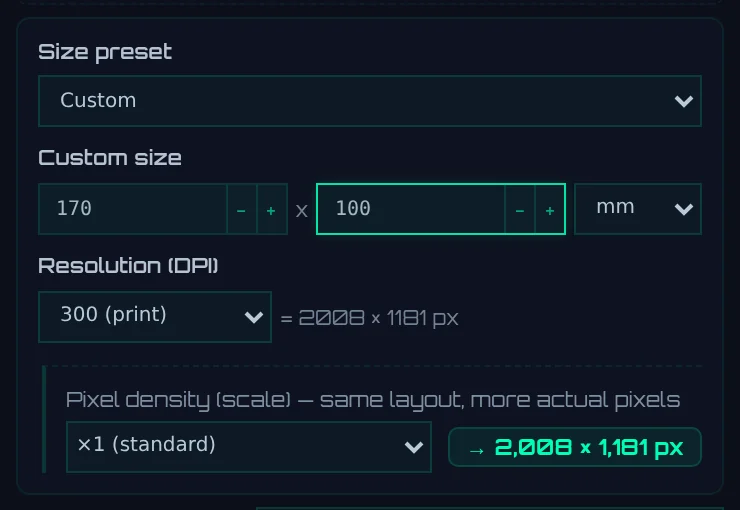
- 1Size preset: Choose a size such as A4 or Full HD
- 2Width, height, and unit: With the unit set to mm or inch, you can enter dimensions
- 3Resolution (DPI): Shown only when the unit is mm or inch. The number of pixels appears on the right
- 4Density: Increases only the pixels while keeping the dimensions
- SVG (Vector (editable lines/text)) is written at the drawn size. Density is not used. When the unit is mm or inch, those dimensions (for example, 170 × 100 mm) are written, so the image has the same size in the software you paste it into.
- The size limit is 8192 × 8192 px, or 50 million pixels (50 MP) in total. If exceeded, "The maximum is 8192 × 8192 px or 50 MP." is shown in the information area, and the save button cannot be clicked.
- The initial size for Stacked and FFT stacks the tiers vertically, as many as there are, at their on-screen tier height. The information area shows the number of tiers.
Add a title
When you check Embed title / caption, you can write a Title and Subtitle into the image. Choose how they are added in Mode.
| Mode | How it is added | Image size |
|---|---|---|
| Expand image (recommended) | Adds a band above (or below) the graph and writes there | The band height is added to the specified height |
| Semi-transparent band | Overlays a semi-transparent band on the graph | As specified |
The specified width × height does not include the title band. For example, if you add a title (24 pt) and a subtitle (14 pt) at 1200 × 800 px, the image becomes 1200 × 894 px (1200 × 866 px with the title only). You can check the final size in the information area and the example file name. When the background is Transparent, titles are added as Semi-transparent band even if Expand image (recommended) is selected.
What is included and what is not
- Only displayed series are included. Series unchecked on the Series tab, and series of sources hidden on the Sources tab, are not included.
- Legend: If Show legend is checked on the Display tab, the legend is included in the image too.
- Colors: With Export theme (does not affect the display), you can make only the image use a white background (For print (white background, dark lines, light grid)) or black and white (Monochrome (for publication)), leaving the screen colors as they are. Choose Background from Current theme, White, and Transparent.
- Other: You can also add an Annotation (drag on the preview to place it), a Watermark, and a Margin / border. Margins are taken inside the specified size. Font size, number of ticks, line widths, and so on can be changed on the Advanced tab.
File name and save location
The file name is determined by Filename template. The initial template is timeseries_{pane}_{datetime}_{size}, which gives names like timeseries_A_20261020_003548_1200x800.png. {size} is the final pixel dimensions including the title band and density (SVG with Vector (editable lines/text) uses the size without density).
| Variable | Contents |
|---|---|
| {pane} | The pane letter (A, B) |
| {date}, {time}, {datetime} | The date saved (20261020), the time (003548), or both |
| {width}, {height}, {size} | The image width, height, and widthxheight |
| {theme}, {format}, {ext} | The theme, format, and extension |
Year, month, day, hour, minute, and second can be inserted individually with {year}, {month}, {day}, {hour}, {minute}, and {second}. Click Variables to see the list of available variables. Clicking a variable button inserts it at the cursor position.
How files are saved differs by browser.
| Browser | How files are saved |
|---|---|
| Chrome, Edge | A save dialog opens, where you can choose the location and name |
| Firefox, Safari | Saved as a download. The location is determined by the browser's download settings |
Even in Chrome and Edge, in environments where the save dialog cannot be opened, the file is saved as a download, and the reason is shown at the bottom of the screen.
- In Chrome and Edge, the save dialog opens after the picture is ready. If preparing it takes a while, "The file is ready to save ({size}). Choose where to save it." appears; click Choose location to choose where to save. After writing, the file is read back and checked; if it was not written correctly, it is also saved as a download.
- The save dialog opens in the folder where you last saved that kind of file (images,
.lgdfiles, data export, and so on). Whether it still does so after you reopen LOGADEC depends on the browser.
When you set Export target to Pane A + Pane B, both panes of the two-pane layout (Chapter 5) are saved, one image each, with the same settings.
- In Chrome and Edge, you choose the destination folder. If a file with the same name exists in the folder, it is not overwritten;
_2,_3is appended to the name instead. - With a template that gives both images the same name (one without {pane}),
_Aand_Bare appended to distinguish them.
Save the screen as-is quickly (Capture)
Click Capture above the graph to open a small window. Choose Resolution and Format, and click Capture in the window to save the current graph as-is. The High-resolution image export screen does not open.

- 1Capture: Opens the window
- 2Resolution: Screen (the size visible on screen), ×1–×4, Max (up to the 8192 px limit, keeping the aspect ratio)
- 3Format: PNG, JPG, WEBP, SVG
- 4Capture: Saves
The image DPI is 96 × the scale, so the size when pasted is the same as the size visible on screen. For example, saving a graph 1160 px wide on screen at ×2 gives a 2320 px, 192 DPI image.
11.2Export values (Export Data)
Click Export data on the toolbar to open the data export screen. It exports the values of the series plotted on the graph to CSV, TSV, or Excel files.
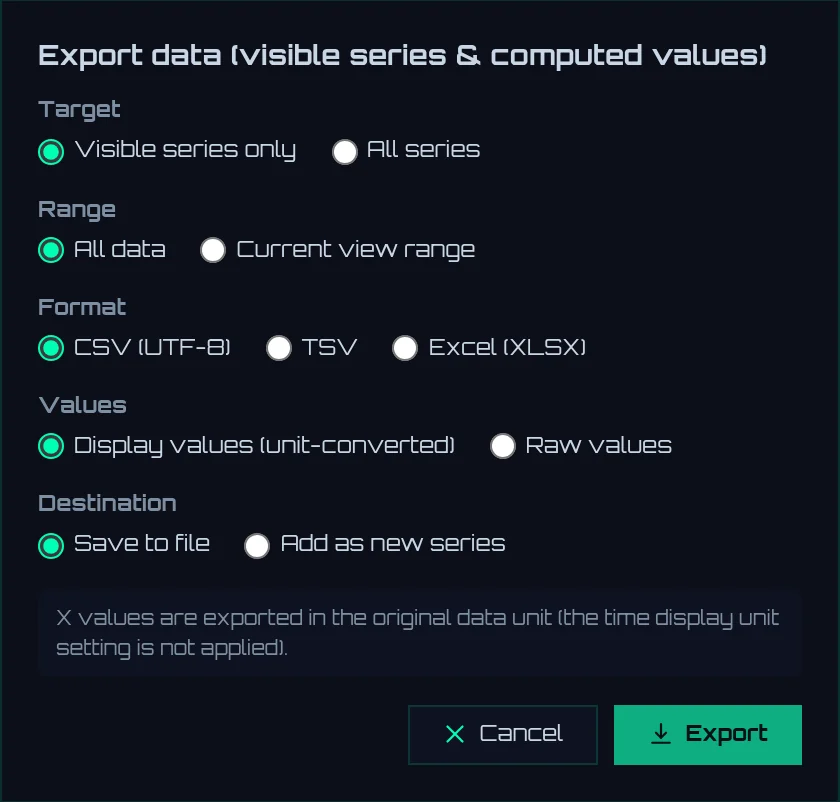
- 1Target: Visible series only or All series
- 2Range: All data or Current view range (the current X range)
- 3Format: CSV (UTF-8), TSV, Excel (XLSX)
- 4Values: Display values (unit-converted) or Raw values (table below)
- 5Destination: Whether to create a file or register the values as new series (described later)
- 6Export: Exports
Values exported
| Values | Values exported |
|---|---|
| Display values (unit-converted) | The values plotted on the graph: the values after Unit conversion / rename (pre-processing, scale, offset) and Filter |
| Raw values | The values as loaded. No conversion or filter is applied. Column names and units are also those at loading |
For example, for a pressure series with a conversion of scale 2 and offset 1, when the original value is 100, Display values (unit-converted) writes 201 and Raw values writes 100.
File layout
Row 1 holds the series names, row 2 the units, and the values start from row 3. Exporting the sample data gives the following beginning (up to column 3).
| Row | Column 1 | Column 2 | Column 3 |
|---|---|---|---|
| Row 1 (names) | Time | Speed [rpm]|sample_endurance_run_en | Oil temp [°C]|sample_endurance_run_en |
| Row 2 (units) | s | rpm | °C |
| Row 3 (values) | 0 | 800.6 | 25.06 |
- Each source gets its own X column. When two or more files are loaded, groups of "X column, then the columns of that source's series…" are placed side by side, one group per source. Rows are in the order of each source's 1st point, 2nd point, and so on.
- X values are after each source's zero alignment. X created with Generate from sampling interval at import is also written with its values.
- The X unit stays the unit of the original data. Switching the display unit of time on the Axes tab does not change the exported values.
- With Current view range, only points within the range are exported. Rows outside the range are not output. When there are two or more sources and, on the same row, some sources are inside the range and some outside, the value cells of the sources outside are left empty.
- CSV is written in UTF-8 (with BOM), so Japanese text does not appear garbled when opened in Excel. Excel files are written to the sheet "data". When exporting to Excel, if the number of cells (rows × columns) exceeds 2 million, a confirmation appears warning that it will take time (not for CSV or TSV).
- The file name is determined by Filename template of image export. The pixel size {size} becomes
0x0. - In Chrome and Edge, the save dialog opens after the file contents are ready. If preparing the file takes a while, "The file is ready to save ({size}). Choose where to save it." appears; click Choose location to choose where to save. After writing, the file is read back and checked; if it was not written correctly, it is also saved as a download (the same as for .lgd files).
Register as new series
When you set Destination to Add as new series, the values of the chosen range are added inside LOGADEC as new series without creating a file. Use this to cut out only the displayed range and handle it as separate data.
- The new series go into a new source whose name is the original source name with the prefix "Extract: ". The range (for example, [0-3]) is appended to each series name.
- In X values, choose Keep original X or Shift start to 0.
- The values are those chosen in Values. Format is not used.
- The registration can be undone with Ctrl + Z.
11.3Save the entire analysis state (.lgd file)
An .lgd file contains the loaded data together with the display and analysis settings. If you hand it to colleagues, they can open the same screen. When you review later, you can check under the same conditions.
| Contents | Details |
|---|---|
| Data | All loaded series, including hidden series. Series added by analysis or data export, and demo series, are included with their names unchanged. Values are as loaded, before filters and unit conversions |
| Settings | Per-series color, line, filter, and conversion; axes; display range; display mode; screen layout; view tabs; and the state of XY analysis |
| Presets and formulas | Range presets, series presets, display names, and formula definitions (formula values are recalculated when the file is opened) |
The original CSV or Excel files themselves are not included. An .lgd file is not a backup of the original files, so keep the original files separately.
Save
- Click Save on the toolbar. The What to save screen opens.
- Click Data and settings.
- Choose Numeric storage format (table below).
- In Chrome and Edge, a save dialog opens; choose the location and name. The initial name contains the date and time, like
logadec_dataset_20261020_004627.lgd.
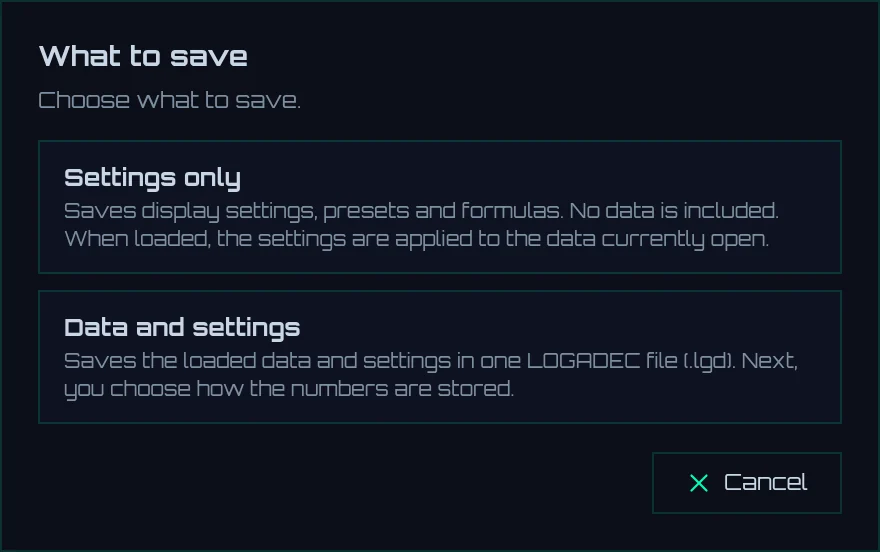
- 1Settings only: Saves only display settings, presets, and formulas (described later)
- 2Data and settings: Saves data and settings to an .lgd file
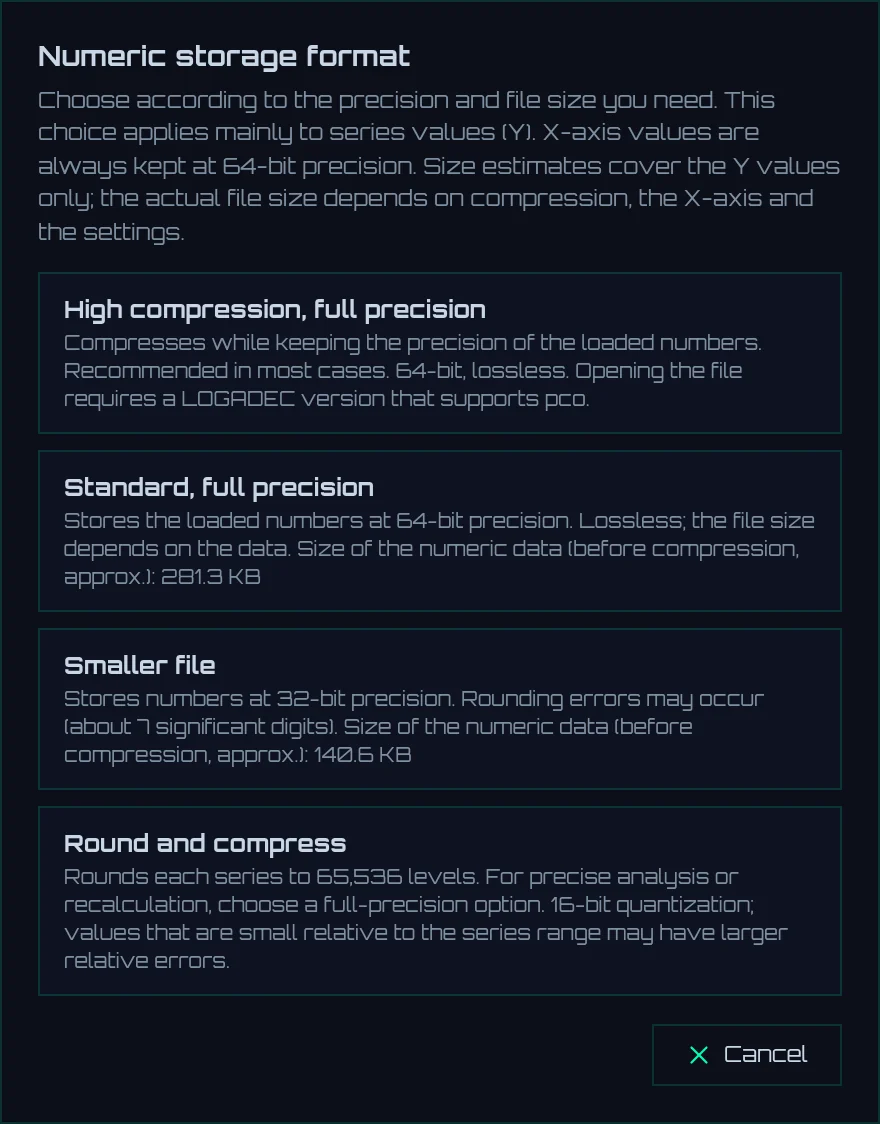
| Method | Description | File size with the sample data |
|---|---|---|
| High compression, full precision | Compresses to a small size while keeping 64-bit precision. Choose this normally | About 39 KB |
| Standard, full precision | Saves with 64-bit precision as-is | About 158 KB |
| Smaller file | Saves as 32-bit. About 7 significant digits | About 73 KB |
| Round and compress | Rounds the values of each series to 65,536 levels. Not suitable for precise analysis or recalculation | About 49 KB |
The first two save the loaded values without changing them at all. If you are unsure, choose High compression, full precision. With every method, X values are saved with 64-bit precision. The right column shows the sizes when saving the sample data (6 series of 6,000 points each, about 270 KB as CSV). Sizes vary with the data.
Saving again
After saving once, Ctrl + S saves again with the same method, without showing any screen. If you press Ctrl + S before saving for the first time, the Numeric storage format screen opens.
| Browser | How files are saved | Message after saving (bottom of the screen) |
|---|---|---|
| Chrome, Edge | Writes to the file chosen in the save dialog. Ctrl + S overwrites the same file | "Data and settings saved", or "Data and settings overwritten" when overwriting |
| Firefox, Safari | Saves as a download every time. The same file cannot be overwritten | "Download started. Please check where the file was saved" |
The method and file size are appended to the message. If the chosen file cannot be written, the file is saved as a download instead, and "Could not write to the chosen location, so the file is being downloaded instead." is shown.
- In Chrome and Edge, the save dialog opens after the file contents are ready. If preparing a large file takes a while, "The file is ready to save ({size}). Choose where to save it." appears; click Choose location to choose where to save.
- After writing, the file is read back and checked. If it was not written correctly, it is also saved as a download, and "The saved file did not read back correctly, so it was also saved as a download." is shown.
While saving
- Progress such as Finishing the file and the elapsed seconds are shown at the bottom right of the screen. Large data takes time.
- What is saved is the state at the moment saving started. Operating the screen during saving does not change the file contents.
- While saving, undo, redo, loading, and saving again are not available. If you try, "Please try again after saving has finished" is shown.
11.4Open .lgd files
Click Load on the toolbar and select an .lgd file. The import screen does not open; the saved state is restored as-is. The data currently open is replaced with the file contents.
- While loading, progress such as Reading the file…, Unpacking data…, and Drawing charts… is shown, along with the file name and elapsed seconds.
- For files with more than 200 series, displayed series are restored first. Series that are not displayed are restored when you display them or when the app is idle.
- When opening finishes, "Dataset loaded" is shown at the bottom of the screen.
- When opened in the free edition, up to 1,000 series are loaded. For files containing more series, you are notified after loading.
- An empty (0-byte) file or a file that was only partly saved cannot be opened. A message such as "This file is empty (0 bytes). Saving may have failed partway. If a file named "<name>.lgd.crswap" remains in the same folder, renaming it to end in .lgd may let you open it." is shown, and the data currently open stays as it is.
When there are unsaved changes
When you open an .lgd file or a settings file, the presets and formulas in it are used as that file's own (the formula screen shows "Formulas of "file name""). If you change these presets or formulas and then try to open another file or close the browser tab, a confirmation appears.
| Button | Action |
|---|---|
| Discard and open | Discards the changes and opens the other file |
| Cancel | Cancels opening. Save with Save first |
11.5Save and load settings only
You can save only display settings, presets, and formulas to a file (.json), without the data. Use this when you always want to view data of the same format in the same way. Saving settings is available in the free edition too.
Save
- Click Save on the toolbar.
- Click Settings only.
- In Chrome and Edge, choose the location and name. The initial name is like
timeseries_settings_20261020_004631.json.
After saving, "Settings JSON saved" is shown at the bottom of the screen.
Load
- Click Load on the toolbar and select a
.jsonfile. - The settings are applied to the data currently open. If no data is loaded, "Settings JSON loaded (no data)" is shown.
- If the settings still contain information about the files that were loaded when they were saved, you are asked whether to load those files again. Click OK to open a file selection screen. When you select a file, the import screen opens with the saved settings filled in; check them and click Import.