Chapter 10XY Analysis
XY analysis plots two series against each other on the horizontal axis (X) and the vertical axis (Y), drawing values at the same times as points. For example, with Speed as X and Current as Y, you can see in one chart how current increases as speed rises. You can also draw fitted curves through the points and get the equation and the goodness of fit (R²).
This chapter uses Speed and Current from the sample data sample_endurance_run_en.csv.
10.1Open XY analysis
Click Analysis on the toolbar at the top of the screen to show the time-series graph (Pane A) on the left and XY analysis on the right. XY analysis uses the data loaded in Pane A.

- 1Analysis: Switches to the screen that shows the time series and XY analysis side by side
- 2Time-series graph (Pane A): Linked to the XY points by time
- 3XY graph: Draws the points of the two selected series and the fitted curves
- 4Refresh, Capture, CSV: Redraws, saves an image, and saves the points as CSV
- 5Sidebar tabs: Data, Ranges, Display
| Tab | Contents |
|---|---|
| Data | Creates combinations of series for X and Y (called "pairs" in this chapter). Transforms, pre-processing, and fitted curves are also set here |
| Ranges | Specifies, with ranges, which times of the time series supply the points |
| Display | Sets the look of the graph: point size, ticks, text, margins, legend, and so on |
Points in the XY analysis bar is the number of points currently drawn. ≡ at the right end shows or hides the XY analysis sidebar.
10.2Create a pair
The first pair (a card on the Data tab) is provided from the start.
- Click the X field on the card to open the list of series in Pane A. Choose the series for X (for example, Speed). Enter part of a name to narrow the list.
- In the same way, choose the series for Y (for example, Current) in the Y field.
- When both X and Y are set, points are drawn on the XY graph.
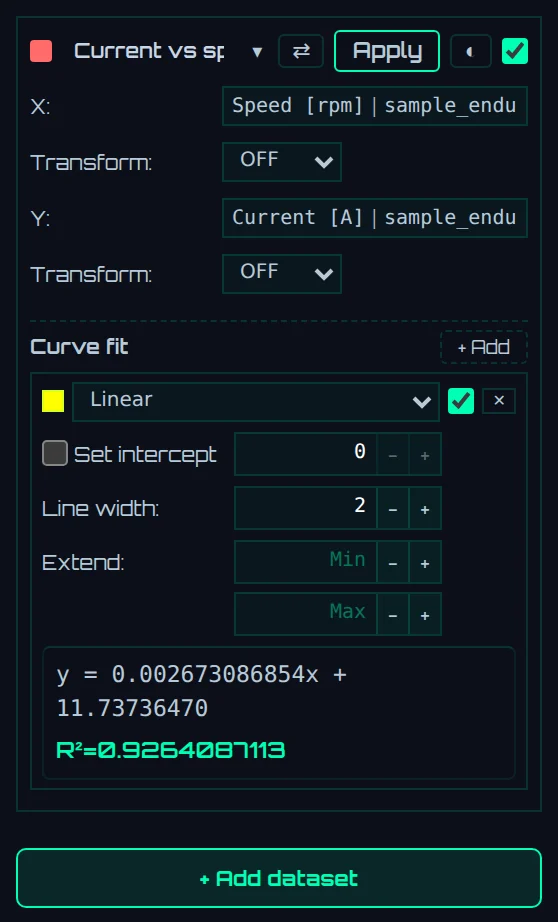
- 1Color and name: Choose the point color with the color square. The name is shown in the legend. If empty, "Y series vs X series" is shown
- 2⇄ (Swap X- and Y-axes), Apply (Apply this dataset definition to other sources), ◐ (Appearance (color, marker, line))
- 3Check box: Whether to display this pair
- 4X, Y: Fields for choosing series
- 5Transform: Applies calculations to the X and Y values (described later)
- 6Curve fit: Adds fitted curves (described later)
- 7+ Add dataset: Adds more pairs
- Collapse a card with ▾ to show it briefly in the form "Y vs X".
- When there are two or more pairs, you can delete one with ✕ on its card.
- Point values are the values visible on the time-series graph (after Unit conversion / rename and Filter).
- Points are drawn for all times of the series, regardless of the zoom of the time-series graph.
How times are matched
XY points are created one for each time of the X series.
| Case | How points are created |
|---|---|
| X and Y times are aligned (such as columns in the same file) | Values on the same row are paired as-is |
| Times are not aligned (different files, different recording intervals) | The Y value at each X time is obtained by linear interpolation from the Y values before and after it |
| The X time is outside the time range of the Y data | No point is created |
| The Y data has a time gap larger than 1.5 times its recording interval (median) | No points are created for times within that gap |
| The X or Y value is missing | No point is created |
For example, if Speed recorded at 10 Hz is X and outside air temperature recorded every second is Y, the air temperature is interpolated to values every 0.1 seconds and paired.
Line up data from different files
For the X and Y of a pair, you can choose series from any file loaded in Pane A. To overlay the first and second test runs on the same XY graph, create a second pair in one of the following ways.
- Click + Add dataset and choose series from the second file for X and Y.
- Click Apply on the first pair. On the Apply dataset definition in bulk screen, choose the Matching rule (match by name and unit, match by name, or partial match on name) and the Target data sources, and run it to create pairs of the same items for the chosen files. The transform settings are copied as well (fitted curves are not).
In every pair, the points carry the times of that pair's X series. Linking with the time-series graph (described later) also works with the correct times for each pair.
10.3Narrow down points with extraction ranges
Extraction ranges determine "which times of the time series supply the points used for XY". When you create ranges, only points at times within the ranges are drawn in XY, and only points within the ranges are used for fitted curves.
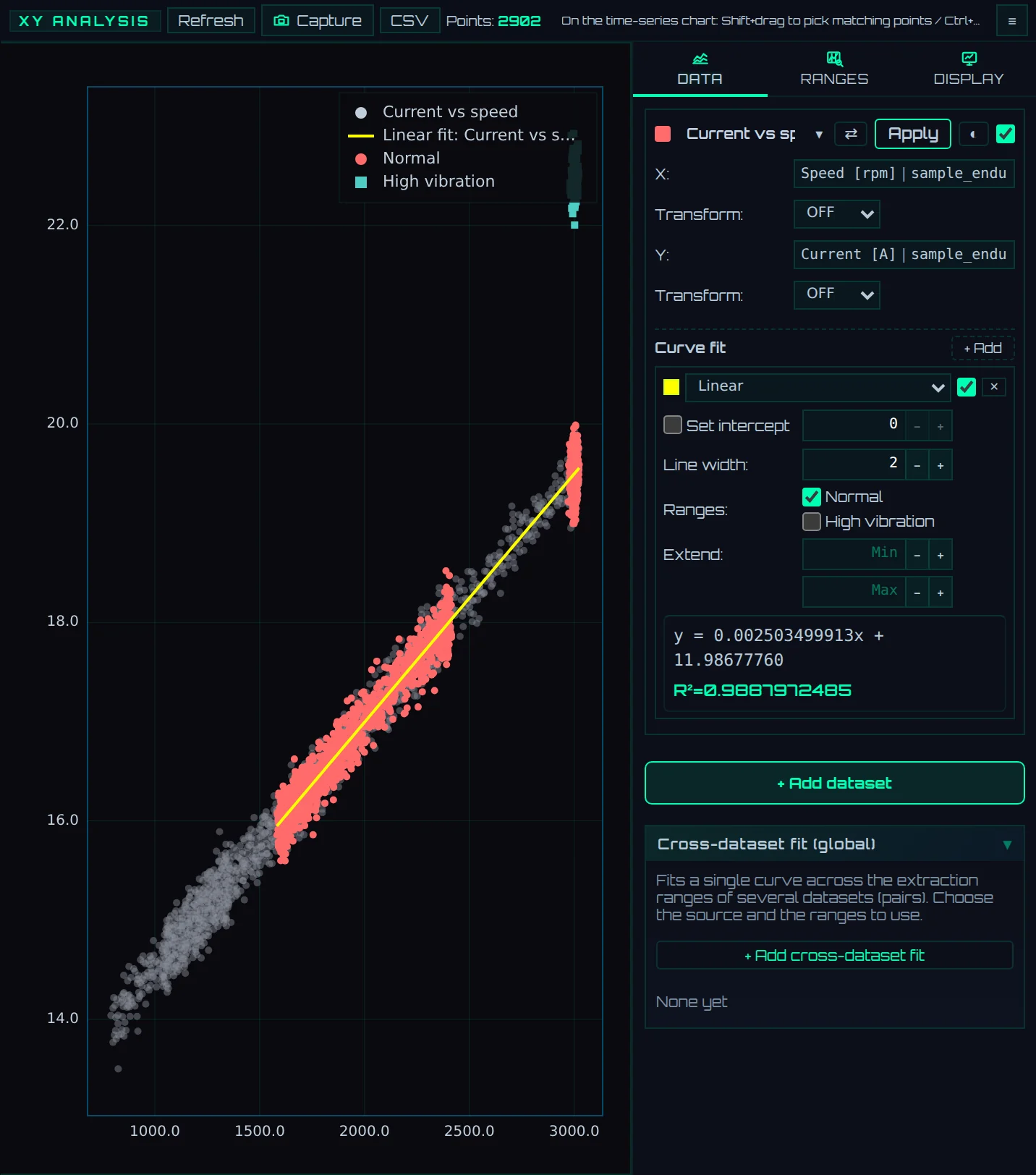
In the next figure, 100–370 seconds, where operation is stable, is a range named "Normal", and 380–400 seconds, where vibration increased, is a range named "High vibration". Points outside the ranges are drawn in gray.

- 1Point color and Show points outside ranges in gray: How points are colored, and how points outside the ranges are handled
- 2▸ Add numerically: Adds a range by numbers
- 3Range cards: The settings for each range, and statistics of the points within it
Create ranges
| Method | Operation |
|---|---|
| Create on the time-series graph | On the time-series graph, hold down Ctrl and drag horizontally |
| Create by numbers | Enter Start and Width, and click Add |
| Create consecutive ranges of the same width | Enter Start, Width, and Count (up to 50), and click Repeat. The specified number of ranges is created, each shifted by the width from the start |
- If you check Lock (Fixed-width mode (dragging moves the start only)) and enter Fixed width, dragging on the time-series graph creates a range of the fixed width from the position where you started dragging.
- Make all ranges the same width sets the width of all ranges to the entered Width (the starts do not change).
- The start and width of a range are specified in X values of the time series (seconds for the sample data). Points exactly at the start and end times are included in the range.
- When ranges overlap, a point belongs to the range higher in the list.
Range cards
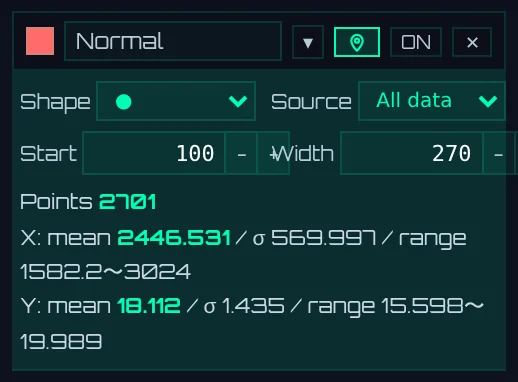
- 1Color and name: The name is shown in the legend
- 2▾ (open/close details), show the range on the time-series graph, ON/OFF (whether to use the range), ✕ (delete)
- 3Shape, Source, Start, Width
- 4Statistics: Points of the points within the range, and mean, σ, and range (minimum–maximum) of X and Y
| Setting | Description |
|---|---|
| Shape | The marker used to draw points within the range (9 kinds, such as ●, ■, and ▲). Each new range is assigned a different marker in turn |
| Source | The pair whose points this range narrows down. All data means all pairs. If you choose a specific pair, the points of other pairs are not affected by this range |
| Show the range on the time-series graph (pin icon) | Shows the range on the time-series graph as a colored band with its name |
| ON/OFF | A range set to OFF is used neither for narrowing down points nor in the legend |
σ in the statistics is the standard deviation, calculated with division by the number of points n (√(Σ(value−mean)²/n)). For the "Normal" range of the sample data, there are 2701 points, and X (Speed) has a mean of 2446.531 and σ of 569.997.
Color points by range and draw points outside ranges in gray
When there is at least one range, you can choose how points are colored at the top of the Ranges tab. You can also switch it from the menu that appears when you right-click an empty area of the graph.
| Point color | Point color | Point marker |
|---|---|---|
| By dataset (initial state) | The pair's color | The range's Shape |
| By range | The range's color | The range's Shape |
When you check Show points outside ranges in gray, points outside the ranges are also drawn faintly in gray. Gray points are not used for fitted curves, range statistics, or point selection. Even with ranges, you can see where points sit in the whole data, which is useful for comparing points from off-normal operation.
10.4Transforms and pre-processing
You can apply calculations to X and Y values before plotting them as points. For example, multiply current by voltage to get power, and look at its relationship with speed.
- Set Transform below the X or Y series to ON.
- If necessary, set Preprocess to ON, and enter Scale, Offset, and + Series.
- Choose the kind of calculation in Type, and choose the partner series and other settings as required by the type.

- 1Transform: When set to ON, the settings below open
- 2Preprocess: Applies a scale and offset before the calculation of the type
- 3Scale, Offset, + Series: Pre-processing values
- 4Type: The kind of calculation
- 5Target: The partner series to multiply, divide, add, or subtract
- 6A description of the calculation
Calculations are done in the following order.
- Preprocess: value × Scale + Offset + the value of the + Series series
- The calculation of Type
| Type | Calculation |
|---|---|
| None | Does nothing (choose this to apply only pre-processing) |
| Scale × value + offset | value × scale + offset |
| × series, ÷ series, + series, − series | Multiplies, divides, adds, or subtracts the Target series |
| Correction (δ/θ) | Corrects to standard conditions using pressure and temperature series (table below) |
| √ square root, 1/x reciprocal, | x |
- When the times of a partner series (+ Series, Target) differ, it is linearly interpolated to the times of the series being calculated. Outside its time range or at missing times, the result is also missing, and that point is not drawn.
- Square roots of negative numbers, natural logarithms of 0 or less, and division by 0 also give missing values.
- When you set Transform to OFF, pre-processing is not applied either. The settings remain, so setting it back to ON restores the original calculation.
- In the example in the figure, power is calculated in kW as Current × 0.001 × Voltage (the point at 13.768 A and 13.519 V is 0.18613 kW).
Correction (δ/θ)
Calculates δ = P / Pref and θ = T / Tref point by point from pressure P and temperature T series, and multiplies or divides values by them.
| Setting | Description |
|---|---|
| Pref, Tref | The reference pressure (kPaA) and temperature (K). Initially 101.325 kPaA and 288.15 K |
| Pressure, P unit | The pressure series and its unit (kPaA, kPaG, MPaA, MPaG, PaA, atm, psi). For gauge pressure (G), Atm. pressure is added to get absolute pressure |
| Temperature, T unit | The temperature series and its unit (K, ℃) |
| Apply | How the correction is applied (9 ways, such as ÷ δ and × δ/√θ). Correction guide ▸ shows correction formulas for commonly used quantities |
Points where the temperature is 0 K or below, and points at times when the set pressure or temperature series has no value, are made missing, and you are notified.
10.5Fitted curves
Draws fitted curves through a pair's points and shows the equation and R².
Add a fitted curve
- Add from the card: Click + Add under Curve fit on the pair card, choose a type, and check the box on the right (display).
- Add from the graph: Right-click a point and choose a type from Add fit. It is displayed immediately.

- 1Type: Choose the form of the fitted equation
- 2Check box: Whether to display it on the graph. Choose the line color with the color square on the left
- 3Set intercept: Fits with y at x = 0 fixed to the entered value
- 4Ranges: The ranges used for the fit (shown only when there are ranges)
- 5Extend: Extends the X range over which the curve is drawn beyond the data
- 6Results: The fitted equation and R²
Types of fit
| Type | Equation | Method |
|---|---|---|
| Linear | y = ax + b | Least squares |
| Polynomial | y = Σ aᵢxⁱ | Least squares. Order is 1–10 (2 at first) |
| Exponential | y = a·e^(bx) | Fits a straight line to ln y and x. Points with y of 0 or less are not used for the fit |
| Log | y = a·ln(x) + b | Fits a straight line to y and ln x. Points with x of 0 or less are not used |
| Power law | y = a·x^b | Fits a straight line to ln y and ln x. Points with x or y of 0 or less are not used |
| Moving average | No equation | Sorts the points by X in ascending order and draws a line averaging the Y of Window adjacent points. The window is 2–200 (5 at first). At both ends, only the available points are averaged |
| LOESS | No equation | A smooth line made by fitting straight lines piece by piece with weights on nearby points. span (0.05–1, 0.3 at first) is the proportion of nearby points used |
| Custom formula | Any equation | Enter Formula, Variables, and Initial, and the coefficients are found by iterative least squares (the Levenberg–Marquardt method). The allowed symbols are Allowed: x, +-*/^, exp/log/sin/cos/sqrt/abs/pow |
| Gaussian | a·exp(−(x−μ)²/2σ²) | Coefficients are found the same way as for a custom formula |
| Lorentzian | a/(1+((x−μ)/γ)²) | Coefficients are found the same way as for a custom formula |
- Instant types (Linear through Moving average) are recalculated immediately when the points or settings change.
- Advanced (iterative) types (LOESS through Lorentzian) are not calculated automatically. Click Run or Run optimization. If the points or ranges change after the calculation, The points or ranges changed. Press Run to recompute. appears next to the result; click the button again to recalculate.
- For Moving average and LOESS, click To formula to show an equation that represents the resulting line as a polynomial of Polynomial order (1–10, 4 at first). The R² shown then indicates how well the polynomial reproduces the original line.
The equation and R² shown
- Equation coefficients are shown with 10 significant digits.
- R² is calculated for the points used in the fit with the following equation (shown with 10 decimal places). ŷ is the value of the fitted equation, and ȳ is the mean of y. When all points have the same y (the denominator is 0), it is 0.
R² = 1 − Σ(y − ŷ)² / Σ(y − ȳ)²
- For exponential, logarithmic, and power fits too, R² is calculated with the original y values. Only the points used in the fit are used (for exponential, points with y greater than 0; for logarithmic, points with x greater than 0; for power, points with x and y greater than 0). If some points were not used, their number is shown next to the result.
- R² for Moving average and LOESS is calculated with the same equation, taking the value of the line as ŷ.
Example with the sample data
A linear fit of Speed (X) and Current (Y) gives the following.
| Points used for the fit | Equation | R² |
|---|---|---|
| All points (6000 points) | y = 0.002673086854x + 11.73736470 | 0.9264087113 |
| Only the "Normal" range (100–370 seconds, 2701 points) | y = 0.002503499913x + 11.98677760 | 0.9887972485 |
| All points, Set intercept 12 | y = 0.002560844928x + 12.00000000 | 0.9245799957 |
When all points are used, the slope becomes larger because it is pulled by the points at 380–400 seconds, where vibration increased (the points separated at the upper right). Restricting Ranges to "Normal" gives a line that fits the cluster of points well, and R² rises.
Set the intercept
When you check Set intercept, y at x = 0 is fixed to the entered value, and the remaining coefficients are found by least squares. It is available only for linear, polynomial, and exponential fits.
- For exponential fits, the value fixed is the coefficient a (y at x = 0). Set a to a value other than 0. Points where y / a is 0 or less are not used, and the number of points not used is shown next to the result.
- It is not available for logarithmic fits (no value at x = 0) or power fits (always 0 at x = 0).
Ranges and display range
- Ranges: Fits using only points within the checked ranges. If all are checked, points in all ranges are used.
- Extend: Enter X values in Min and Max to draw the curve beyond the data. The part outside the data is drawn as a dashed line.
- Line width: The thickness of the line (0.5–5).
Cross-dataset fit (global)
This is at the very bottom of the Data tab. Click + Add cross-dataset fit and choose pairs and ranges in Source (dataset × ranges) to draw one fitted curve through the points of the chosen pairs together. Use it, for example, to fit the points of the first and second test runs together. When the X or Y items or units of the chosen pairs differ, a caution is shown.
10.6View and adjust the graph
Mouse operations
| Action | Effect |
|---|---|
| Wheel inside the graph | Zooms X and Y together around the mouse position |
| Wheel over the X-axis tick numbers | Zooms only X |
| Wheel over the Y-axis tick numbers | Zooms only Y |
| Drag | Moves in both X and Y directions |
| Drag with the right button | Zooms in on the enclosed area |
| Double-click inside the graph | Returns to the full view |
| Click near the numbers at either end of the X or Y axis | Enter that end's value as a number |
| Shift + drag | Selects the enclosed points (described later) |
| Place the mouse on a point | Shows the pair name, X and Y values, and time |
Resize the frame
When you hover over the left, top, or bottom edge of the graph frame, a handle lights up. Drag it to change the margin on that side and resize the graph frame. Double-click the handle to restore the original margin. You can also set the margins as numbers with Padding (px) on the Display tab.
Move the legend or place it outside the graph
- The legend inside the graph can be moved by dragging. Drag its lower-right corner to change its width.
- Under Legend on the Display tab, you can choose Inside the chart, Outside (right), or Outside (below) for Placement. Placing it outside makes the graph smaller by the size of the legend, so points and the legend do not overlap.
- Double-click the legend to open the legend settings on the Display tab.
- To restore a moved legend, right-click an empty area of the graph and choose Reset position and size.
Change the look of points and legend by right-clicking
Right-click a point or a pair's row in the legend to open the menu for that pair. You can also open the same menu from ◐ on the card.
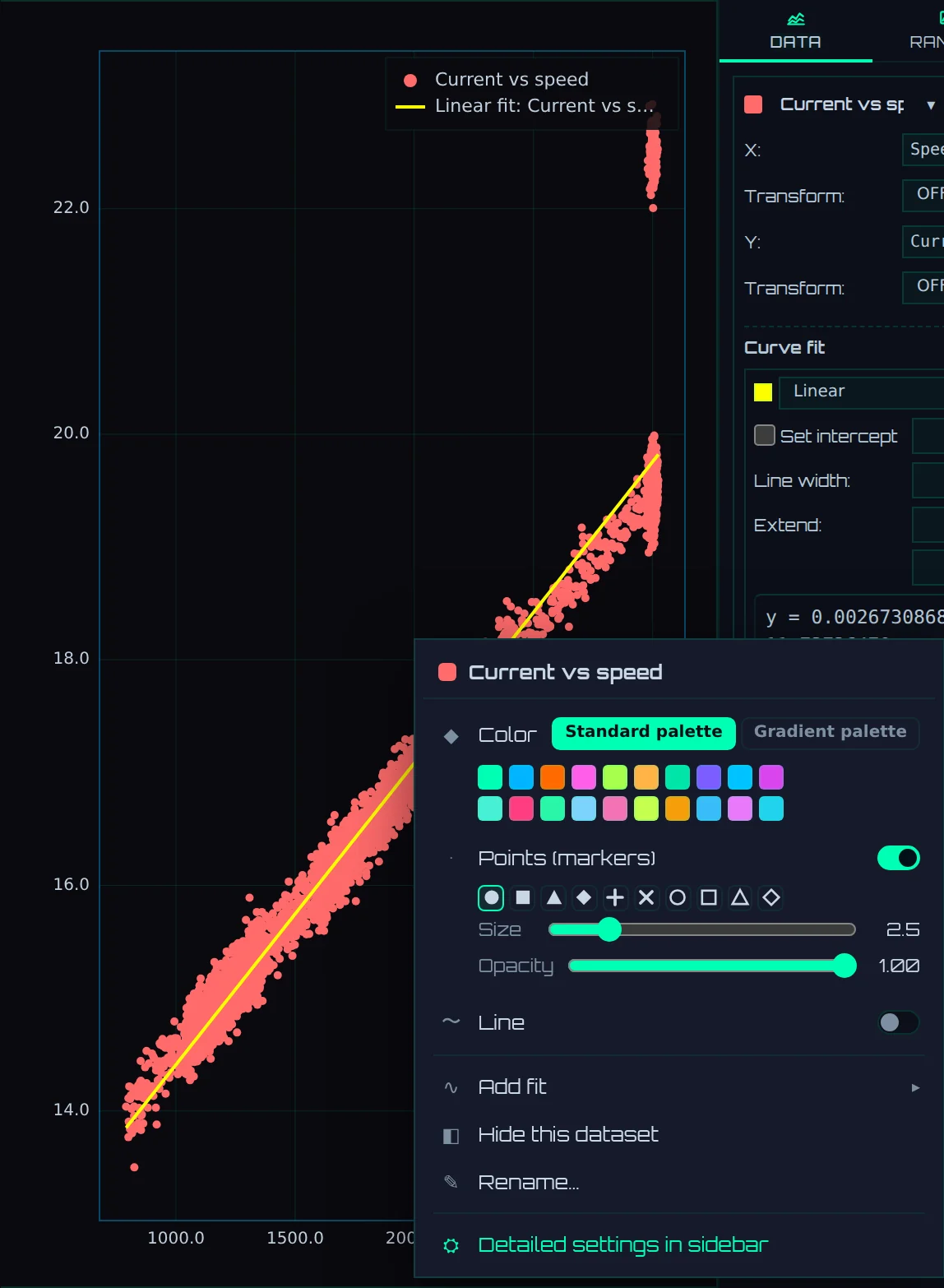
- 1Color: Chooses the pair's color
- 2Points (markers): Whether to draw points, and the marker, Size, and Opacity
- 3Line: Whether to connect points with a line in time order, and the line style and Line width
- 4Add fit: Adds a fitted curve
- 5Hide this dataset, Rename…, Detailed settings in sidebar
Right-clicking an empty area of the graph opens a menu with Legend settings…, Reset view, Point color (when there are ranges), Save as image, Save as CSV (selected points only, if any), and Chart settings (Display tab).
Change axis names and ranges
Double-click the band of tick numbers (or the axis name) of the X or Y axis to open the settings window for that axis. Right-clicking the same place also opens it.
![The X-axis settings window ("Speed [rpm]" entered as the axis name)](shots/c10-axis.webp)
- 1Axis title: The axis name
- 2Auto name: When the X (Y) of all pairs is the same series, uses that series name as the axis name
- 3Title color / size: The color and font size of the axis name
- 4Min, Max: The axis range. Auto returns to a range fitted to the data
- 5Log, Decimals, Step: Logarithmic axis, the number of decimal places of the tick numbers, and the tick interval
What you enter appears on the graph immediately. Confirm with Enter or OK, and return to the state before opening with Esc or Cancel. On a logarithmic axis, points with values of 0 or less are not drawn, and the number of points not drawn is shown at the lower left of the graph.
The Display tab
It is divided into the sections Drawing, Grid & frame, Text, X-axis, Y-axis, Padding (px), and Legend. Here you set point size and transparency, tick line style and color, font size and font, axis ranges and ticks, the legend position, number of columns, and font size, and so on. Appearance changed per pair by right-clicking takes priority over these common settings.
10.7Undo operations
XY analysis operations can be undone with Ctrl + Z and redone with Ctrl + Y. The main operations covered are the following.
- Adding ranges (Ctrl + drag, adding by numbers), changing and deleting them, and switching how points are colored
- Adding and deleting fitted curves, and changing their settings
- Transform and pre-processing settings
- Changing colors, markers, and lines from the right-click menu, dragging the legend and frame, and the axis settings window
- Settings on the Display tab
Undo in XY analysis does not rewind the state of the time-series graph. Undo steps back through the same history as operations on the time-series side, so it may go back as far as operations done on the time-series side before the XY operations (such as switching the screen layout).
10.8Link with the time-series graph
The XY graph and the time-series graph are connected by time.
| Action | Effect |
|---|---|
| Hover over an XY point | Shows a vertical line (light-blue dashed line) and the time on the time-series graph at that point's time |
| Hover over the time-series graph | Indicates the points at that time on the XY graph with crosshairs and a ring (for each pair) |
| Click an XY point | Keeps showing that time. Click the same point again or click an empty area to release it |
| Shift + drag on the time-series graph | Selects the points of that time span in XY |
| Shift + drag on the XY graph | Selects the enclosed points and shows their times on the time-series graph |
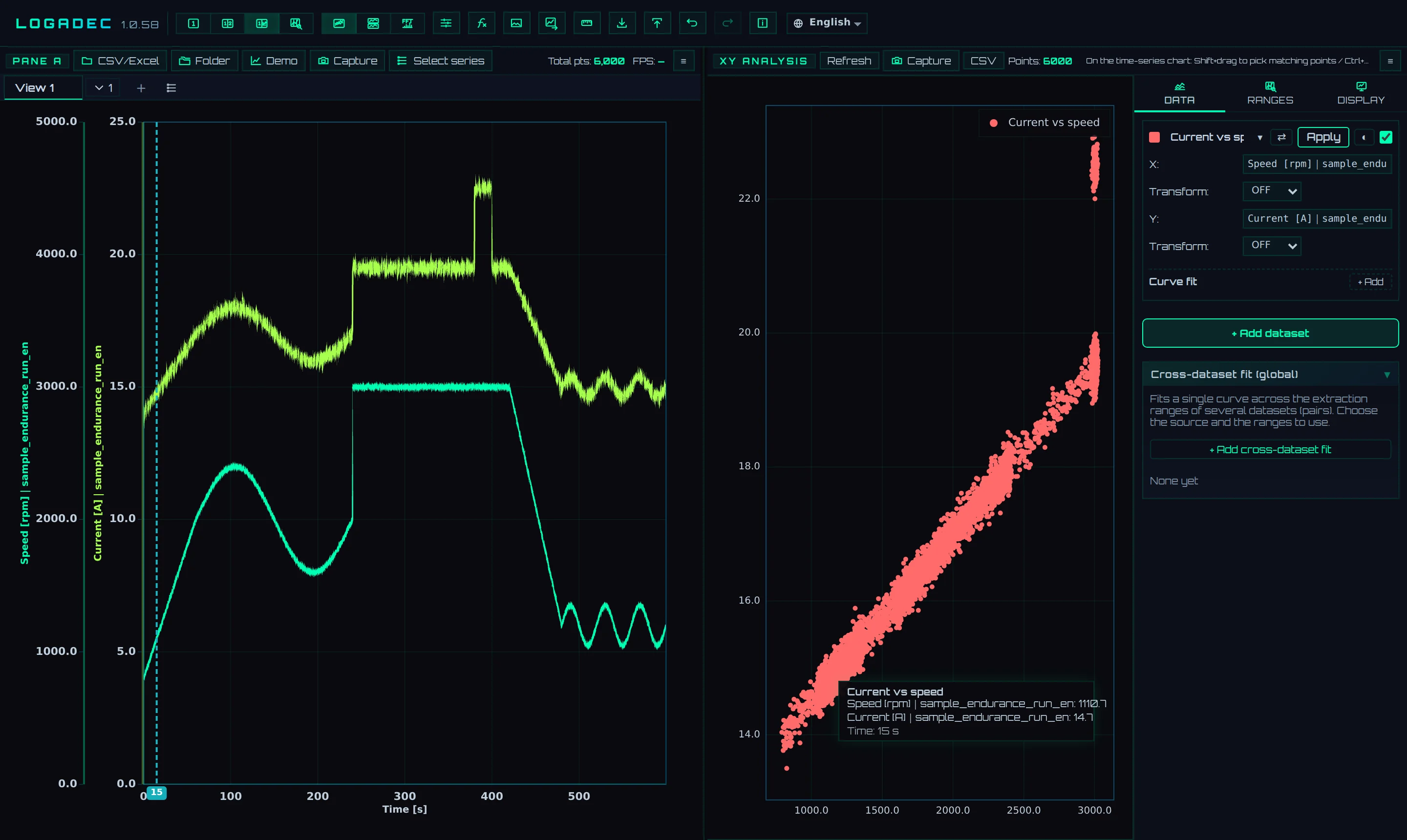
- 1Point information: The pair name, X and Y values, and time
- Selected points are highlighted with rings, and other points fade. Clear the selection with Clear selection in the XY analysis bar or by clicking the XY graph.
- You can export only the selected points to CSV (next section).
10.9Export
Save as an image
Click Capture in the XY analysis bar to open a small save window.
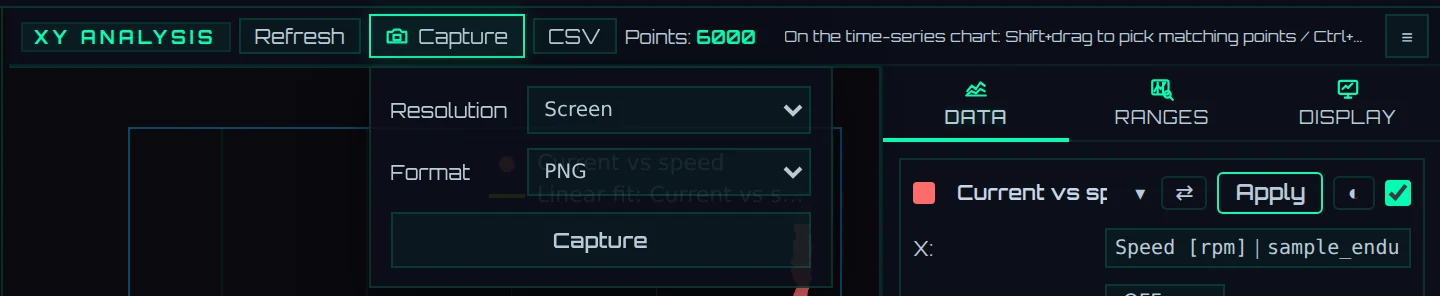
- 1Capture: Opens the small window
- 2Resolution: Choose from Screen, ×1–×4, and Max
- 3Format: Choose from PNG, JPG, WEBP, and SVG
- 4Capture: Saves with these settings
- The image is the XY graph exactly as seen on screen (points, fitted curves, legend, axes). The crosshairs and rings that follow the mouse are not included.
- SVG is exported in a vector format whose lines and text can be edited afterward.
- The file name starts with
XY_. - You can also save by right-clicking an empty area of the graph and choosing Save as image.
Save points as CSV
Click CSV in the XY analysis bar to open a small CSV window.

- 1CSV: Opens the small window
- 2Target: All points or Selected points (Shift+drag) (available only when points are selected)
- 3Save CSV: Saves
The CSV contains the points of the displayed pairs, one point per row.
| Column | Contents |
|---|---|
| Pair | The pair name (the name in the legend) |
| Time | The time of the point (the time of the X series) |
| X, Y | The point values (after transforms) |
| Range | The name of the range containing the point. Gray points outside the ranges are Outside ranges |
- Gray points outside the ranges are included only when Show points outside ranges in gray is checked.
- The character encoding is UTF-8 with BOM. Text does not appear garbled when opened in Excel.
- The file name is
XY_points_<date>.csv. - You can also save by right-clicking an empty area of the graph and choosing Save as CSV (selected points only, if any). When points are selected, only the selected points are included.