Chapter 16Report templates
Make a report in a fixed format with one button. Save which tabs and presets to include, in what order and with what headings, as a "template". After you load the data, choose the template and press Create report.
A template stores only the names of the tabs and presets, plus the heading and look settings. The charts are drawn again from the data that is loaded when you make the report. This suits the case where you load the record of the same kind of test each time and make a report in the same format.
The result is a single HTML file. It is laid out at A4 paper size, so you can open it in a browser and print it on paper or to PDF.
16.1Making a report
- Load the data and prepare the views to include as view tabs (Chapter 3) or item presets (Chapter 6)
- Press Report on the toolbar
- Create a template with + New, then add pages with Tab, Preset or Text in + Add a page:
- Press Check to find pages that cannot be made with the current data
- Press Create report and choose where to save
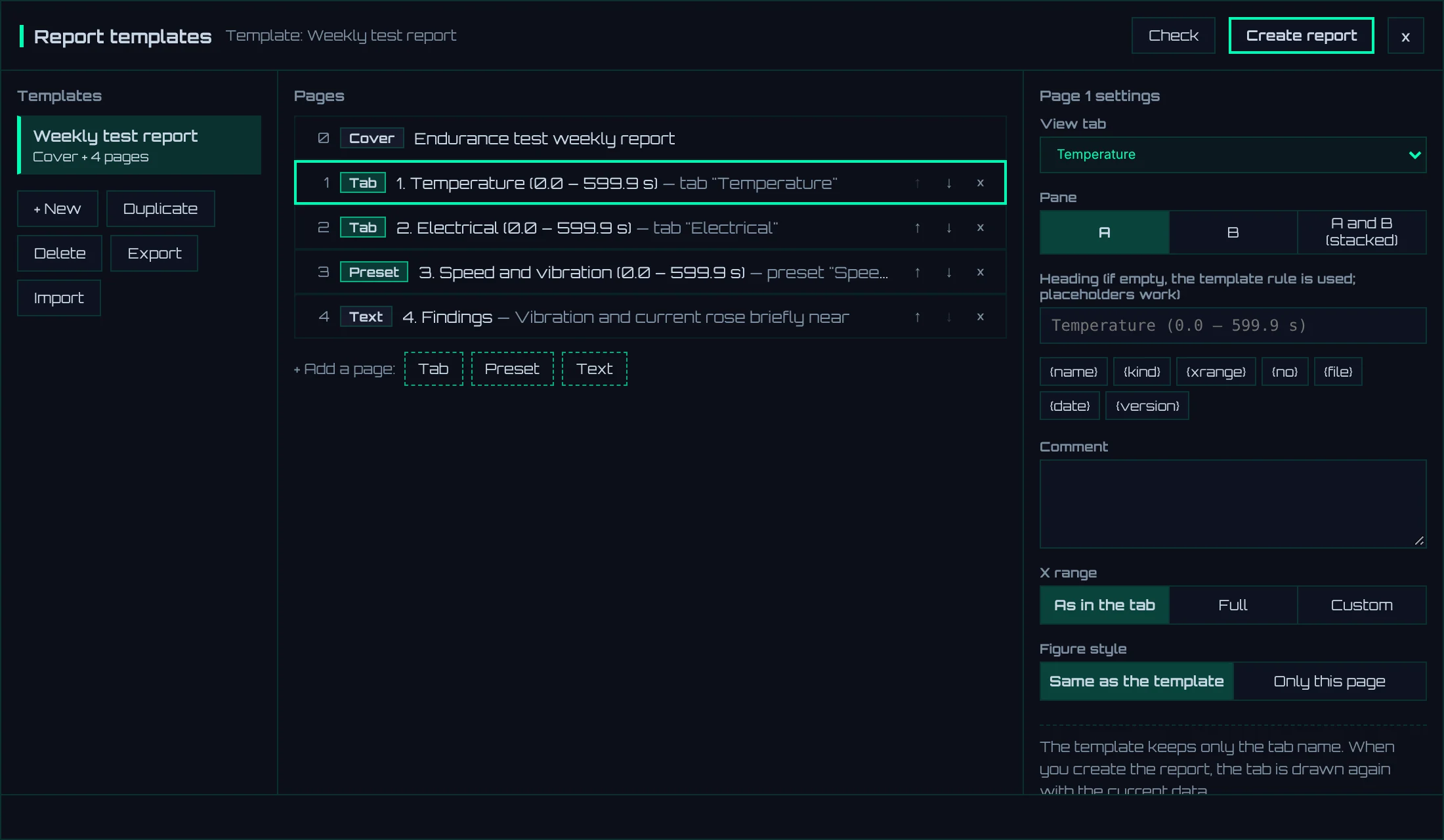
- 1Templates: the templates you made. + New, Duplicate, Delete, Export, Import
- 2Pages: the first row is Cover, then the pages. Each row shows the expected heading and whether the page can be made
- 3+ Add a page:: adds a Tab, Preset or Text page
- 4Settings of the selected row (the template settings for the Cover row, the page settings for a page row)
- 5Check and Create report
16.2Page kinds
| Kind | What the page shows |
|---|---|
| Tab | The view of a view tab (series, X range, display settings). For a two-pane tab you can choose A, B or A and B (stacked) |
| Preset | The current tab with an item preset applied. Choose the X range from As in the preset, Full or Custom |
| Text | Text only (findings, test conditions and so on) |
Tab and Preset pages can have a Comment. Change the order of the pages with Move up and Move down on each row.
Making a report does not change the screen. Tabs and presets are switched only while the pages are drawn; afterwards the view and the undo history are restored.
16.3Template settings (cover, headings, look)
Press the Cover row at the top of the page list to show the template settings.
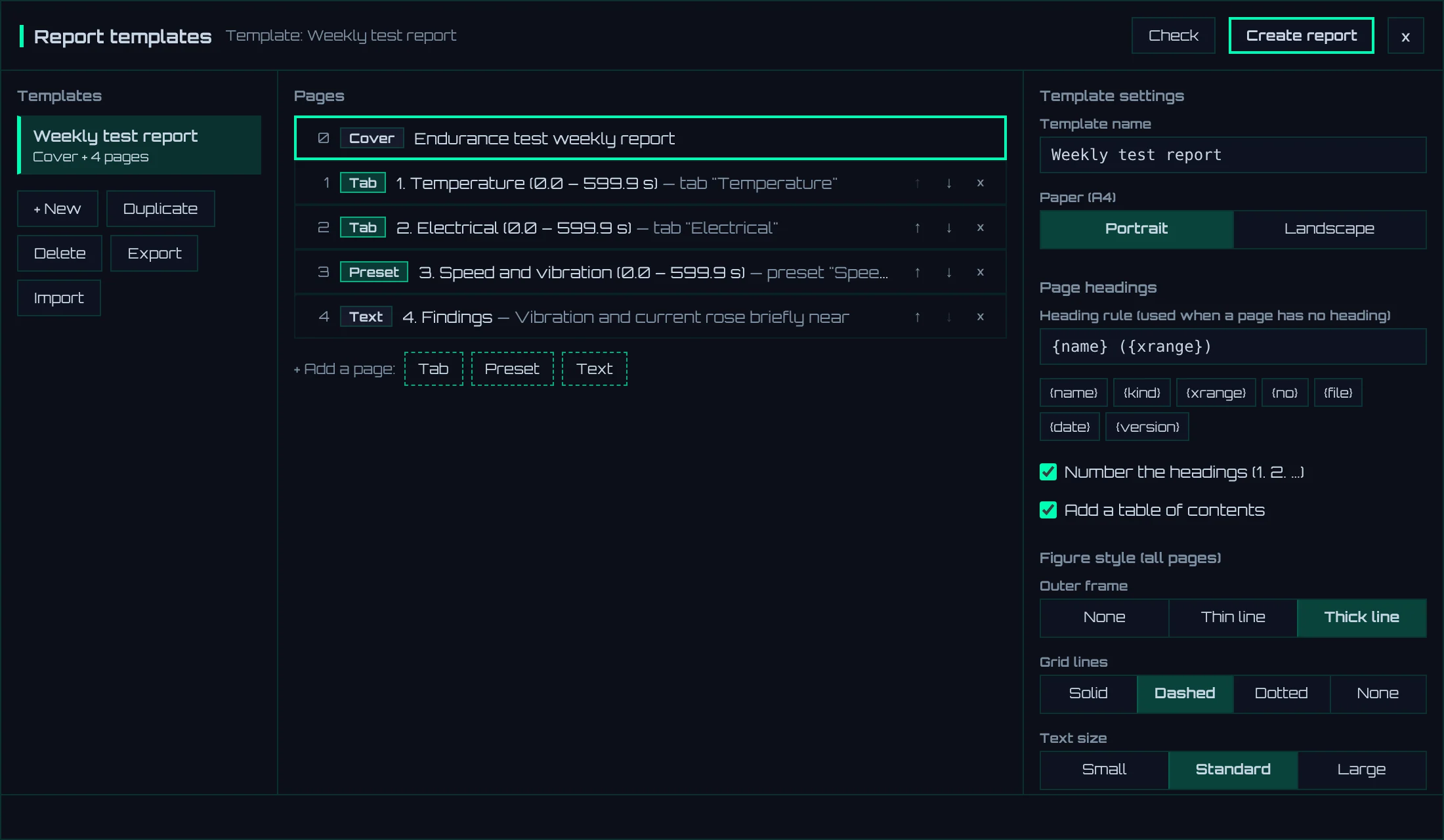
- 1Template name and Paper (A4) (Portrait / Landscape)
- 2Cover: Title, Subtitle, Author, Logo (optional), Add sign-off boxes (Prepared, Checked, Approved)
- 3Page headings: Heading rule (used when a page has no heading) and the placeholder buttons
- 4Figure style (all pages): frame, grid, text, lines, legend and chart height
The date on the cover and the data box (file names, number of series, rows, X range) are filled in when the report is made.
Heading rule and placeholders
A page whose heading is empty gets its heading from the Heading rule (used when a page has no heading) of the template. The default is {name}, so the name of the tab or preset becomes the heading. Write a Heading (if empty, the template rule is used; placeholders work) on a page to give that page its own heading.
Insert placeholders with the buttons below the field. They are replaced when the report is made:
| Placeholder | Replaced with |
|---|---|
{name} |
The name of the tab or preset ("Text" for a text page) |
{kind} |
Tab, Preset or Text |
{xrange} |
The X range actually drawn on that page (for example 0.0 – 599.9 s) |
{no} |
The page number |
{file} |
The file names of the loaded data |
{date} |
The date the report is made |
{version} |
The LOGADEC version |
For example, {name} ({xrange}) gives a heading such as "Electrical (0.0 – 599.9 s)". The Japanese screen uses {名前}, {種類}, {X範囲}, {番号}, {ファイル名}, {日付} and {版}; both spellings are replaced.
Number the headings (1. 2. …) and Add a table of contents can each be turned off.
Look of the charts
Figure style (all pages) applies to the charts on every page of the template. Whatever the screen theme, the charts are drawn on a white background with colors for printing.
| Item | Choices |
|---|---|
| Outer frame | None, Thin line (default), Thick line |
| Grid lines | Solid, Dashed, Dotted, None |
| Text size | Small, Standard, Large |
| Line width | Thin, Standard, Thick |
| Legend | As on screen, Show, Hide |
| Figure height | Low, Standard, Tall |
To change the look of one page only, set Figure style of that page to Only this page. It starts from the look of the template.
16.4Check and make
Check finds the pages that cannot be made with the current data and shows the reason in the page list (for example No tab chosen, or the series of a preset are not in the current data). You can make the report even then; those pages show the reason instead.
Create report draws the pages in order and saves them as an HTML file.
- The paper is A4 in the Paper (A4) of the template. When you open the file in a browser and print it, each page fits one sheet. To make a PDF, choose saving as PDF in the print dialog
- The chart images are inside the file, so a single file can be passed on
- In the Free edition, the bottom of each page shows "Made with LOGADEC" and the version
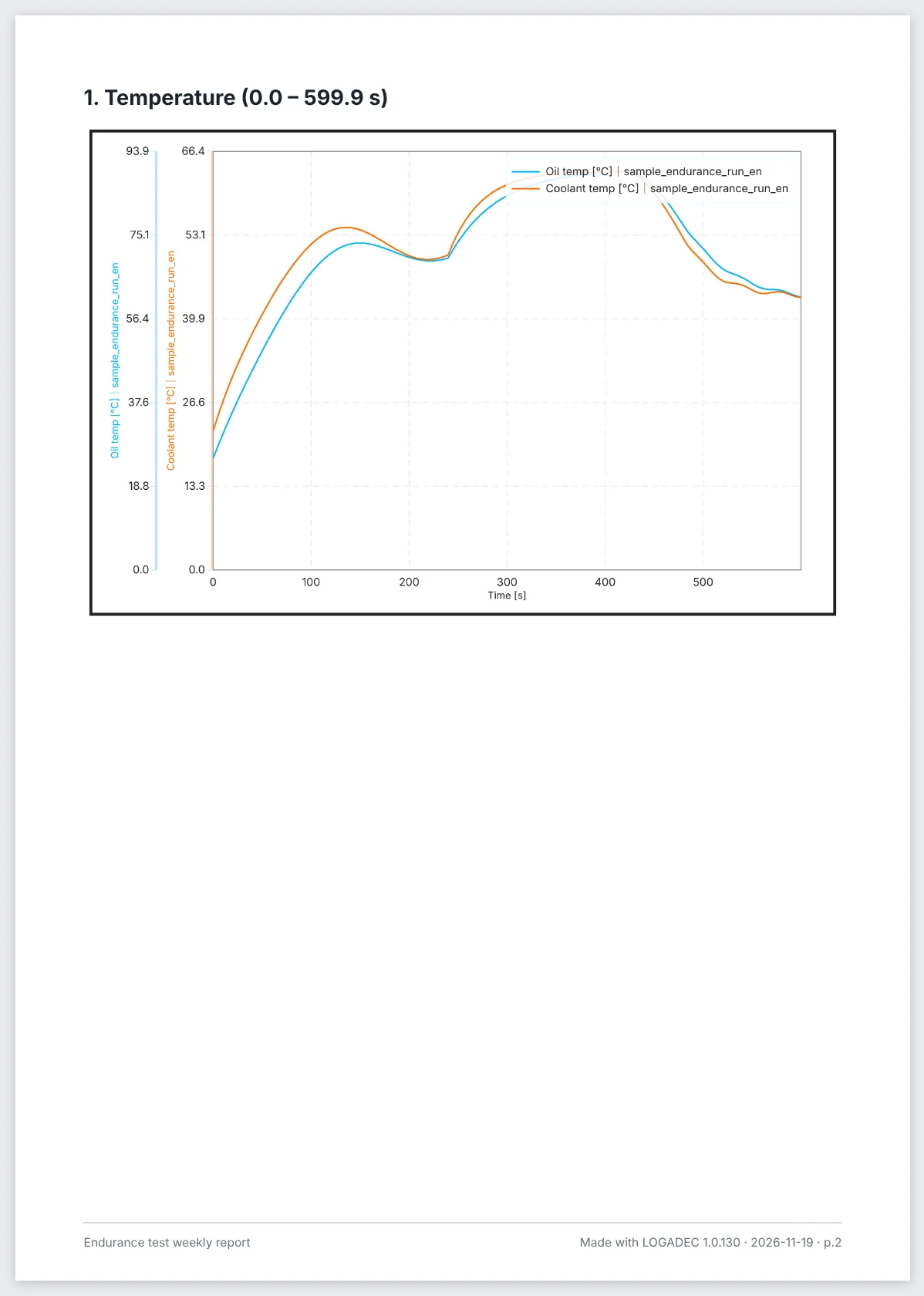
- 1The page heading, numbered. Made with the heading rule `{name} ({xrange})`
- 2The chart (frame around the whole chart, colors for printing)
- 3The bottom of the page: the template title, the date and the page number
16.5Sharing templates
Templates are saved in this browser. To pass them to another PC or to colleagues, use one of these:
- Export: writes the selected template to a file (.json). The receiver adds it with Import. If a template with the same name exists, it is added under another name
- The settings file (Chapter 11): saving it includes the templates. Loading a settings file adds only templates whose names are not there yet (your templates are not overwritten)